Cloudways MCP can do a lot more than list servers and check status.
Once you’re connected, it can back up an app, restart a service, scale a server, or clone an entire environment, all from a single typed prompt. This article is the working reference for that full range, and it builds directly on where the series started.
Article 1 proved the concept with a handful of prompts. This article picks up from there and covers the full default toolset: the 65 tools available the moment you connect, with no toolset-switching required.
Before You Start
Several prompts below change something on your server or app, not just report on it. Backing up, scaling, restarting, and deleting all require a Cloudways Access Token with Limited Access or Full Access scope. If your token is Read-Only, these prompts will fail, and that’s expected behavior, not a bug.
If you connected using a Read-Only token from Article 1, create a new one before trying the action prompts here.
With that in mind, start where every troubleshooting session should start: seeing what you actually have.
Seeing What You Have (Server & App Visibility)
Before you change anything, know what you’re working with.
Your Whole Fleet at a Glance
“Show me all my running servers” calls the server_list tool. It returns every server on your account with its status, cloud provider, region, IP address, and how many apps it’s hosting.

For an agency, this one prompt replaces logging into the account and scanning through a server list page for every client.
The AI also handles natural filtering without needing a separate tool for it.
Try “show me only the servers hosted on DigitalOcean,” and it narrows the same server_list result to match. You don’t need to know a filter parameter exists. You just describe what you want.
One detail in the response is easy to overlook: app count per server. If a server is hosting far more apps than the others, that’s often the first sign it’s carrying more load than it should, well before you’d catch it on a usage graph.
Zooming Into One Application
Once you know which server you care about, “show details of server [ID]” calls server_get. It returns the full configuration for that server and every app hosted on it. This is the right prompt when a client asks “what’s actually running on my server,” since it answers that question directly rather than making you cross-reference two screens.
To go one level deeper, “show details of my WordPress app” calls app_get, which returns that specific app’s configuration.
If a server hosts more than one app, and you’re not sure which one you mean, start with “list all applications on server [ID],” which calls app_list. Most app-level tools need a specific app identified, not just implied, so this is worth running first whenever you’re not certain.
This is also where vague prompts go wrong most often. If you have three client sites on one server and you say “check my app,” the AI has no way to know which one you mean. Naming it explicitly, like “my staging site for Client X,” avoids that ambiguity entirely.
Backups: Protecting Yourself Before You Touch Anything
The next few sections walk you through changing things: restarting services, scaling servers, cloning apps. Before any of that, build the habit that should come first: back up.
Backing Up Before You Touch Anything
“Back up my production app before I push changes” calls app_backup. It creates a point-in-time backup of that specific app.
For anything bigger than a single app change, “create a full backup of server [ID]” calls server_backup, which backs up every app on that server at once. This is the right call before a server-level change, like scaling or a package upgrade, since it protects everything on the box, not just one site.
Make this a habit rather than a one-off. Every prompt in the day-to-day ops” examples from Article 1 is safer with a backup prompt running first. It costs one extra sentence, and it’s the difference between a mistake being annoying and a mistake being a client-losing event.
Checking Progress and Restoring
Backups, along with most other actions that take real time, run in the background. “Is my backup finished?” calls operation_status, and it works for any async operation, not just backups. The same prompt pattern checks on a clone, a scale, or a restore in progress. You don’t need a different prompt for each one.
If something does go wrong, “restore my app to the last backup” calls app_restore. Since I have a WordPress app on my server, I can be more specific and ask, “restore my WordPress app to the last backup”.
And if the restore itself turns out to be the wrong move, “undo that restore” calls app_restore_rollback. This is the detail most readers don’t know exists until they need it in a moment of panic, and it’s worth remembering now, before that moment happens.
Keeping Things Running (Service Control)
Checking Health
“Are all services healthy on my production server?” calls service_status, which reports on NGINX, MySQL, PHP-FPM, and whatever else is running, all in one call.
Run this first when something feels off but you don’t know where to look yet, before reaching for a monitoring graph.
It’s worth being clear about how this differs from server_get, since the distinction isn’t obvious from the tool names alone. server_get tells you what’s configured. service_status tells you what’s currently running and whether it’s healthy right now. One is a blueprint, the other is a pulse check.
Restarting Without the Dashboard Detour
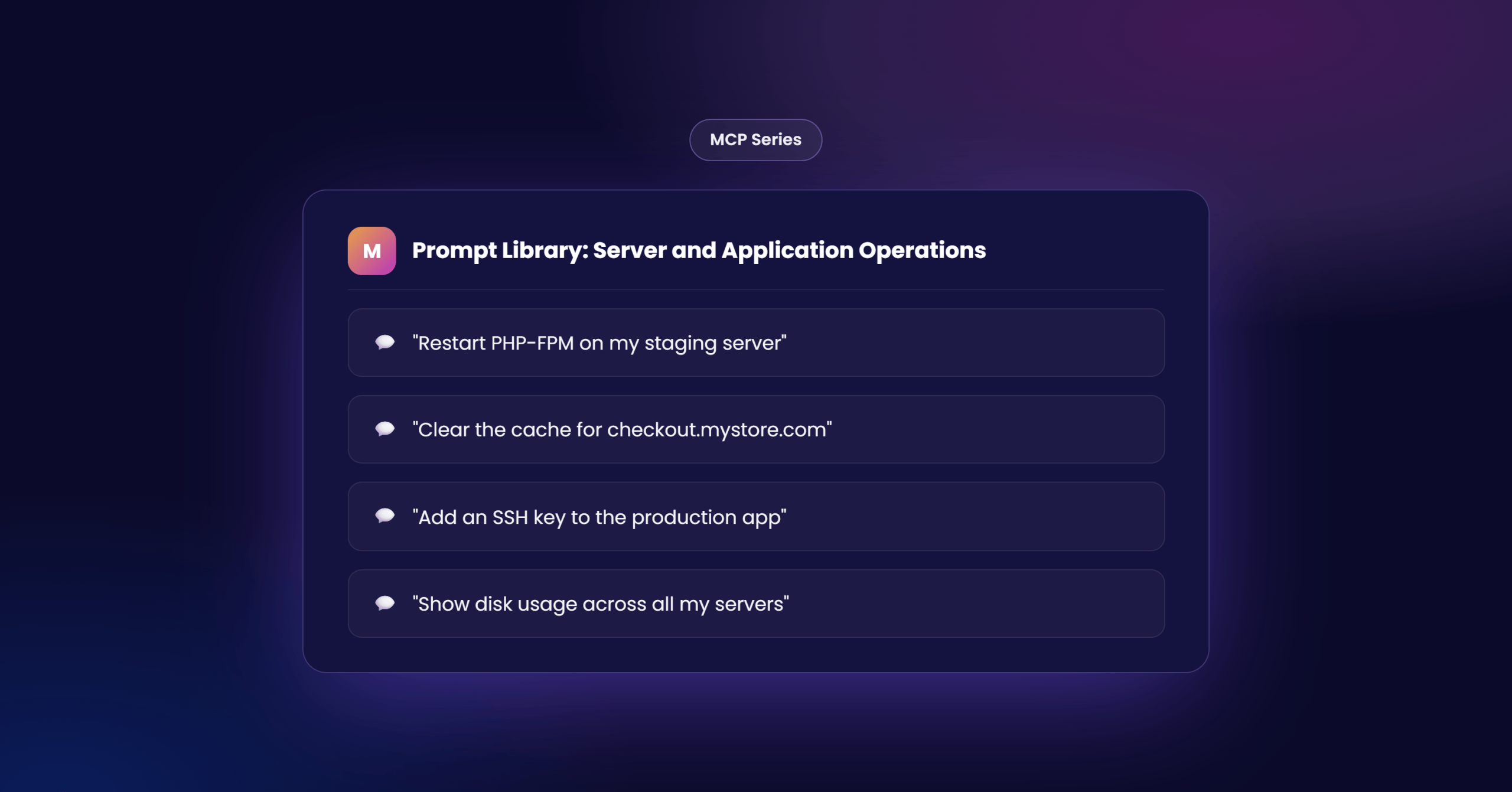
“Restart PHP-FPM on server [ID]” calls service_state_update, which accepts start, stop, or restart as the action.
The same tool handles other services too. “Restart MySQL on server [ID]” uses the identical tool, just naming a different service. You don’t need to memorize a separate command for each one.
Restarting a live service briefly interrupts anything depending on it. That’s a minor inconvenience for most services, but pause before restarting a production database mid-day, since the interruption reaches every app relying on it.
Cache Layers
“Purge all caches for my WordPress blog” calls app_purge_cache, which clears the application cache, Varnish, and object cache together in one action.
If you need more control over Varnish specifically, “enable Varnish for this app” calls varnish_app_manage at the app level, while the server-wide equivalent is varnish_manage. If you’re managing several apps on one server, knowing which layer you’re actually toggling matters, since the app-level version affects only the one site, and the server-level version affects everything on that box.
This is the direct fix for a scenario you’ve probably already lived through: a client says “my changes aren’t showing up,” and nine times out of ten, a cache purge solves it.
Sizing and Scaling Your Servers
Changing Capacity
“Scale my server to 4GB RAM” calls server_scale. Scaling causes brief downtime. That’s a real cost, worth weighing before you send the prompt, especially on a production server during business hours.
Storage works differently depending on your cloud provider, and this is a place where getting it wrong just fails quietly. “Resize the storage volume on server [ID]” calls server_scale_volume if your server runs on AWS or GCE, or server_storage_scale if it runs on DigitalOcean Block Storage. If a storage-resize prompt doesn’t work, the first thing to check is which provider your server is actually on, since asking for the wrong tool on the wrong provider won’t work at all.
Creating and Removing Infrastructure
“Create a 2GB DigitalOcean server in NYC named testServer2 with WordPress app named testWPApp2” calls server_create, which provisions the server and pre-installs the app in one step. For an agency, this turns a multi-screen provisioning flow into a single sentence, which matters most during client onboarding.
“Delete the old server I’m not using anymore” calls server_delete. This is permanent. It removes the server and every app hosted on it, with no way back.
The caution from Article 1 still applies here, but it’s worth turning into an actual habit rather than a warning you read once and forget. Before sending a delete prompt, run “list server IDs” that lists all server ids. You should always confirm server ID before running any further prompt to make sure you are not deleting or modifying a server that you didn’t mean to. “
Cloning for Speed
“Clone server [ID] to create a staging version” calls app_clone, and it clones the app onto the same server. “Clone my app from server A to server B” calls app_clone_to_server instead, moving the clone to a different server entirely.
The distinction matters in practice. Same-server cloning is fast and cheap, and it’s what you want for quick testing. Cross-server cloning is how agencies migrate a client onto a bigger or different server without taking the site down in the process.
If you’re duplicating an entire environment rather than just one app, “clone server [ID] to a new server with the same apps” calls server_clone. This is useful for agencies that keep a template environment and want to spin up the same setup for a new client without rebuilding it from scratch.
Finding Out What’s Wrong (Monitoring & Troubleshooting)
Resource Usage
“Show CPU usage for my server over the last 24 hours for server [ID]” calls monitoring_server_graph. It’s not limited to the CPU. The same tool covers memory and other metrics too, and it accepts any time range you give it. “Show memory usage over the last 7 days” works exactly the same way. You can combine the two parameters in a single prompt as well
For a broader check, “how much bandwidth and disk have I used?” calls monitoring_server_summary. This is the prompt to reach for when a client asks about usage limits, or when you’re deciding whether it’s actually time to scale.
Traffic Patterns
“Show top IPs hitting my store in the last hour” calls analytics_app_traffic. This is the direct answer to the ecommerce scenario from Article 1: telling a real sales spike apart from a bot attack, using actual traffic data instead of guessing.
For a longer view, “show me traffic for the last 30 days, broken down by day” calls analytics_app_traffic_details. Reach for this one when you’re looking at a trend over time, and reach for the simpler traffic prompt when you’re triaging something happening right now.
Slow Pages and Queries
“Which PHP pages are slowest on my app?” calls analytics_app_php. “Show slow MySQL queries for my app” calls analytics_app_mysql. Both point you straight at the actual bottleneck instead of leaving you to guess whether the problem is your code or your database.
Similarly, “how are my cron jobs performing?” calls analytics_app_cron. Cron jobs that fail silently, whether it’s a missed backup or a broken scheduled email, are among the most common invisible problems in web hosting, and this prompt surfaces them without digging through logs.
Security Basics: Catching Problems Early
Vulnerability Scanning
“Scan my WordPress site for vulnerabilities” doesn’t call just one tool. It chains two: app_vulnerabilities_refresh triggers a new scan, and app_vulnerabilities_list retrieves the results once it’s done. This is the same chaining behavior introduced in Article 1, now with a concrete example. You never need to know it’s two separate calls. You just get the findings back.
Add-ons: Turning Features On and Off
What’s Available
“What add-ons do I have available?” calls addon_list, returning status and pricing for everything you can enable. This is worth running before you recommend a paid add-on to a client, so you can quote the price accurately instead of guessing.
Activating and Removing
“Enable [add-on] on server [ID]” calls addon_activate_on_server, scoped to that one server.
Turning something off needs more care. “Turn off [add-on]” calls addon_deactivate at the account level, while addon_deactivate_on_server scopes the same action to one server. Picking the account-wide version when you meant the server-specific one can affect servers you didn’t intend to touch.
A Few Rules That Apply Across Every Category
Read-only prompts, meaning anything that lists, gets, checks status, or summarizes, are always safe to explore freely. Try variations beyond the exact examples above. Nothing here can break by asking a question.
Anything that changes state deserves a second look before you send it. That includes scaling, restarting, deleting, and cloning. Two tools in this article carry the highest stakes by far: server_delete and app_delete. Both are permanent, and neither comes with a confirmation step beyond the one you give it yourself.
Specificity consistently beats brevity. Compare “check my server” against “show CPU and memory for server 12345 over the last 7 days.” The second one gets you a precise, useful answer on the first try. The first one leaves the AI guessing which server, which metric, and which time range you actually meant.
Turning Server Fleet Management Into Natural Conversation
The Cloudways MCP fundamentally transforms how developers and agencies manage hosting infrastructure. By exposing 65 core tools directly through natural language, MCP eliminates the friction of navigating multi-step dashboards, cross-referencing server screens, and memorizing CLI syntax.
Whether you are executing routine health checks, scaling resources under traffic surges, or isolating performance bottlenecks in slow database queries, the workflow comes down to a single principle: be specific, safeguard server/application state changes with backups, and describe what you need. As you integrate these prompts into your daily operations, Cloudways MCP turns complex server management into a smooth, conversational process, saving time, reducing human error, and keeping your focus where it belongs: building and scaling your applications.
And the same reminder from Article 1 still holds here: if you want something that isn’t listed anywhere yet, ask directly. “What can you do with my Cloudways account” surfaces it through the same toolset-discovery mechanism that powers everything in Cloudways MCP operations.
[email protected]
Zafar Iqbal is a Senior Technical Writer who's spent the last decade making server products, WordPress, and SaaS platforms actually make sense to people. As someone who lives at the intersection of tech and marketing, he loves turning complicated technical concepts into insights that help people make the right business decisions. When he's not demystifying managed hosting infrastructure, he's tinkering with his hobby projects.