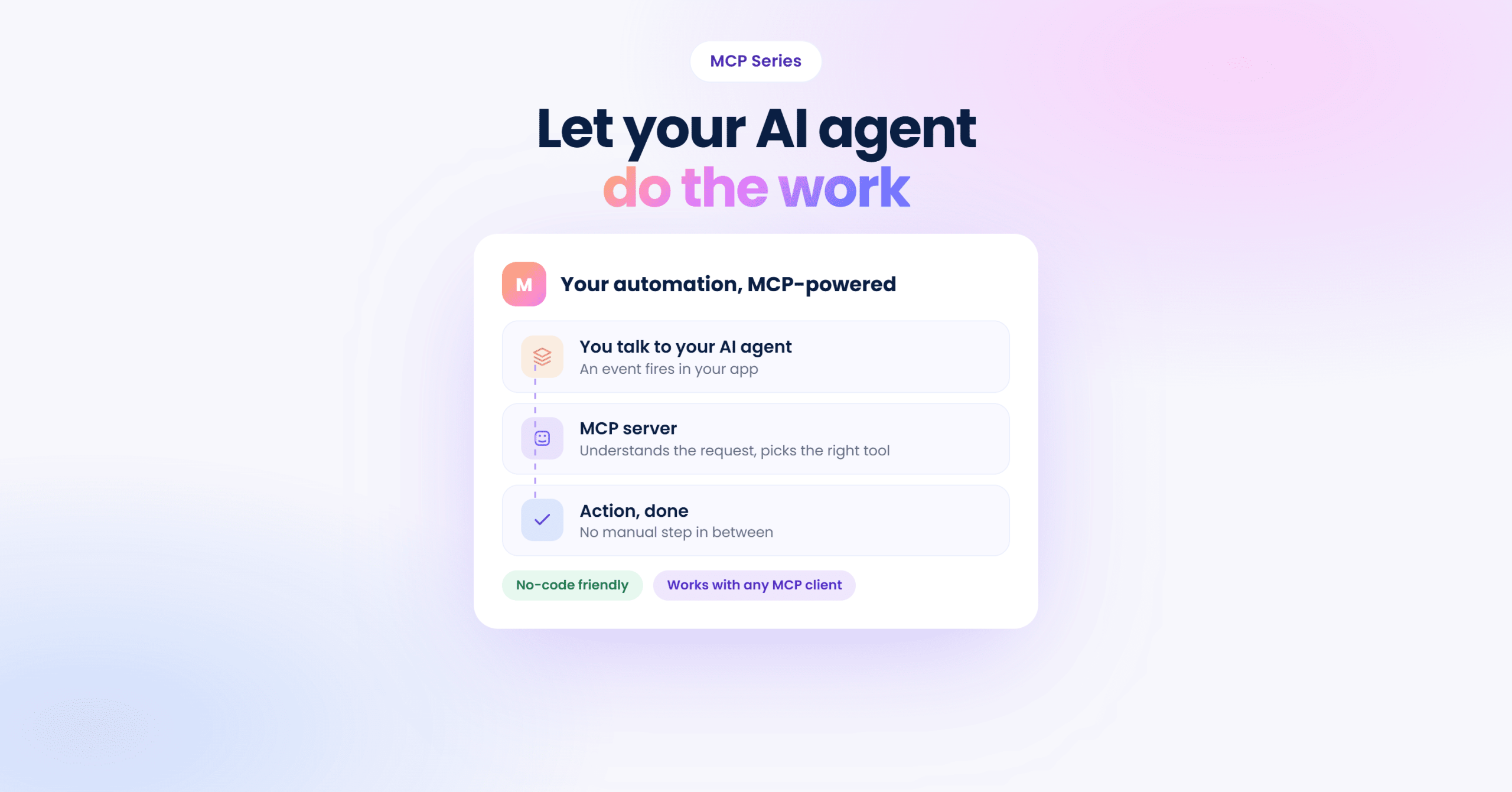
Managing a Cloudways server means working through the dashboard. You log in, find the right server, locate the right app, check a graph or a log, then repeat the same path for the next server or the next app. Each individual click is simple. The problem is how often you have to do it, and how much time that adds up to across a week of managing your Cloudways fleet.
Cloudways MCP removes that click path entirely. You type what you want in plain language, and it happens. What that saves you looks different depending on your role, so here’s the actual cost each one carries today.
Agencies
Agencies managing 15 or 20 client servers don’t lose time to any single dashboard visit. They lose it to constant context-switching. Answering “is everything okay right now” means logging into a different account for every client, then clicking through the same set of screens again and again. Multiply that by every client and every day, and hours disappear before anyone fixes a single problem.
Ecommerce Storeowners
Store owners need to know fast whether the current website slowdown is because of real customers or a botnet hammering the product pages. Finding out means checking server load, then app traffic, then security logs, while conversions drop in real time.
Freelance Devs
Freelance developers aren’t full-time sysadmins, but they still get the call when a client’s site goes down. Every minute spent hunting for the right dashboard screen is a minute they can’t bill and can’t spend fixing the actual problem.
All these different roles have one shared friction point: each of them already knows what to check or fix. The dashboard forces a translation step between that knowledge and the click path. Cloudways MCP skips the translation by offering a simple mechanism where you say what you want, and it resolves which server, app, or service action to take.
What Cloudways MCP Actually Does
Cloudways MCP runs on the same account, the same servers, and the same permissions you already have.
MCP (Model Context Protocol) works as the connector that lets an AI client (Cursor, Claude, VS Code, and others) talk to your Cloudways account directly, instead of routing every action through the web interface. Anything you can do by clicking through Cloudways, you can now ask for instead.
What’s Already Possible
Cloudways MCP has 240+ tools, covering almost all actions you can perform from the platform’s web-based UI. Here are a few example prompts that showcase this breath of use cases:
Fleet visibility
- “Show me all my running servers”
- “Are all services healthy on my production server?”
Incident response
- “Show CPU usage for server [server_id/name] over the last 24 hours”
- “Show top IPs hitting my store in the last hour”
Day-to-day ops
- “Purge all caches for my WordPress blog”
- “Back up my app before I push changes”
Security
- “Scan my WordPress site for vulnerabilities”
Each of these scenarios takes one sentence in and returns a complete answer or action.
How It Stays Fast Even With 240+ Tools Behind It
Cloudways MCP supports well over 240 distinct tools. Loading all these tools at once will slow down your AI client. Additionally, sending the details of all these tools to the connected LLM is a fast route to burning through your token budget.
We solved these related issues smartly.
Your AI client doesn’t load all of these 240+ the moment you connect. Instead, it starts with 65 core tools covering servers, apps, services, monitoring, add-ons, DNS, and vulnerability checks. That default set already covers almost everything in this article.
The remaining tools sit behind three background tools the AI calls automatically when it needs them. These three tools list the available capability areas, pull in the specific tools inside a chosen area, run the tool once found. You actually do not see this process in your AI client. Instead, you simply see the client smoothly executing your request.
This is the reason Cloudways MCP stays fast and simple even though the toolset underneath the hood is large.
Cloudways MCP can also do things you can’t undo, like deleting a server or an app, if you ask it to. It carries out exactly what you request, so treat action requests with the same care you’d give the same button in the dashboard.
Connecting Cloudways MCP to Cursor
While Cloudways MCP can be connected to almost all popular AI clients, I chose Cursor for this series because it offers a one-click install with no configuration files to edit. That makes it the right starting point if you haven’t connected an MCP server to anything before.
What You Need
- A scoped access token. Cloudways authenticates MCP requests with an Access Token rather than your account password, similar to how GitHub issues role-based access tokens. This has replaced the older, broader API key, which Cloudways is phasing out. Each token can be scoped to specific permissions, given its own expiration, and revoked independently of any other integration you’ve set up.
Here’s how to create one:
- Log in to platform.cloudways.com, click the grid icon near the bottom of the left menu, and select API Integration.

- In the Access Token Details section, click Create Access Token.
- Name the token something you’ll recognize later, like “Cloudways MCP Integration.”
- Set an expiration period. Choose the shortest one that fits how long you’ll actually use this connection.
- Choose a scope. Limited Access lets you pick only the endpoints MCP needs, and is the safer choice for a first setup. Read-Only Access works if you only want to check on things, not change them. Reserve Full Access for cases where you genuinely need MCP to manage everything.
- Click Create Access Token, then copy the token immediately. Cloudways shows it only once, so store it somewhere secure before closing the screen.
- Cursor installed on your machine.
The One-Click Install
Open Cloudways’ MCP setup guide and find the Cursor section under “Configure Your MCP Client.” Click the Install in Cursor button there. Cursor opens with the Cloudways server pre-configured. Paste in your scoped access token. Click Install. That covers the entire setup.
Confirming It Worked
Open Cursor’s Settings, then Tools & MCP. A green dot next to the Cloudways entry confirms the connection is live. A red dot means something didn’t connect, and restarting Cursor after installation fixes this almost every time.
[Image: the Tools & MCP settings panel showing the green status dot]
First Request, First Result
Type this into Cursor:
Show me all my Cloudways servers
You’ll get back a structured list: server names, IP addresses, cloud providers, and current status, pulled directly from your live account.
Note: If you are running this for the first time, you may need to add Cloudways MCP to the Allowlist.
If Something Goes Wrong
A red dot almost always traces back to one of three causes. Check them in this order:
- Your Access Token is invalid or expired. Create a new token from API Integration and reinstall.
- The token’s scope doesn’t cover what you’re asking for. A Read-Only token can’t back up an app or restart a service, since those require write access. Create a new token with Limited Access or Full Access if you need MCP to take action, not just report status.
- Cursor hasn’t been restarted. Close it completely and reopen it after any configuration change.
Working through these in order resolves nearly every connection issue.
Putting Cloudways MCP to Work
Now that you’ve connected Cloudways MCP, here are some prompts to see what it can actually do. Start with the ones that match your situation.
For Agencies
| Prompt | What It Achieves |
| “Show me all my running servers” | Returns your full fleet in one list with names, IPs, providers, and status, without logging into a single client account separately. |
| “Show CPU and memory usage for server [ID] over the last 7 days” | Surfaces a resource problem before a client notices it, so you can act first instead of reacting to a complaint. |
| “Are all services healthy on my production server?” | Checks NGINX, database, and PHP-FPM in one request, replacing a multi-screen health check with a single answer. |
For Ecommerce Owners
| Prompt | What It Achieves |
| “Show top IPs hitting my store in the last hour” | Tells you whether a slowdown is a real sales spike or a bot attack, so you know what you’re actually dealing with. |
| “Scale my server to 8GB RAM” | Adds capacity in one step during a traffic surge, instead of navigating through server settings mid-sale. |
| “Scan my WordPress site for vulnerabilities” | Flags security issues before they put checkout or customer data at risk. |
For Freelance Devs
| Prompt | What It Achieves |
| “Back up my app before I push changes” | Creates a safety net before a deploy, so a bad push doesn’t cost you the whole client relationship. |
| “Purge all caches for my WordPress blog” | Fixes the most common “my changes aren’t showing up” client complaint in seconds. |
| “Clone my production app to create a staging version” | Gives you a safe copy to test changes on, without touching the live site a client depends on. |
Swap in your own server ID or app name, and run the one prompt that matches what you’re dealing with right now.
A Rule Worth Keeping About MCP Requests
Start with read and lookup requests, like listing servers or checking status, before moving to requests that change something. This builds a feel for how the AI interprets your prompts before you hand it anything irreversible.
Where to Go From Here
The examples here are a starting point, not the full list. Ask Cursor directly to see what else is possible right now:
What can you do with my Cloudways account?
Because Cloudways MCP discovers tools on demand, this question always reflects the current, full capability, even beyond what this article covers. Try the prompt above that matches your situation, and take it from there.
Start Growing with Cloudways Today.
Our Clients Love us because we never compromise on these
[email protected]
Zafar Iqbal is a Senior Technical Writer who's spent the last decade making server products, WordPress, and SaaS platforms actually make sense to people. As someone who lives at the intersection of tech and marketing, he loves turning complicated technical concepts into insights that help people make the right business decisions. When he's not demystifying managed hosting infrastructure, he's tinkering with his hobby projects.