Every WordPress site eventually has a moment when more visitors arrive than it is used to handling. This usually happens when a post goes viral, or the site launches a discount campaign. What happens next depends on how the server builds each page and presents it to the visitors.
Without caching, WordPress builds every page from scratch for every visitor. It pulls content from the database, runs the theme code, and assembles the result for the browser. One visitor makes that work trivial. Thirty visitors in the same minute make the server repeat the same expensive job thirty times while newer arrivals wait in line.
Caching removes this repetition (and the resulting added load on the origin server). The first time a page is built, the server saves a finished copy and hands that same copy to all users who request the page. The database stays idle and the theme code stays quiet.
The best part is that the response comes back to the visitor in a fraction of the time. No other single change gives a WordPress site as much speed for as little effort, which is why caching belongs at the top of any performance plan.
Speed also matters to the people on the other side of the screen. Yottaa’s 2025 Web Performance Index analyzed more than 500 million visits to over 1,300 ecommerce sites and found that pages taking longer than four seconds to load had a 63% bounce rate, 17 percentage points higher than faster pages. Google’s web.dev library on why speed matters adds case studies, including one in which The Economic Times reported a 43% better bounce rate after passing Core Web Vitals thresholds.
Breeze is the preferred caching plugin on Cloudways. It is free and comes from the hosting provider itself, so it is designed around the Cloudways server stack. This guide walks through the settings you are most likely to deal with, and explains what each one does for your cache and your visitors.
Let’s start with the default Breeze settings.
What Comes Pre-configured
On a new Optimized WordPress application on Cloudways, Breeze typically arrives installed and active with pre-configured defaults. For most sites, that means the work is already done.
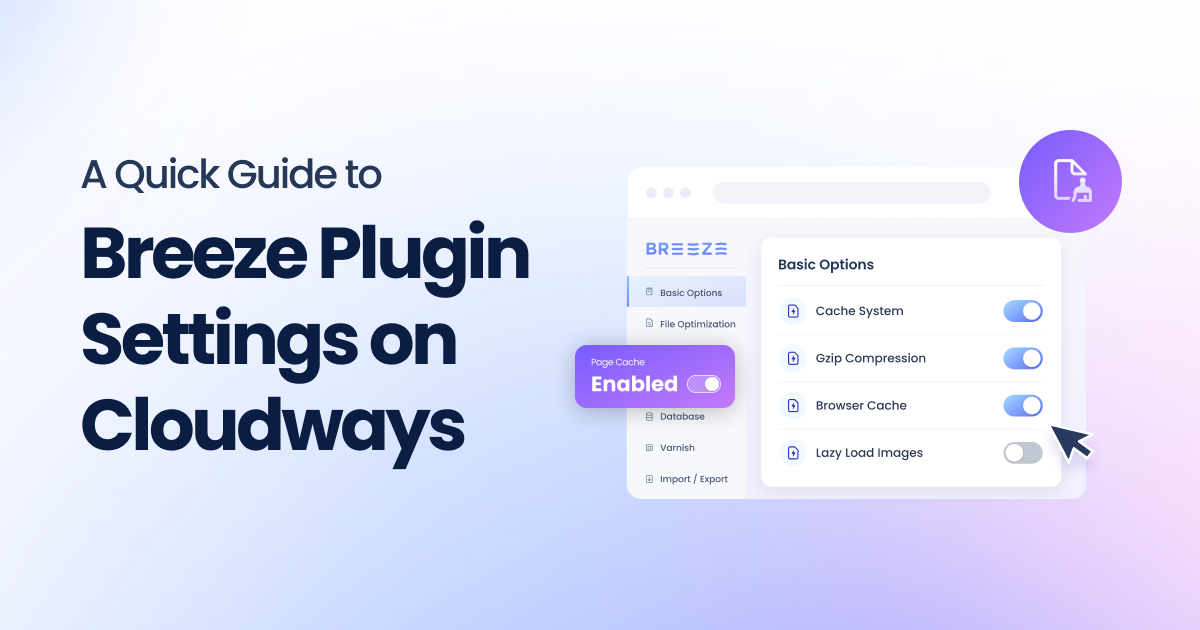
To find it, open your WordPress admin and go to Settings > Breeze. The left menu lists the tabs you will use throughout this guide, which are Basic Options, File Optimization, Preload, Advanced Options, Heartbeat API, Database Options, CDN, Varnish, and Tools.

You will notice that the following switches are already toggled on.
- Cache System, Gzip Compression, and Browser Cache on the Basic Options tab
- Cache Full Page HTML on the File Optimization tab
- Preload Links on the Preload tab
- Auto Purge Varnish on the Varnish tab
- Relative Path on the CDN tab
Everything with a higher chance of side effects or broken user experience ships switched off. That includes Mobile Cache, Lazy Load Images, all minification options, JavaScript delay, and caching for logged-in users. Each of those options depends on your theme and plugins, so Breeze leaves the decision to you.
To verify your setup, open each tab and look at the toggles. A blue switch with a check mark is on, and a grey switch is off. If you change anything, click Save Changes at the bottom of that tab.
Now that the defaults are covered, we can go into the details of the available options and settings that Breeze offers.
Basic Options Walkthrough
The Basic Options tab holds the settings with the broadest effect on your site. Each one below explains what it does, how it helps your cache and your visitors, and what to set.
Cache System
This is the foundation. Breeze recommends keeping it enabled in all cases, and it builds the internal and static caches for your site. With it on, WordPress serves saved copies of pages and skips the database and theme work on repeat requests. That cuts the wait for the first response and leaves the server free to handle more visitors at once.
Recommended default. On, for every site.
Mobile Cache
Mobile Cache creates a separate cached copy of your pages for phone visitors. Modern themes are responsive, which means one page adapts to every screen, so a single cached copy already serves all devices. Leaving this off keeps your cache pool smaller, and a smaller pool means more visitors land on a copy that is ready and waiting.
Turn it on only if you run a dedicated mobile theme or a plugin that serves different HTML to phones. In that case the separate copy keeps phone visitors from receiving the desktop version. Mobile caching on Cloudways requires you to enable the Device Detection feature in the Cloudways Platform first, so do that before you flip the switch.
Recommended default. Off for responsive themes. On, only with a dedicated mobile theme, after enabling Device Detection.
Purge Cache After
This field sets how long a cached page stays fresh before Breeze clears it. The default is 1440 minutes, which equals one day. Every purge means the next visitor to each page triggers a rebuild, so the number balances freshness against cache hits.
A shorter window keeps fast-moving content current. A news site or a store with frequent price changes benefits from a low value that ensures visitors see fresh content (at the cost of frequent cache rebuild). On the other hand, a longer window gives a mostly static brochure site more cache hits and fewer rebuilds. Remember that you also have Auto Purge Varnish working in the background, which clears the server cache when you publish new posts, pages, or comments. Fresh content therefore appears quickly even with a long window.
Recommended default. Keep 1440 for most sites. Lower it for frequently changing content and raise it for mostly static sites.
Gzip Compression
Gzip shrinks text-based files such as HTML, CSS, and JavaScript before they travel to the browser. Smaller files cross the network hops faster, which helps pages paint sooner. The gain is most visible on slower mobile connections, where every kilobyte counts.
Recommended default. On.
Browser Cache
Browser Cache adds expiry headers to static files. Those headers tell a visitor’s browser how long it can keep its own copy of your logo, stylesheets, and scripts. Returning visitors reuse what they already have, so the second page they open loads noticeably faster. Your server also answers fewer requests, which leaves more capacity for new arrivals.
Recommended default. On.
Lazy Load Images
Lazy loading is the first optional win on this tab. When enabled, images load as a visitor scrolls toward them instead of all at once. The first screen gets lighter (and loads faster), less data moves, and fewer files compete for bandwidth during the initial load. Pages with many images benefit the most from the lazy load process.
Three sub-options sit beneath the main switch. iFrame lazy load applies the same idea to embedded content such as maps and video players. Video lazy load covers video tags. Enable native browser lazy load hands the work to the browser’s built-in feature.
Many blogs and pages carry a hero image at the top of the design. This image at the top of a page is usually the Largest Contentful Paint element, and delaying it can slow the moment visitors feel the page has loaded. Breeze does not offer a way to exclude individual images, so test the result. Enable lazy loading, then run the page through PageSpeed Insights and check the Largest Contentful Paint time. If it gets worse, switch the option off again.
Recommended default. On for image-heavy pages, after you confirm Largest Contentful Paint holds steady.
Two more switches on this tab
Cross-origin Safe Links is off by default. It adds the “noopener noreferrer” attribute to links that open in a new tab and lead to external websites. It is a small hygiene measure, and enabling it is safe on most sites.
Cache Logged-in Users is off for every role by default. Breeze warns that it might not work properly with some page builders. We recommend leaving it off for stores and membership sites, where logged-in pages must stay personal and isolated from other visitors.
How Breeze and Varnish Work Together
Two caching layers protect a Cloudways-hosted WordPress site, and they do different jobs.
Varnish runs at the server level and is enabled by default on every WordPress site hosted on Cloudways. It answers requests before they ever reach WordPress. Breeze works inside WordPress itself, handling the internal cache, file handling, and browser caching.
The Cache Full Page HTML option on the File Optimization tab is on by default. It saves a copy of each page so it loads faster, and it is separate from the Cache System switch on the Basic tab. This option works at the plugin level while Varnish still runs on the server.
The Varnish tab offers the following three important controls:
- Auto Purge Varnish is on by default and clears the Varnish cache automatically when you publish posts, pages, or comments.
- Varnish Server shows 127.0.0.1. Keep that value if you host on Cloudways.
- Purge clears the Varnish cache for the entire site instantly. Use it after a design change or whenever you want to see updates immediately. Note that Breeze also asks you to clear Varnish after you apply certain JavaScript delay settings.
The File Optimization tab also offers Refresh Cached Page Parts (off by default). It refreshes only the page blocks you list, which helps when a cached page shows old content in one spot, such as a mini-cart. Note that too many blocks that need fresh content (and this a request to the server) can affect page response. If that is the case with your website, we recommend adding one block at a time and test page load response to preserve visitor experience.
Optional tuning for extra gains
Once the basics are confirmed, it is time to check out other options and features for further improvements. Given the impact of these options, we strongly recommend trying one at a time and testing the page load speed and visitor experience.
One-Click presets
The One-Click tab applies tested bundles of settings, which makes it the safest route to tuning.
| Preset | Best for | What it turns on |
| Standard | Most websites | Gzip Compression, Browser Cache, Lazy Load Images, HTML Minify, CSS Minify, and Disable Emoji |
| Advanced | Modern themes and plugins | Everything in Standard, plus iframe and video lazy load, Include Inline CSS, Combine CSS, Preload Links, and local Google Fonts |
| Expert | Simpler sites and testing | Everything in Advanced, plus JS Minify, Include Inline JS, Delay All JavaScript, and local Gravatars |
Because the presets include minification, export your settings first and check your key pages afterward.
Preload tab
Preload Links is on by default. When a visitor hovers over a link, Breeze builds the cache for that page in advance, so it opens faster on the click. This feature works in Chromium-based browsers such as Chrome, Opera, Edge, and Brave.
Preload URLs is off by default. It lets you list up to 30 local URLs, and Breeze warms the cache for them after a full cache clear. The homepage is always included automatically. After every purge, your most important pages are rebuilt in the background, so the first real visitor never meets a cold cache.
Prefetch of DNS Request takes a list of third-party domains (one per line). Breeze resolves those domains early, which trims the delay when outside content loads.
Preload Webfont accepts the URL of a local font file. We recommend the WOFF format and advise against preloading an entire CSS file or adding Google Fonts links.
Advanced Options tab
Never Cache URLs keeps specific pages out of the internal cache. We recommend adding cart pages, checkout pages, and account pages (one per line), and use the wildcard pattern to cover whole sections.
Cache Query Strings lists query strings whose pages should still be cached, such as a city filter. It is useful when a parameter changes the served content in a meaningful way.
Disable Emoji stops WordPress from loading its emoji library and stylesheet. That removes one script and one stylesheet from every page.
Host Files Locally stores Google Fonts and Gravatar files on your own server. Visitors no longer need to connect to outside servers for those assets. This speeds up visitor experience because everything they need to view the page is bundled up in a single response.
CDN tab
The CDN settings stay dormant until you switch on Activate CDN. This set of options is very useful if you are using a content delivery network. You enter the CDN address, choose which directories it serves (the default covers wp-includes and wp-content), and list anything to exclude (the default skips .php files). Keep Relative Path enabled. Note that If some website pages run on HTTP and others on HTTPS, start the CDN address with a double slash.
Database Options tab
This tab lists clutter that builds up inside WordPress, such as auto drafts, transients, post revisions, spam comments, and orphaned metadata. It also offers a button to optimize database tables. Clearing the clutter from the database keeps queries lean on pages that are not served from cache. We strongly urge you to back up your database before using any of these options.
Minification and JavaScript delay
On the b tab, HTML Minify, CSS Minify, and JS Minify each strip whitespace and comments to shrink file size. Delay JS Inline Scripts and Delay All JavaScript hold scripts back until later, so the page becomes usable sooner.
On some websites, using these options may cause visitor experience issues. As such, we recommend testing them on a staging website so that you can identify and evaluate the impact before you make changes on your live website.
When it comes to Delay JS Inline Scripts and Delay All JavaScript, you have to choose only one of the two delay options, since they cannot run together, and neither can be paired with Combine JS. We also recommend clearing Varnish after you save to make sure the cache rebuilds with the options you selected.
Heartbeat API and Site Performance
The Heartbeat API is a quiet background process that affects server load more than most people expect.
WordPress has included it since version 3.6, and it supports autosaving, post locking, and login expiration warnings. Your browser sends a small request to the server at regular intervals while you are in the admin area. By default, those requests go out every 15 seconds on post edit pages and every 60 seconds on the dashboard. Each one is a request your server has to answer.
For a single editor, that load is negligible. It adds up when several people edit at once or when dashboards stay open in forgotten browser tabs.
Breeze lets you control Heartbeat in three places, which are frontend, Post Editor, and backend. Each dropdown offers Default, every 30, 60, 90, or 120 seconds, and Disable. You need to switch on Control Heartbeat at the top of the tab to put your choices into effect.
The benefit is straightforward. Fewer background requests leave more server capacity for your visitors, and the gain grows with the number of people working in your admin.
Here is how we suggest you approach it.
- Leave Post Editor on Default. This is the screen where autosave and post locking protect your work.
- Lengthen Backend to 60 or 120 seconds if several editors share the site or dashboards stay open.
- Set Frontend to Disable only if nothing on your public pages relies on Heartbeat. Some plugins use it for live updates.
Note that you should be careful in setting these options because disabling Heartbeat may break features in plugins and themes that depend on it. As with any other changes in your website configuration, change one control at a time, then test the features your site relies on before moving on.
A Safe Website Cache Tuning Routine
While every website admin has their own checklist of setting options and maintaining their websites, we suggest the following steps as useful steps when you use Breeze to optimize your WordPress website cache processes.
- Open Tools and click Download Settings to save a backup file of your current configuration.
- Change one setting at a time and click Save Changes.
- Clear the cache and Varnish, then check your key pages in a private browser window.
- Test minification and JavaScript delay on a staging website before they go live.
- If something misbehaves, import your saved configuration file, or choose an earlier version from Rollback Version.
In addition, run PageSpeed Insights before and after each meaningful change. The numbers will tell you whether the change earned its place.
Benchmarks and Core Web Vitals
We put the plugin through a load test to see what happens to a real WordPress site under pressure. The findings below summarize that internal report on Breeze 2.5.16.
How the Test Worked
We took a live WordPress site hosted on Cloudways and simulated 32 visitors loading the homepage at the same moment, continuously, for one minute. We used Oha, k6, and JMeter as the testing tools, and ran each tool three times. That produced nine runs for the site with no caching plugin and nine runs for the same site with Breeze 2.5.16 active.
Requests Per Second
Requests Per Second shows how many visitors the server can serve within a second without falling behind. It determines whether a site survives a traffic spike. Without a caching plugin, the test site handled between 1.3 and 1.8 requests per second. With Breeze, it handled between 8.8 and 68.4. The peak result means the site handled up to 38 times more traffic per second.
| Testing Tool | Requests Per Second Without Breeze | Requests Per Second With Breeze |
| Oha | 1.8 / sec | 68.4 / sec |
| k6 | 1.3 / sec | 9.0 / sec |
| JMeter | 1.5 / sec | 8.8 / sec |
Average Response Time
Response time is how long a visitor waits before anything appears. Without caching, the average stretched to between 20.3 and 22.9 seconds during the test. With Breeze active, it fell to between 0.47 and 3.5 seconds, depending on the tool.
| Testing Tool | Page Response Time Without Breeze | Page Response Time With Breeze |
| Oha | 20.9 sec | 0.47 sec |
| k6 | 22.9 sec | 3.4 sec |
| JMeter | 20.3 sec | 3.5 sec |
Zero Failures
We also tracked requests that came back as errors or timeouts. With Breeze running, that number was zero across every run. No visitor saw an error page or a stalled request, even at the peak of the test. A slow site frustrates people, and a site that throws errors under load turns them away at the moment interest is highest.
Independent Scores for a Single Visitor
Load testing shows behavior under pressure. To see what one ordinary visitor experiences, we ran the Breeze-enabled site through Google’s PageSpeed Insights and GTmetrix. Neither tool has any connection to Cloudways or Breeze, and anyone can run the same scans on their own site.
| Metric | Result |
| PageSpeed Insights, Desktop | 95 / 100 |
| PageSpeed Insights, Mobile | 81 / 100 |
| GTmetrix Performance Grade | 96% |
| Largest Contentful Paint | 1.1 sec |
| Total Blocking Time | 2 ms |
| Cumulative Layout Shift | 0 |
Largest Contentful Paint measures how long the biggest visible element takes to appear, which is usually a hero image or main headline. Google considers anything under 2.5 seconds good, so 1.1 seconds sits comfortably in that range.
Total Blocking Time measures whether the page freezes while it finishes loading, and 2 milliseconds means it stays responsive throughout.
Cumulative Layout Shift measures whether elements jump around as the page loads, and a score of 0 means nothing moves unexpectedly.
Largest Contentful Paint and Cumulative Layout Shift are two of Google’s three Core Web Vitals, which Google uses as ranking signals in search results.
Frequently asked questions
Do I need to install Breeze myself, or is it already on my site?
On Cloudways, Breeze typically comes pre-installed and pre-activated with default settings on new Optimized WordPress applications. You can also install it from the official WordPress plugin repository by going to Plugins > Add New Plugin and searching for Breeze.
Is Breeze really free, or are there paid tiers?
Breeze is completely free, with no premium upsell. It comes at no extra cost with Cloudways hosting.
My Cloudways server already runs Varnish. Do I still need Breeze?
Yes. Varnish caches pages at the server level no matter which WordPress plugin is active. Breeze adds WordPress-level optimizations on top, including database cleanup, minification, and browser caching, which Varnish alone does not handle.
Should I turn on Mobile Cache?
Usually not. Responsive themes serve every screen size from one page, so one cached copy is enough. Turn it on only if you use a dedicated mobile theme or plugin, and enable Device Detection in the Cloudways Platform first.
Is it safe to turn on lazy load?
For most sites, yes. Because Breeze has no option to exclude individual images, run PageSpeed Insights after enabling it and check your Largest Contentful Paint time. If the time gets worse, switch lazy load off.
Will caching show visitors outdated content, and how do I purge it?
Cached pages refresh when the Purge Cache After window ends, which defaults to 1440 minutes. Auto Purge Varnish also clears the Varnish cache when you publish posts, pages, or comments. For an instant refresh, click Purge on the Varnish tab.
Does slowing the Heartbeat API make my site faster?
It reduces the background requests your admin area sends to the server, which frees capacity for visitors. The effect is largest on busy sites with several editors. It does not change what visitors see, and you should adjust one control at a time because some plugins rely on Heartbeat.
Does Breeze work with WooCommerce and other plugins?
Yes. Breeze is built to work with WooCommerce and WordPress Multisite, and it is tested for compatibility with popular plugins from WordPress.org. On a store, add your cart, checkout, and account pages to Never Cache URLs and keep Cache Logged-in Users off.
Will Breeze slow down my WordPress admin or editing experience?
No. Caching applies to how pages are served to visitors and does not change how you work in the dashboard.
What tools did the benchmark use?
The load tests used Oha, k6, and JMeter, each run three times. Google’s PageSpeed Insights and GTmetrix provided the independent scores for a single visitor.
[email protected]
Zafar Iqbal is a Senior Technical Writer who's spent the last decade making server products, WordPress, and SaaS platforms actually make sense to people. As someone who lives at the intersection of tech and marketing, he loves turning complicated technical concepts into insights that help people make the right business decisions. When he's not demystifying managed hosting infrastructure, he's tinkering with his hobby projects.