Cloudways Site Manager launched with a clear goal: help provide WordPress operators a single, structured workflow for managing updates across multiple sites. Since general availability, users in a wide range of industries have been using it to manage production workloads at scale.
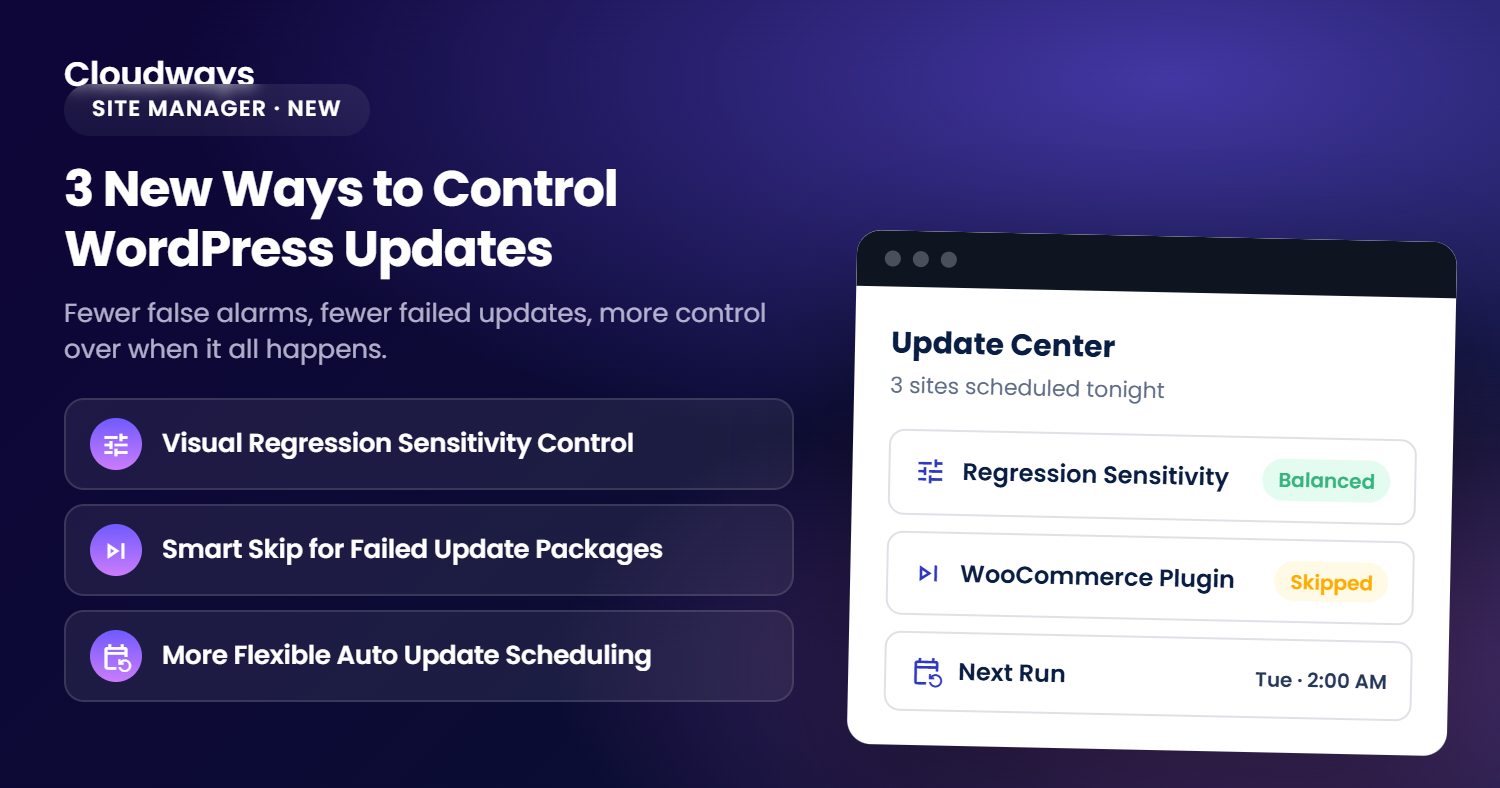
Based on how those workflows actually run in practice, we have made three updates to Site Manager Pro. Each one addresses a specific gap in how updates are planned, executed, and validated.
Here is what we have added to the Site Manager add-on.
More Flexible Auto Update Scheduling
Auto Updates in Site Manager Pro previously supported weekly scheduling. You could select which days of the week updates would run. This option works well for teams with a fixed maintenance window.
However, not every workflow fits that model.
Some sites need updates more frequently. Others are better managed on a monthly cadence, aligned with client billing cycles or release schedules. We realized that weekly scheduling forced teams to either over-update or work around the tool.
Auto Updates now supports three scheduling options:
- Daily: for teams running frequent update cycles or managing high-activity portfolios
- Weekly: for fixed maintenance windows aligned to specific days
- Monthly: for structured release cycles or client-facing maintenance schedules
The scheduling cadence is set per update configuration, so different sites or groups of sites can run on different schedules within the same account.
Smart Skip for Failed Update Packages
The Safe Updates workflow runs updates through staging before touching production. If a plugin or theme update fails during the initial download or pre-check phase, Site Manager would abort the entire update run.
That approach is conservative, but it can create real problems in practice. Package-level failures happen for reasons that have nothing to do with your other plugins: an expired license, a temporarily unavailable package host, a version incompatibility with your PHP environment, or a missing zip file.
A single failure of this kind stops the visual regression testing and deployment for all plugins in queue, essentially cancelling the application of all available updates. Teams then have to diagnose the failure, manually restart the process, and re-validate what was already working.
Smart Skip changes how Site Manager handles these failures.
When Smart Skip is enabled, a plugin or theme that fails during the download or pre-check phase is bypassed. Site Manager logs the failure, skips that specific item, and continues processing the remaining updates. The Safe Updates workflow then proceeds normally, where staging is updated, visual regression tests run across the pages, and successful updates are deployed to production if the visual check passes.
The skipped item is recorded in the history details with its failure reason. If the VRT phase detects a visual difference beyond your configured threshold, the update is aborted on those grounds, and the reported failure reflects the VRT result, not the skipped package. No manual intervention is needed to continue the rest of the run.
Smart Skip is enabled by default but can be switched off. Teams that require all-or-nothing update behavior can leave it disabled (from the Auto Updates settings). For teams managing large plugin sets, where a stale license or a temporarily unavailable host would otherwise block an entire scheduled run, the Smart Skip option helps bypass a common and avoidable source of friction.
Visual Regression Sensitivity Control
Safe Updates captures screenshots of your staging and production environments after an update is applied, then compares them to detect visual changes. If the comparison detects a significant difference, the update is blocked and rolled back before it reaches production.
Previously, the comparison threshold was fixed. Any visual change above that threshold would trigger a rollback.
Sites differ in how much visual variation is acceptable. A storefront with a stable checkout page has different tolerance for layout drift than a news feed where content changes constantly. Working with our users, we realized that a fixed threshold works for some sites but not necessarily for others.
Visual Regression Sensitivity lets you set the threshold that determines when a visual difference can potentially block an update.
How It Works
Before any scheduled update goes live, Site Manager captures and compares your staging and production environments. If the visual difference between the two exceeds the threshold you have configured, the update is aborted and rolled back. Your live site stays unchanged.
This setting works alongside your Auto Update schedule. It does not trigger updates independently. It acts as a validation gate on updates you have already configured to run.
Sensitivity Levels
You can choose from three levels. Critical is selected by default.
| Level | Threshold | Best For |
|---|---|---|
| Critical | 0% tolerance | Storefronts, checkout pages, regulated or brand-critical UI |
| Standard | Up to 5% difference | Marketing sites, blogs, content-heavy pages |
| Low | Up to 10% difference | Dashboards, news feeds, pages with frequently changing dynamic content |
Critical (0%) blocks the update if any visible pixel difference is detected between staging and production. This is the right setting when layout consistency is non-negotiable.
Standard (5%) allows minor rendering variation (antialiasing, font rendering differences, small dynamic content changes) without failing the update. Most sites running standard WordPress themes operate at this level.
Low (10%) tolerates larger layout drift. This is useful when dynamic content, such as rotating widgets or live feeds, would otherwise trigger false positives on pages that are functionally stable.
If you are unsure which level to choose, start with Critical. It is the default and the safest option. Move to Standard or Low if you find that legitimate updates are being blocked by minor, expected visual changes on your site.
How to Set It
You can configure Visual Regression Sensitivity from the Auto Updates screen or when creating a new schedule.
From the Auto Updates screen:
- Go to Application → Site Manager → Auto Updates
- Locate the Visual Regression Sensitivity section
- Select your preferred level
- Click Save Changes
When creating a new schedule, in the Create Auto Update Schedule window, select your sensitivity level under Visual Regression Sensitivity before clicking Set AutoUpdate Schedule.
You can update the threshold at any time. The new level applies from the next scheduled run.
What Happens After an Update Runs
Once an update completes in staging, Site Manager runs the visual comparison before deploying to production.
- Within tolerance: The update is applied and published to production
- Above tolerance: The update is aborted, changes are rolled back, and you are notified to review the differences manually
Sensitivity is configured per site or across your entire portfolio in bulk, so teams managing mixed portfolios can apply stricter thresholds to higher-risk sites and more permissive thresholds where dynamic content is expected.
What This Means in Practice
These three updates address different points in the update lifecycle.
Scheduling flexibility means maintenance windows can match how teams actually operate, not the other way around. Smart Skip means a failed package no longer blocks an entire update run. Visual Regression Sensitivity means teams can tune validation to match the actual risk profile of each site.
Together, they extend the Safe Updates workflow to handle more of the edge cases that come up in real production environments.
If you are already using Site Manager Pro, the new scheduling options and Smart Skip setting are available in your Auto Updates configuration. Visual Regression Sensitivity is available in your Safe Updates settings.
If you are not yet on Pro, you can review the Site Manager plans and pricing (subject to applicable terms, conditions, and tiered configurations) or contact Cloudways support to get set up.
WordPress® is a registered trademark of the WordPress Foundation. Any references to third-party companies, trademarks, or logos in this document are for informational purposes only and do not imply any affiliation with, sponsorship by, or endorsement of those third parties. Product performance and update outcomes in customer environments may vary depending on hosting configuration, implementation, and third-party plugin architecture. Simulated results or workflows are not guaranteed.
[email protected]
Zafar Iqbal is a Senior Technical Writer who's spent the last decade making server products, WordPress, and SaaS platforms actually make sense to people. As someone who lives at the intersection of tech and marketing, he loves turning complicated technical concepts into insights that help people make the right business decisions. When he's not demystifying managed hosting infrastructure, he's tinkering with his hobby projects.