

Key Takeaways
- Angular Server-Side Rendering builds the page on a Node.js server and sends fully rendered HTML to the browser, using non-destructive hydration and event replay to avoid UI flicker.
- Serverless platforms like Vercel and AWS Lambda cause cold starts, adding 2 to 3 seconds to Time-to-First-Byte and erasing the speed benefits SSR is supposed to deliver.
- This guide builds a data-driven Angular SSR app that fetches data from an external API at render time and serializes it directly into the HTML.
- The finished app deploys to Cloudways Velocity, a persistent managed Node.js environment with zero cold starts and automated GitHub deployments.
By default, an Angular app runs in the browser. The server hands over a mostly empty tag, and then the user just waits while the JavaScript bundles download and run before anything shows up on the page.
On a slow connection, that’s a blank screen for a second or two. And crawlers that don’t handle JavaScript well end up seeing hardly any of your content.
Angular Server Side Rendering fixes this by running that first render on a Node.js server instead. The server builds the page, grabs the data it needs, and sends back fully rendered HTML right away. So the user sees real content almost instantly, and crawlers get a full page to read.
The thing is, how you deploy this matters just as much as enabling it. Get it wrong and you either lose the speed you were after, or the rendered HTML never reaches the browser the way you intended.
In this guide, I’ll go over why Angular SSR is worth using and how it works. Then I’ll build a data-driven Angular app with SSR enabled, and deploy its prerendered output to a managed Node.js environment (Cloudways Velocity) so users and crawlers get fully populated HTML on the very first load.
Why Use Angular Server-Side Rendering?
Client-Side Rendering (CSR) hands all the work to the user’s browser. The server gives it a skeletal HTML file, and until your JavaScript bundles run and your API calls come back, the user just stares at a blank screen.
SSR flips that around and shifts the work back to the server.
By that I mean a request hits your Node.js backend, Angular runs through its lifecycle and fetches your API data, builds the component tree, and then the server turns that DOM into raw HTML and sends it straight back.
The browser paints the page instantly. But client-side Angular still needs to step in to make everything interactive, and modern Angular handles that handoff with two features worth knowing about.
The first one is non-destructive hydration. Instead of wiping out the server-rendered HTML and re-rendering the whole thing from scratch (which is what causes that annoying UI flicker), Angular scans the DOM that’s already there and just attaches its event listeners to it.
The second is event replay. Say a user clicks a button before the client-side JavaScript has finished loading. Angular holds onto that click and replays it the second hydration finishes, so nothing gets lost.
But all of this hangs on one thing: a fast server response. If your Node process is stuck waking up from a serverless cold start, none of these optimizations matter, because the page load is already ruined before they get a chance to kick in.
The Cold Start Problem in Serverless SSR
If you look at platforms like Vercel, Netlify, or AWS Amplify, they push serverless architecture pretty hard. They want you deploying your Angular SSR app as an AWS Lambda function (or an Edge function).
And the developer experience really is great. You connect your GitHub repo, push to main, and they handle the build for you. But for SSR specifically, the architecture is fundamentally flawed.
Here’s why.
Serverless functions are ephemeral. To save money and compute, cloud providers don’t keep your Node.js server running 24/7. So if your app goes 10 or 15 minutes without a visitor, the provider shuts the container down. It goes to sleep.
Then the next user clicks a link to your site, and now the provider has to spin up a new micro-container, load the Node.js runtime, fetch your Angular server.mjs bundle, execute the Express server, and only then run your Angular SSR logic to actually generate the HTML.
That whole wake-up is called a cold start, and it usually adds 2 to 3 seconds to your Time-to-First-Byte (TTFB).
Think about that for a second. If you spent days getting your Angular app down to a 200ms TTFB, then wrapped it in a serverless function that falls asleep and tacks on a 3000ms delay, you’ve basically thrown away the whole performance advantage of SSR.
So for the speed benefits to actually land, your Node server needs to be persistent. By that I mean it stays awake 24/7, ready to handle requests instantly, without booting up a fresh environment every time.
Comparing Angular SSR Hosting Options
So if serverless creates cold starts, where should you actually put your compiled Angular app? There are really three tiers to weigh up for Node.js apps.
| Hosting Type | Environment State | TTFB Impact | DevOps Required | Example Providers |
| Serverless | Ephemeral | High, 2-3s cold starts | Low, automated | Vercel, AWS Lambda |
| Raw VPS | Persistent | Instant | High, manual Nginx/PM2 | DigitalOcean, EC2 |
| Managed Node.js | Persistent | Instant | Low, automated | Cloudways Velocity |
First up is serverless. Like I said, it’s easy to deploy but you pay for it with cold starts. It’s great for static client-side apps, but pretty terrible for compute-heavy SSR.
Then there’s the raw VPS route. You rent something like a $5 Ubuntu droplet on DigitalOcean, your Node server stays on 24/7, and there are zero cold starts.
The catch? You’re now a sysadmin. You’ve got to SSH into the server yourself, install Node, set up an Nginx reverse proxy to expose port 4000 to port 80, configure PM2 so the app comes back if it crashes, and renew your Let’s Encrypt SSL certificates by hand.
And then there’s the managed route, which is what I actually use for production Angular SSR. Platforms like Cloudways Velocity hand you a persistent container, so your Node app stays awake 24/7 with zero cold starts, except now the platform deals with the Nginx proxy, the SSL, and the automated GitHub deployments for you.
So you get the raw speed of a VPS without any of the sysadmin work.
In the next section, I’ll scaffold a new Angular app with SSR enabled and build a component that fetches data on the server, so we can prove this setup works in production.
Get VPS Speed Without the Sysadmin Work
Cloudways Velocity gives your Angular SSR app a persistent Node.js container with automated GitHub deployments.
Building a Data-Driven Angular SSR App
A static “Hello World” app won’t cut it here. I need something that actually does server-side work, so I can prove the hosting setup holds up.
So I’ll build a simple standalone Angular app that calls an external API (JSONPlaceholder) and pulls a list of posts. The goal is simple: watch Angular fetch that data during render and get it into the HTML before it ever reaches the browser.
Step 1: Setting Up the Angular Environment
Before I scaffold anything, I need Node in my terminal. Since I’m on my work laptop with IT restrictions, I can’t run a normal installer, so I’m using the standalone Node.js binary instead. That means CMD doesn’t know where my Node tools are until I tell it. To sort that out, I’ll open CMD and point it at the folder where I unzipped Node:
PATH=%PATH%;C:\Users\abdulrehman\Downloads\node-v24.18.0-win-x64\node-v24.18.0-win-x64
With that set, I’ll use the Angular CLI to scaffold a new workspace.
npx @angular/cli new angular-ssr-demo --ssr
During the setup prompts, I just press Enter to stick with standard CSS. I also skipped on integrating AI tools to keep my workspace clean.

Once the install finishes, I’ll go in my directory:
cd angular-ssr-demo
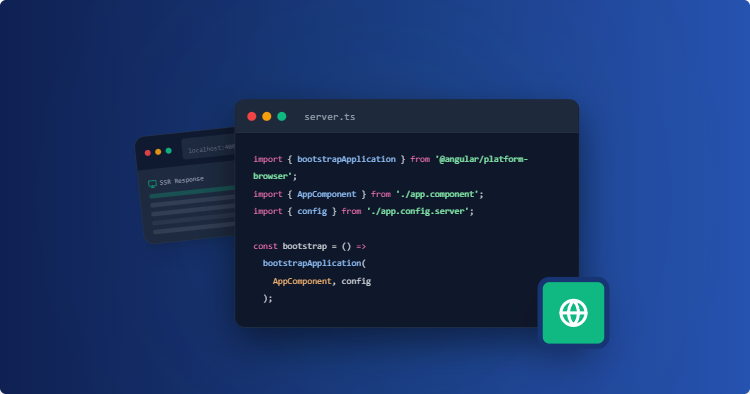
Using the –ssr flag tells Angular to generate a server.ts file, which is your Express backend, and to automatically set up the server build targets inside angular.json.
The more important thing it does is configure modern hydration. If I open src/app/app.config.ts, I want to keep the defaults the CLI generated (like provideBrowserGlobalErrorListeners), but I need to make sure both routing and hydration are enabled, plus HttpClient so the server itself can make API calls.
I’ll also add withEventReplay(), which makes sure any clicks a user fires off before the JavaScript finishes loading get captured rather than lost.
// src/app/app.config.ts
import { ApplicationConfig, provideBrowserGlobalErrorListeners } from '@angular/core';
import { provideRouter } from '@angular/router';
import { provideClientHydration, withEventReplay } from '@angular/platform-browser';
import { provideHttpClient, withFetch } from '@angular/common/http';
import { routes } from './app.routes';

export const appConfig: ApplicationConfig = {
  providers: [
    provideBrowserGlobalErrorListeners(),
    provideRouter(routes),
    // Enables non-destructive hydration and buffers early user clicks
    provideClientHydration(withEventReplay()),
    // withFetch() is required for SSR to make HTTP calls natively in Node
    provideHttpClient(withFetch())
  ]
};
Step 2: Building the Data-Fetching Component
Now I’ll build the component that actually fetches the posts and renders them. This is the piece that proves the point: the server runs this fetch and the result ends up in the HTML before the browser ever sees it.
I’ll open src/app/app.ts and replace what’s there with my own component. It defines the shape of a post, calls the JSONPlaceholder API inside ngOnInit, and then loops over the results in the template to display each one.
// src/app/app.ts
import { Component, inject, OnInit } from '@angular/core';
import { HttpClient } from '@angular/common/http';
import { CommonModule } from '@angular/common';

interface Post {
  id: number;
  title: string;
}

@Component({
  selector: 'app-root',
  standalone: true,
  imports: [CommonModule],
  template: `
    <main style="font-family: sans-serif; padding: 2rem;">
      <h1>Angular SSR Data Fetching</h1>
      <p>If you View Page Source, this list is baked into the raw HTML:</p>
      <ul>
        <li *ngFor="let post of posts">
          <strong>{{ post.id }}</strong> - {{ post.title }}
        </li>
      </ul>
    </main>
  `
})
export class App implements OnInit {
  private http = inject(HttpClient);
  posts: Post[] = [];

  ngOnInit() {
    // The server waits for this request to finish before rendering the HTML
    this.http.get<Post[]>('https://jsonplaceholder.typicode.com/posts?_limit=5')
      .subscribe(data => {
        this.posts = data;
      });
  }
}
Because I set up HttpClient with withFetch() back in Step 1, the server can run this HTTP call natively during the render. So by the time the page reaches the browser, the list of posts is already sitting in the HTML.
Step 3: Test the App Locally
To confirm the server is actually doing the rendering work, I’ll spin up the local development server.
npm run start
Once the server runs, in my command prompt window, I should see “Application bundle generation complete.”
With that, I’ll open http://localhost:4200 in my browser.
The way the page looks isn’t really the test I care about. What I actually want to check is what the server sent down in the first place.
So I’ll copy the first listed item on the page, then view the page’s source.
If I CTRL+F what I copied, instead of an empty shell waiting on JavaScript, I can see my post data already embedded in the raw HTML the server sent. Angular fetched the data while building the page and serialized it straight into the response.
That’s the whole point of rendering on the server side: the content is there on first load, before any client-side JavaScript runs.
Now that the app works, the next job is to build it for production and get it live.
Step 4: Building the Application for Production
Since the data-fetching works locally, the next step is compiling the app for production.
npm run build
A regular client-side Angular build just drops a pile of static files into a single folder, but the SSR build works differently and produces a specific structure inside dist/angular-ssr-demo/.
When I open that dist directory, there are two main folders. The browser/ folder holds the standard client-side assets, the CSS, the images, and the JavaScript bundles that take over once hydration kicks in. The server/ folder holds the compiled Node.js Express server that does the actual rendering.
The part I care about for deployment is the browser/ folder. During the build, Angular prerenders my route and drops the fetched data straight into the HTML inside that folder. So when I deploy, that’s the folder I’ll point Cloudways at, since it already holds fully rendered pages ready to serve.
Step 5: Deploying Angular SSR to Cloudways Velocity
Now I’ll get this live on Cloudways Velocity, a managed Node.js environment that handles the Nginx proxy, SSL, and automated GitHub deployments for me.
First, I’ll commit the whole project and push it to a new GitHub repository. Git already ignores node_modules and the dist folder by default, so those stay out of it.
Once that’s pushed, I’ll log into Cloudways and set up the deployment.
I’ll start by launching a Velocity app from the Cloudways dashboard, and pick a server size.
Next, I’ll connect my GitHub account, and select the angular-server-side-rendering repository I just pushed.
Now Cloudways automatically figures out the settings for my app. It sets the framework to Angular, the branch to main, and the Node version to v24. I don’t have to configure any of these settings manually.
There’s one setting I do need to point at the right place, and that’s the Output Directory. Angular’s build produces its prerendered, browser-ready files inside a browser subfolder, so I’ll set the Output Directory to:
dist/angular-ssr-demo/browser
That’s the folder holding the prerendered HTML with my data already in it, along with the client-side bundles that hydrate the page once it loads.
Once I hit deploy, Cloudways pulls the repo, runs npm install, runs the build, and serves that prerendered output.
When it finishes, the app is live on the temporary Cloudways URL. I open View Page Source and there’s my post data, right in the raw HTML, exactly like it was locally.
Conclusion
Angular SSR isn’t just a checkbox for a better Lighthouse score. It changes how your app actually runs, from a static build into a live server-side process, and that’s worth keeping in mind when you decide where to host it.
The payoff is simple: whoever loads the page, or whatever crawler indexes it, gets real content right away instead of an empty shell waiting on JavaScript.
And if you deploy that prerendered output to a managed host like Cloudways Velocity, you get all of that without touching Nginx or wrangling servers yourself.
Deploy Your Angular SSR App on Cloudways
Connect your repo, set the output directory, and get persistent Node.js hosting with zero cold starts.
Q. Does Angular SSR trigger duplicate HTTP requests on the client?
It doesn’t, and that’s actually one of the nicer parts of how it works. Angular serializes the data it fetched on the server directly into the HTML payload, so when the client-side HttpClient comes along it just reuses that existing data instead of firing off the same network request a second time.
Q. What’s the main difference between Angular SSR and SSG (Prerendering)?
The difference comes down to when the HTML gets built. SSR generates fresh HTML on every server request, which is exactly what you want when the data is live and changing. SSG builds all its static HTML once ahead of time during npm run build, which makes it the better fit for content that doesn’t really change between deploys.
Q. Will SSR fix all of my app’s performance issues?
Not entirely, and it’s worth being upfront about where its limits are. SSR improves the initial page load, so your TTFB and FCP get better, and it helps with SEO indexing too. But once hydration has finished, it won’t do a thing for poorly written client-side code or heavy, unoptimized assets, and those remain something you have to handle yourself.
Start Growing with Cloudways Today.
Our Clients Love us because we never compromise on these
[email protected]
Abdul is a tech-savvy, coffee-fuelled, and creatively driven marketer who loves keeping up with the latest software updates and tech gadgets. He's also a skilled technical writer who can explain complex concepts simply for a broad audience. Abdul enjoys sharing his knowledge of the Cloud industry through user manuals, documentation, and blog posts.