WordPress is still one of the most widely used content management systems on the web. The publishing experience is familiar, there are plugins for almost everything, and setting up a site doesn’t take much time.
The setup can become harder to manage as traffic grows. In a traditional WordPress site, the CMS and the frontend run together on the same server. Every page request can involve PHP workers, database queries, and theme files. On a busy site, all of that adds up quickly.
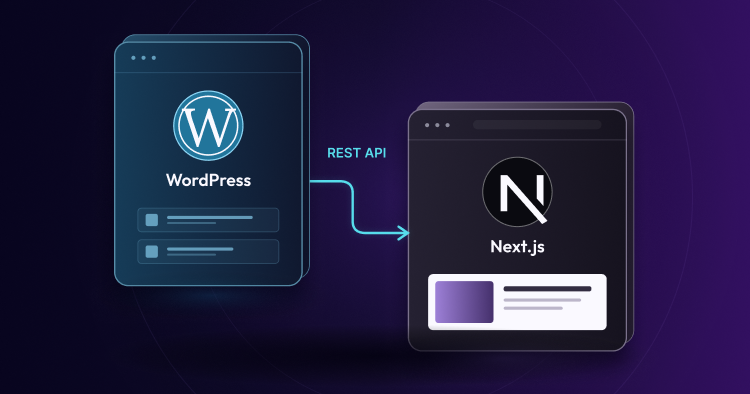
A headless WordPress setup separates those two parts. WordPress stays in place as the CMS, while a separate application handles the frontend. In this case, I’m using Next.js for the frontend.
My goal is simple: keep WordPress for managing content, but run the public website through a Node.js application without relying on a WordPress theme for every page request.
For this setup, I’ll use WordPress as the backend CMS on Cloudways Flexible, generate some test content with a plugin, and deploy the Next.js frontend on a persistent Cloudways Velocity environment.
There is no need to set up custom proxy rules or manually configure a Linux VPS for this setup. I’ll walk through how the two applications connect, what changes in the architecture, and how I put the setup together.
What Does a Headless WordPress Next.js Architecture Mean?
In a regular WordPress installation, the CMS and the frontend are part of the same application. Posts are created and managed through the WordPress dashboard, while the PHP theme handles what visitors see.
When someone opens a page, WordPress may need to query the database, load the required PHP files, run the theme code, and generate the HTML response.
With a headless setup, the WordPress theme is no longer responsible for the public website.
WordPress continues to handle the content and database, but the frontend is moved to a separate application. I can still create posts, manage media, and use the familiar wp-admin dashboard. The difference is that the public site is now built with Next.js.
The Next.js application requests the content from WordPress through its API, receives the post data, and uses that data to build the pages visitors see.
How a Headless Setup Can Protect the WordPress Backend
A public WordPress installation receives more than normal visitor traffic. Bots can also hit endpoints such as wp-login.php and `xmlrpc.php looking for vulnerabilities or login attempts.
With the frontend and CMS running together, the WordPress server handles both the public website and the administrative side of the application.
A headless setup gives me the option to separate those responsibilities. The WordPress installation doesn’t need to serve the public frontend anymore. It mainly acts as the source for the content used by the Next.js application.
That also gives me more control over how the WordPress server is exposed. For example, API access can be restricted based on the requirements of the setup, and the WordPress dashboard can be placed behind additional access controls such as a VPN.
The editors can continue using the WordPress dashboard, while the public website is served by Next.js. Removing the WordPress theme from the public side also removes that part of the WordPress attack surface.
Why Node.js Works Well for High-Traffic Frontends
One of the main differences between a traditional WordPress frontend and a Node.js frontend is how they handle incoming requests.
A PHP application uses PHP-FPM workers to process requests. Those workers have a limit, and each request can require memory for the WordPress core, database queries, plugins, and theme code.
For example, if 100 requests arrive at the same time, the server has to process those requests through the available PHP-FPM workers. The amount of memory used depends on the application and its configuration, but a busy WordPress site can put considerable pressure on the server when many requests need to be processed at once.
Node.js uses an event-driven model with non-blocking I/O. A running Node.js process can keep handling incoming requests while waiting for database queries, API calls, or other I/O operations to finish.
For this setup, the Next.js application can also serve pages that have already been rendered or use cached data instead of making WordPress generate every page from scratch.
That doesn’t mean Node.js automatically handles every type of workload better. The way the Next.js application is built, the caching strategy, database setup, and server resources all affect the final result. The main advantage here is that the frontend and WordPress backend no longer have to process every public page request together.
Why Use Next.js for the WordPress Frontend?
A client-side React application can create extra work for search engines because much of the page content depends on JavaScript running in the browser.
Next.js gives me server-side rendering and static generation options, so pages can be generated before they reach the visitor’s browser. This is useful for a content-heavy site where search engines need to access the actual page content.
Next.js also works directly with the WordPress REST API. I can use regular JavaScript fetch requests to retrieve posts and other WordPress data without adding a separate GraphQL setup to the CMS.
That keeps the stack fairly simple: WordPress handles the content, the REST API exposes that content, and Next.js handles the public frontend.
How to Build a Headless WordPress Next JS Application
I am going to walk you through the exact steps to build this decoupled stack from scratch. I will show you how to configure a standard WordPress instance on Cloudways Flexible to act as your content API, how to code a custom Next.js frontend locally to fetch those posts, and finally, how to deploy the Node.js application to a live Cloudways Velocity server.
Step 1: Setting Up the WordPress Backend
Deploying the WordPress Application
I started by spinning up a standard WordPress application on a Cloudways Flexible PHP server.
I logged into my Cloudways dashboard, selected my preferred infrastructure provider, and launched a fresh WordPress app.

The application creation process takes around 5-6 minutes to complete.
Once the deployment finished, I logged into my wp admin dashboard. This server is now my dedicated content repository. I didn’t bother installing any visual themes or page builders here, because the PHP frontend will never be seen by the public.
Generating Test Data with FakerPress
I needed realistic data to test my custom Next.js frontend, but manually writing placeholder blog posts and hunting down stock photos takes way too much time.
To automate this process, I navigated to Plugins > Add New and searched for FakerPress. I installed and activated the plugin.
Next, I went to FakerPress > Posts in the left-hand sidebar.
I set the quantity to 15, made sure the Image Providers field was not empty so that real featured images for posts could be pulled, and clicked Generate.
In seconds, my WordPress database was populated with fully formatted dummy posts, complete with authors, HTML formatting, tags, categories, and images.
Testing the WordPress REST API Endpoints
In modern WordPress, the REST API is built directly into the core and enabled by default. I don’t need to install any extra plugins or write custom PHP to make it work.
Because of this, WordPress automatically exposes the new content generated by FakerPress as lightweight JSON data. To confirm my API bridge was active and ready to be queried, I opened a new browser tab and navigated to:
https://wordpress-1669408-6684683.cloudwaysapps.com/wp-json/wp/v2/posts
The screen immediately filled with a raw JSON array containing all of the dummy posts I just generated. My backend was successfully broadcasting data to the web.
Step 2: Building the Next.js Frontend Locally
Initializing the Next.js Project
Before pushing the project to Cloudways Velocity, I wanted to build and test everything locally first to make sure the data fetching worked perfectly. It is much easier to read terminal errors and debug API calls on my own machine than to push the project to the cloud and try to figure out why the data isn’t rendering.
I opened Command Prompt (cmd). Since I am using a standalone binary version of Node.js on my local machine, I first needed to add its folder to the PATH so the terminal could find Node and npm. I ran:
set PATH=%PATH%;C:\Users\abdulrehman\Downloads\node-v24.18.0-win-x64\node-v24.18.0-win-x64
With my environment paths set, I ran the following command to scaffold my React component structure:
npx create-next-app@latest headless-frontend
I followed the CLI prompts to set up the project, making sure to select the App Router since it is the modern Next.js standard.
Once initialized, I moved into the new project folder:
cd headless-frontend
Next, I needed to set up my environment variables so Next.js knew exactly where to pull the content from.
I opened the headless-frontend folder in my code editor (Visual Studio Code) and created a new file at the root named exactly .env.local. Inside that text file, I pasted my live WordPress API endpoint:
NEXT_PUBLIC_WP_API_URL=https://wordpress-1669408-6684683.cloudwaysapps.com/wp-json/wp/v2/posts
Fetching Data and Rendering the Posts
In my Next.js app directory, I opened the page.tsx file. By default, Next.js fills this file with a bunch of welcome boilerplate and logos. I highlighted everything, deleted it, and replaced it with my own server component that pings the WordPress REST API and maps out the posts.
Here is the complete, finished code for the page.tsx file:
// 1. The data fetching function
async function getPosts() {
  // .trim() prevents invisible Windows characters from breaking the URL
  const apiUrl = (process.env.NEXT_PUBLIC_WP_API_URL as string).trim();

  const res = await fetch(apiUrl, {
    next: { revalidate: 60 },
    headers: {
      // Bypasses standard server bot-protection by acting like a browser
      'User-Agent': 'Mozilla/5.0 (Windows NT 10.0; Win64; x64)'
    }
  });

  if (!res.ok) {
    throw new Error(`Failed to fetch WordPress data: ${res.status}`);
  }
  return res.json();
}
// 2. The main page component
export default async function Home() {
  const posts = await getPosts();

  return (
    <main className="p-8 font-sans max-w-4xl mx-auto">
      <h1 className="text-center mb-8 text-3xl font-bold">Headless WordPress Next JS Blog</h1>
      <div className="grid gap-8">
        {posts.map((post: any) => (
          <article key={post.id} className="border border-gray-200 p-6 rounded-lg">
            <h2 dangerouslySetInnerHTML={{ __html: post.title.rendered }} className="text-2xl mb-4" />
            <div dangerouslySetInnerHTML={{ __html: post.excerpt.rendered }} className="text-gray-600" />
          </article>
        ))}
      </div>
    </main>
  );
}
The revalidate: 60 tag inside the fetch request is incredibly important. This utilizes Next.js Incremental Static Regeneration (ISR). It tells the Node server to cache the API response for exactly 60 seconds.
If thousands of users visit the frontend during that minute, Next.js serves the cached HTML and never bothers the WordPress database. After 60 seconds, the next visitor triggers a background refresh to grab any new posts. This effectively shields the PHP backend from heavy traffic spikes.
I saved the file and ran npm run dev locally in the terminal to spin up the development server.
I opened my browser to http://localhost:3000 and confirmed that all of my FakerPress dummy posts rendered cleanly on the page.
Once everything looked good and the API connection was stable, I committed my code and pushed the repository to my GitHub account.
Step 3: Deploy the Next.js App on Cloudways Velocity
Create the Velocity Application
Velocity deploys applications directly from Git, so I first need the Next.js project in a repository. Since I already pushed the project to GitHub, I can now go back to the Cloudways dashboard.
I open the Velocity tab and click Add Application to create the new application.
Then I select the server where I want to run the Next.js application. Since I already created the Node.js server, I just select it from the dropdown.
Connect GitHub and Pull the Code
Next, I connect my GitHub account to Cloudways and select the nextjs-wordpress-headless repository I created earlier.
Check the Build Settings
Once I select the repository, Cloudways Velocity detects the Next.js project and fills in the main build settings:
- Framework Preset: Next.js SSR
- Branch: main
- Node version: v24
- Package Manager: npm
- Build Command: npm run build
- Entry File: npx next start
I don’t need to change most of these settings. The only thing I still need to add is the environment variable that tells the Next.js application where to find the WordPress API.
Under Environment variables, I click Add and enter:
Key: NEXT_PUBLIC_WP_API_URL
Value: https://wordpress-1669408-6684683.cloudwaysapps.com/wp-json/wp/v2/posts
This variable is required because the Next.js application needs the WordPress API URL when it builds and fetches the posts.
Test the Live Application
Once the settings are in place, I click Deploy Now.
Velocity then pulls the repository, installs the Node.js dependencies, runs the production build, and starts the application behind NGINX. SSL is enabled as part of the deployment.
Now I can test the full setup.
I log into the WordPress dashboard on my Cloudways Flexible application and publish a new post.
Then I switched over to my live Cloudways Velocity Next.js URL and refreshed the page. Since I’m using a headless WordPress setup, the WordPress REST API and the Next.js revalidate cache work together to pull the new post into the frontend automatically.
Wrapping Up
Running WordPress and Next.js separately gives me more control over how each part of the application runs. WordPress can stay focused on managing content and serving API requests, while Next.js takes care of the public-facing website.
For the setup in this guide, I didn’t need to manually configure Nginx, create SSL certificates, or set up Docker containers. I launched the WordPress application, connected the Next.js Git repository, deployed the Node.js application, and used the Cloudways environment to handle the server setup.
This approach makes sense for sites that want to keep using WordPress for content but need more control over the frontend. The two applications can be managed separately instead of making WordPress handle both the CMS and the public website.
Q. Does a headless WordPress setup ruin SEO?
No. Next.js supports server-side rendering and static generation, so the page content can be rendered into HTML before it reaches the browser. Search engines can then access the page content without depending entirely on client-side JavaScript.
Q. Can I still use standard WordPress plugins?
Some plugins work normally on the WordPress backend. For example, Yoast SEO and Advanced Custom Fields can be used as long as the data you need is available through the API.
Plugins that change the WordPress frontend, such as Elementor, Beaver Builder, and some slider plugins, won’t work the same way because Next.js has replaced the WordPress theme.
Q. Do I need separate servers for the frontend and backend?
Not necessarily. Both applications can run on the same server, depending on the workload and hosting setup.
Using separate environments does make it easier to keep the WordPress backend and Next.js frontend independent. A traffic spike on the frontend can then be handled separately from the resources used by WordPress and its database.
[email protected]
Abdul is a tech-savvy, coffee-fuelled, and creatively driven marketer who loves keeping up with the latest software updates and tech gadgets. He's also a skilled technical writer who can explain complex concepts simply for a broad audience. Abdul enjoys sharing his knowledge of the Cloud industry through user manuals, documentation, and blog posts.