

Running a WordPress website involves a steady stream of small jobs. Posts need drafting and updating, comments need moderating, plugins need checking, and media files need tidying. Each task is simple, but together they take hours every week.
AI agents change how these tasks get done, and an AI agent connected to your website can automate much of WordPress management. You describe the outcome you want in plain language, and the agent carries out the steps.
Unlike a chatbot, an agent can read your website and change it. That raises a fair question about access. Sharing a full admin login with an AI agent is usually a bad practice because agent operations can be hard to control and audit. The agent needs a structured way of accessing your website that allows it to take approved actions and leaves a clear record of what it did.
The Role of WordPress MCP
Model Context Protocol, or MCP, is an open standard that lets AI agents discover and use tools in a consistent way. WordPress supports it through two pieces that work together. The WordPress Abilities API lets a website describe what it can do, such as creating a post or listing users. The MCP Adapter plugin (available in the WordPress.org plugin directory) takes those abilities and presents them to agents as MCP tools. Together, these pieces are what people usually mean by WordPress MCP.
If the adapter is not installed, the agent falls back to the WordPress REST API. The agent can still work with your website that way, and the adapter gives it a standardized view of the abilities your website exposes.
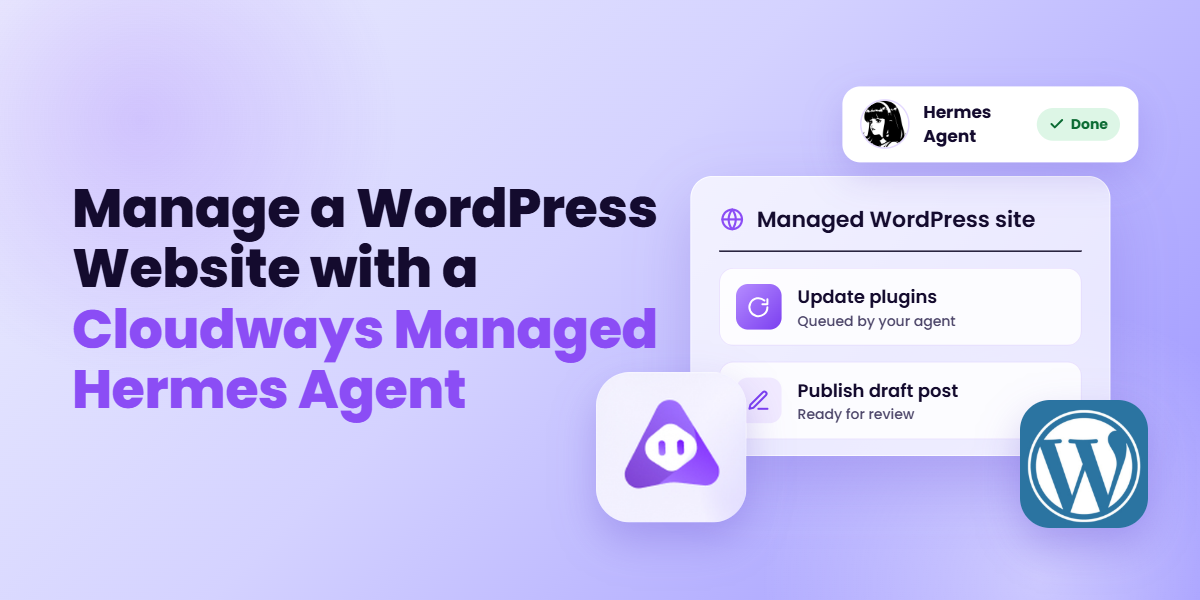
This guide shows how to connect a Hermes agent from Cloudways Managed AI Agents to a WordPress website hosted on Cloudways. The MCP Adapter is a standard WordPress plugin and behaves the same way wherever a website is hosted, so the ideas in this guide apply to any WordPress website.
Prerequisites
Before you begin, make sure the following are in place.
- An active Hermes agent in your Cloudways Managed AI Agents dashboard.
- A WordPress that loads over HTTPS. Note that the MCP Adapter plugin requires WordPress 6.9 or higher and PHP 7.4 or higher.
- A recent backup of the site. The agent will be able to change content, so a restore point is worth having before you start.
Connect Your WordPress Website to the Hermes Agent with WordPress MCP
Connecting your WordPress website to the Hermes agent is a simple process. that needs no code. You prepare WordPress so the agent can reach it securely, then connect the agent and test that it works. The work begins in WordPress, with the plugin that makes the connection possible.
Step #1: Install and Activate the WordPress MCP Adapter Plugin
- In your WordPress dashboard, go to Plugins > Add Plugin.
- Search for MCP Adapter. At the time of writing, it shows version 0.7.1, a requirement of WordPress 6.9 or higher and PHP 7.4 or higher, compatibility up to WordPress 7.1.4.
- Click Install Now, then click Activate.
- Open Plugins > Installed Plugins and confirm MCP Adapter appears as active.

Step #2: Create a Dedicated WordPress User for the Agent
You may be tempted to give the agent your personal website credentials. However, the best practice here is to give the agent its own account instead. Every change the agent makes is then attributed to that account, and you can revoke its access at any time without touching your own login.
- Go to Users > Add User.
- Enter a clear username, such as hermes-agent.
- Enter an email address you control. WordPress requires a unique address for every user.
- Leave the name and website fields empty, or fill them in if you want the agent’s byline to look a certain way.
- Use Generate password to create a strong password and store it in your password manager. The agent will connect with an application password, so you will rarely use this one.
- Choose whether to leave Send the new user an email about their account checked.
- Pick a role, as described below, then click Add User.
The role decides how much the agent can do. Subscriber, which is the form’s default, is too limited for website management. These are the roles most people consider.
| Role | Suits | What it cannot do |
| Author | Writing and publishing the agent’s own posts, and uploading media | Edit other people’s posts, moderate comments, or manage categories beyond assigning them |
| Editor | Managing all posts, pages, comments, categories, tags, and media | Install plugins or themes, manage users, or change website settings |
| Administrator | Everything an Editor does, plus plugins, themes, users, and settings | Nothing, which is why it carries the most risk |
Start with Editor if you mainly want help with content, and move to Administrator only when you want the agent to handle plugins, themes, users, or settings.
Step #3: Gather the Four Values the Agent Needs
The Connect dialog in Cloudways asks for four values.
Site Label. This is a nickname for your own reference, such as “Main Blog.” It matters most if you later connect more than one website to the agent.
Domain Name. Go to Settings > General and get the Site Address (URL) field.
WordPress Username. Go to Users > All Users and copy the value in the Username column for the agent’s account. Enter it exactly as shown. If the username is an email address, as it can be on sites created through a hosting dashboard, enter the full address.
App Password. An application password is a separate credential that WordPress generates for one user and one purpose. It is different from the login password, and you can revoke it without changing the login password.
- Go to Users > All Users and click Edit under the agent’s account. If you are signed in as the agent user, go to Users > Profile instead.
- Scroll to the Application Passwords section at the bottom of the page.
- Enter a name for the password, such as Cloudways Hermes.
- Click Add New Application Password.
- Copy the password immediately. It appears as six groups of four characters, and WordPress shows it only once. If you lose it, delete it and create a new one.
If the Application Passwords section is missing, the usual causes are a website that is not served over HTTPS, a security plugin that disables the feature, or a hosting or code-level setting that turns it off. Enable HTTPS first, then review the settings of any security plugin you have installed.
Step #4: Add the Details to the Hermes Agent
- Sign in to your Cloudways account and open your Hermes agent.
- Click the AI Agent tab, then choose MCP in the left menu. You will see the MCP servers available to the agent.
- On the WordPress MCP card, click Connect.
- In the Connect WordPress MCP dialog, fill in the Site Label, Domain Name, WordPress Username, and App Password. Use the eye icon in the password field to check what you pasted.
- Click Connect. The button stays disabled until every field is filled in.
Step #5: Verify that the Agent can Reach Your Website
At this point, you can see that the WordPress MCP is connected and your agent is connected to your website.
Let’s test if the agent can access the website by running the following prompts. Note that these prompts are read-only by design to ensure the agent doesn’t make any unauthorized changes.
Enter the first prompt in the Hermes agent chat:
What are the title and tagline of my WordPress site?
Next, run the next prompt:
List my five most recent posts with their publish dates
Compare the answers with Settings > General and Posts > All Posts in WordPress. If the details match, the agent can read your site.
Now, run a write test by running the following prompt.
Create a draft post titled ‘Hermes connection test’ with one short paragraph of text. Do not publish it.
Open Posts > All Posts in WordPress and look under Drafts. The new post should be there, and its author should be the agent’s user account.
Finally, clean up by running the following prompt:
Move the draft titled ‘Hermes connection test’ to the trash.
Check Posts > Trash to confirm.
Troubleshoot Common Problems
| Symptom | Likely cause | What to do |
| The Connect button stays gray | One or more fields are empty | Fill in all four fields |
| The agent reports an authentication error | The username is in the wrong format, or the application password was mistyped or revoked | Copy the username from the Users list, and create a new application password if needed |
| The agent cannot reach the site | The domain includes https:// or a trailing slash, the website is not served over HTTPS, or a firewall or security plugin blocks the request | Enter the bare domain, confirm HTTPS works, and check the allowlist settings of any security plugin |
| The agent connects but refuses an action | The agent’s WordPress role lacks the needed permission | Move the user to a role that includes it, or limit your request to what the role allows |
| The Application Passwords section is missing | The website is not on HTTPS, or a plugin or setting turns the feature off | Enable HTTPS and review security plugin settings |
What the Hermes Agent can do on Your WordPress Website Through WordPress MCP
Once the connection works, you manage the website by describing what you want. The agent acts through the account you created for it, with the permissions tagged to the official WordPress user role description.
Site Configuration
The agent can read and change the general settings that give a website its identity. These include the website title, tagline, timezone, date and time formats, homepage display, posts per page, and comment defaults. This is the fastest way to turn a generic WordPress install into a website that belongs to your business.
Example prompts for configuring the blog
- “Show me the current website title, tagline, timezone, and date format.”
- “Change the website title to ‘Maple Street Bakery’ and the tagline to ‘Fresh bread and pastries from our neighborhood oven.'”
- “Set the timezone to America/Chicago and the date format to the style ‘March 5, 2026’.”
- “Make the homepage show my latest posts, with ten posts per page.”
- “Keep comments open on new posts and require approval before any comment appears.”
Minimum role. Administrator.
Posts and Pages
The agent can create drafts, edit existing content, schedule posts, publish them, and move them to the trash. It can also rewrite or expand text, correct mistakes across posts, and update outdated facts. Beyond the body text, it can adjust titles, slugs, excerpts, and post status, and it can work with featured images and revisions. In my experience, my Hermes agent needs complete information about a landing page before it could add an acceptable version to the website. This is especially useful when I am building a page for a seasonal campaign. I just provide the agent with all the details and ask it to add the page. I then simply upload the custom assets (images and videos) and make sure any forms on the page have correct submission paths.
Example prompts for writing the announcement
- “Find every published post that mentions our 2025 pricing and list them. Do not change anything yet.”
- “Update the pricing in those posts to our 2026 prices. Work one post at a time and show me each change before you apply it.”
- “Draft a post announcing our spring sale using the notes below, and leave it as a draft.”
- “Schedule the draft titled ‘Spring sale’ to publish next Tuesday at 9 a.m.”
Minimum role. Author for the agent’s own posts. Editor for pages and for posts written by other people.
Categories and Tags
The agent can create, rename, and delete categories and tags, move posts between them, and clean up inconsistent structure. From my personal experience, assigning proper tags and moving posts to intended categories often get postponed because of more urgent tasks. The agent can also look for near-duplicates like “News” and “news,” and you can ask it to either merge the posts or move them to a different category.
Example prompts for organizing the announcement
- “Create a category called Promotions and move the ‘Spring sale’ draft into it.”
- “Show me every post with no category, and propose a category for each. Wait for my approval before applying anything to the website.”
- “Merge the tag ‘sales’ into ‘spring-sale’ and update the affected posts.”
Minimum role. Editor.
You should note that changing a slug changes the address of the related archive page and can break links that point to it. It is always a good practice to ask the agent to assess the impact before asking it to apply the change.
Media Library
The agent can list and search media, read and update titles, captions, and alt text, and help you find files that need attention. I often miss adding alt text to screenshots I upload to my technical blogs. This Hermes agent can check images in blogs and suggest alt text each image should have. I use this opportunity to add secondary keywords in alt text.
Example prompts for preparing the images
- “Update the alt text for the images in the post ‘Spring sale’ based on how each image is used in the article.”
- “Show every image in the ‘Spring sale’ post that is larger than 500 KB.”
- “List every image in the media library that has no alt text.”
Minimum role. Author for the agent’s own uploads. Editor for the full library.
Deleting a media file can leave broken images in posts and pages. If you are thinking of cleaning up the Media Library, always ask the agent to check where a file is used before you approve a removal.
Users and Roles
The agent can list users, review which role each account holds, and help you audit who has access to the website. I usually run this as a quarterly review to identify users who no longer need an account on my website. If you have an active website that allows guest author accounts, you need to run this workflow every quarter to clean up inactive accounts.
Example prompts for checking access before launch
- “Before the sale goes live, show every administrator account on the website.”
- “List all users with their roles and the date of their last published post.”
Minimum role. Administrator.
In my experience as a long-time website administrator, creating user accounts should always be a manual process. This allows you to always know who has an account on your website, and more importantly, the user role assigned to each user. I do not recommend asking the agent to create user accounts.
Plugins and Themes
The agent can list installed plugins and themes, report which ones have updates available, and activate or deactivate them. In my experience, Hermes usually flags plugin deletion requests and asks for your explicit approval. This is very important as you get a chance to review the deletion request and make sure the agent has identified the right plugin for deletion.
Example prompts for checking plugins before launch
- “List all installed plugins with their versions and whether an update is available. Do not update anything yet.”
- “Which active plugins have not been updated by their authors in over a year?”
Minimum role. Administrator.
Here is what I learned from using Hermes to co-manage my website. Plugins facilitate user operations and experiences beyond what you see on the settings page. For instance, deleting a forms plugin may disable user recommendations if you collect them via a custom form. You lose all custom settings as well so, it is always a good idea to take backup before deleting a plugin.
Menus, Widgets, and Final Website Checks
The agent can work with navigation menus and widgets, and it can double-check general settings before you go live. I personally find adding menus a chore because each theme has its own way of adding menu. The situation gets further complicated by the fact that WordPress offers multiple menu placement options. To resolve this situation, I prefer asking the agent to scan the website and add the menu at my selected location.
Example prompts for the final website checks
- “Confirm that the website timezone is still America/Chicago. I scheduled the ‘Spring sale’ post for 9 a.m. and want to be sure that matches local time.”
- “Add a link to the ‘Spring sale’ post at the end of the primary menu.”
Minimum role. Administrator for settings, and Editor for menus and widgets on many themes.
Comments
The agent can read pending comments, approve them, reply, mark spam, and move comments to the trash. It can also summarize what readers are saying across recent posts. In my experience, comment management is the perfect job for the Hermes agent. I ask it to draft a response and only post it after my approval.
Example prompts for the reader response
- “Show all pending comments on the ‘Spring sale’ post and flag any that look like spam.”
- “Draft a reply to each approved comment that asks a question, and show me the drafts before posting.”
- “Summarize the most common questions readers asked on the ‘Spring sale’ post.”
Minimum role. Editor.
You should note that the comments section is often a vector for prompt injection attacks. Comments can contain malicious text that may steer an agent into unintended directions. Always make sure you have proper guardrails in place that confine the agent to treat all comments as unsanitized input.
Site Health and Reporting
Because the agent can read content, comments, plugins, and settings, it can assemble reports that would otherwise take a manual tour of the dashboard. Reports can cover a content inventory, a list of stale posts, a snapshot of pending comments, or a summary of plugin and theme updates.
Example prompts for the review after the sale
- “Give me a content inventory by category, including the number of posts and the date of the newest one in each.”
- “With the sale over, list posts that have not been updated in two years and suggest which ones deserve a refresh before the next promotion.”
Minimum role. Editor for content reports. Administrator for plugin, theme, and settings reports.
I personally spot check the report contents against what I can see in the Dashboard. While the agents usually do not make mistakes in reporting concrete data points (such as date of publication or total number of posts in a category), they can make mistakes in analysis tasks (such as asking the sentiments of a comment thread).
Combining WordPress MCP with the Other Connected Servers
The real strength of a managed agent is that it can work across several connected tools in one conversation. If you are using a Cloudways Managed Agent, you can connect Cloudways MCP, which lets the agent manage Cloudways servers and applications, and AgentMail MCP, which gives the agent a real email inbox.
This allows you to carry out a wide range of activities that go beyond your WordPress website. You can carry out server and application management and reporting actions from the same conversation thread without worrying about the agent losing context of the conversation.
- Ask the agent to take a backup of the application through Cloudways MCP before it updates pricing in old posts or runs plugin updates.
- Ask the agent to email you a daily summary of new comments on the ‘Spring sale’ post through AgentMail MCP.
- When the sale page loads slowly, ask the agent to review server details and website content in a single conversation.
I usually ask the agent to email me a summary of the published posts on my website. This gives me a quick overview of what posts and pages were published or modified the previous day.
Best practices and cautions for managing WordPress with an AI agent
An agent with write access can save you hours, and it can also make a mistake quickly and at scale. These habits keep the benefits and limit the downside.
- Use a dedicated user with the lowest role that does the job. Begin with Editor for content work. Move to Administrator only for a specific task, and move back afterward.
- Back up before bulk changes. Take a backup before large edits, plugin updates, or setting changes. When a plugin or theme is critical to the website, try the change on a staging copy first.
- Start with read-only requests. Ask the agent to list and summarize before you ask it to change anything. A list of affected items is the best preview you can get.
- Require approval before destructive or public actions. Tell the agent to describe its plan and wait for your confirmation before it deletes, publishes, or replies to a comment.
- Keep the scope narrow. Ask for changes to one category or one set of posts at a time instead of the whole website. Small batches are easy to review and easy to undo.
- Review the results after each session. Check the post revisions and the Posts list filtered by the agent’s author name to see what changed. WordPress keeps revisions for posts and pages, which gives you a way back.
- Treat agent-written content as a draft. Review facts, tone, and links before anything goes live. The agent can produce fluent text that contains errors.
- Guard the application password. Keep it out of chat messages, screenshots, and shared documents. Create a separate password for each integration so you can revoke one without affecting the others.
- Rotate and revoke credentials. Replace the application password on a regular schedule, and delete it right away if you suspect it has been exposed or if you stop using the agent. Deleting it in the user’s profile ends the connection immediately.
- Be careful with untrusted text. The agent reads comments, form entries, and other content that outsiders can write. Text planted there could try to steer the agent. Keep sensitive actions behind your own approval, and avoid asking the agent to act on instructions it finds inside website content.
- Keep everything updated. Update WordPress, PHP, and the MCP Adapter on a regular basis. The adapter is still below version 1.0, so read its changelog before you update and recheck the connection afterward.
Conclusion
Connecting a Cloudways managed Hermes agent to WordPress with WordPress MCP takes one plugin, one dedicated user, and one application password. Once the connection is verified, the agent can handle content, comments, media, and routine website reporting through plain-language requests, and it can reach further into plugins, settings, and server tasks when you grant a higher role.
The best way to begin is with a low-risk task on a website you have backed up. Watch how the agent handles it, then widen its access as your confidence grows. Because the MCP Adapter is a standard WordPress plugin, everything in this guide carries over to any WordPress website you manage.
Frequently Asked Questions
What is WordPress MCP?
WordPress MCP is the use of the Model Context Protocol with WordPress. The WordPress Abilities API describes what a website can do, and the MCP Adapter plugin exposes those abilities as tools that an AI agent can discover and use, such as creating posts or moderating comments.
Is the application password the same as my login password?
No. It is a separate credential that WordPress generates for one user and one purpose. You can delete it at any time without changing the login password.
Which user role should I give the agent?
Start with Editor for content work. Use Administrator only when the agent needs to manage plugins, themes, users, or settings.
Can I connect more than one WordPress website to my agent?
You can add multiple sites by clicking the Add more option on the MCP connection page. This brings up the website information form that you can use to add information about the next website.
Does my website have to be hosted on Cloudways?
The MCP Adapter is a standard WordPress plugin that works on any host.
Can the agent delete content or break my site?
It can, within the limits of its role. Reduce the risk by using a low role, taking backups, asking the agent to list affected items before it changes them, and requiring your approval for deletions and publishing.
How do I revoke the agent’s access?
Delete the application password in the agent user’s profile in WordPress, or delete the agent user. Either step ends the connection. You can also remove the website from the MCP list in Cloudways.
Why is the Connect button grayed out?
The button stays disabled until all four fields are filled in. Check that the Site Label, Domain Name, WordPress Username, and App Password each contain a value.
Does it work with WooCommerce or page builders?
The agent can work with whatever the adapter exposes, and that depends on whether the plugin registers abilities.
What does the agent cost to run?
In addition to the Cloudways Managed Agent plan you opted for, you also need to budget for LLM usage. Note that your LLm provider directly bills you and this amount is not included in your Cloudways invoice.
What if a security plugin blocks the connection?
Security plugins sometimes restrict REST API access or application passwords. Review the plugin’s settings for options that block REST requests or authentication, and allow the agent’s user account or the Cloudways connection.
[email protected]
Zafar Iqbal is a Senior Technical Writer who's spent the last decade making server products, WordPress, and SaaS platforms actually make sense to people. As someone who lives at the intersection of tech and marketing, he loves turning complicated technical concepts into insights that help people make the right business decisions. When he's not demystifying managed hosting infrastructure, he's tinkering with his hobby projects.