Key Takeaways
- Zero Trust reduces risk for WordPress agencies by validating every user, device, plugin, and connected tool, rather than trusting access by default.
- It closes security gaps by enforcing MFA, eliminating shared passwords, and limiting each user’s access to what they need.
- Zero Trust is an ongoing process that involves access control, plugin reviews, backups, monitoring, client education, and incident response.
If you run a WordPress agency, this situation might be familiar. You hired a developer two years ago for a six-week period, and they still have admin access to three client websites. Your team completed the project, the developer is off the project, and no one may even remember that the account exists. But the account is still active, with permissions that no one is actively reviewing.
That’s the sort of security gap Zero Trust Architecture was designed to close.
Zero Trust builds on a simple idea: don’t assume that any user, device, plugin, or connected tool is trustworthy just because it already has access. Check who has access, restrict permissions, and audit regularly.
This is especially important for WordPress agencies where client sites have many users, contractors, plugins, backups, hosting accounts, and third-party tools.
In this guide, we’ll show you how to use Zero Trust Architecture to secure client WordPress sites without making security complicated.
- What Is Zero Trust Architecture?
- Why Agencies Should Adopt a Zero Trust Approach for Client WordPress Websites
- How to Apply Zero Trust Architecture to Client WordPress Sites
- Enforce MFA on all critical accounts
- Harden the WordPress Login Page
- Replace Shared Passwords With Individual Accounts
- Follow the Principle of Least Privilege
- Set Up SSO and an Offboarding Process for Clients
- Review Plugins and Themes Before Trusting Them
- Set Up a Development, Staging, Production Update Workflow
- Conduct Periodic Access Reviews
- Handle Backups as Sensitive Site Data
- Track Login and Site Activity
- Restrict Access With IP Allowlisting
- Train Clients on the Fundamentals of Website Security
- What to Do If a WordPress Account Is Compromised
- Final Thoughts
What Is Zero Trust Architecture?
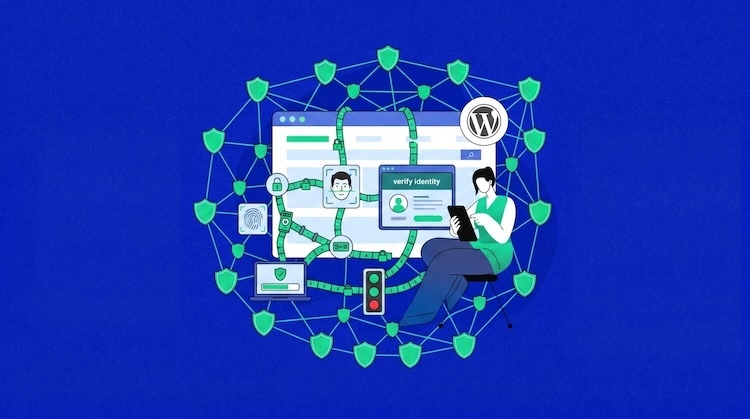
Zero Trust Architecture is a security model that follows one simple principle: don’t trust anyone or anything by default and keep verifying everything. That might seem unusual, but that’s how websites actually run.
Just because someone logged in yesterday does not mean their access should not be audited today. Just because you once approved a plugin doesn’t mean you should keep it installed forever. And just because a client, contractor, or team member needed admin access once doesn’t mean they still need it.
The essence of Zero Trust is defined by three principles:
- Never trust by default: No user, tool, plugin, device, or integration is safe by default.
- Always verify: An access request should be checked before trusting it.
- Limit the damage: If something goes wrong, permissions and access controls should limit how far the damage can go.
The following webinar discusses how digital agencies can implement zero trust architecture to secure client websites. It explains why agencies shouldn’t automatically trust users, plugins, devices, or connected tools and how simple steps such as MFA, limited access, regular reviews, secure backups, and client education can lower security risks.
Why Agencies Should Adopt a Zero Trust Approach for Client WordPress Websites
Zero Trust is even more important when an agency administers multiple client websites. A business website might only have a few users alongside tools connected to it. But an agency usually manages more than one WordPress site, in addition to hosting accounts, backups, reporting tools, analytics platforms, forms, CRMs, and plugin licenses.
That bigger setup adds the risk. If an attacker compromises an internal account, they can access not just one website, but also other client sites, shared dashboards, stored credentials, backups, or connected services.
AI has made it less challenging to create realistic-looking phishing emails, fake login pages, and automated malware attacks. Attackers don’t always need to break into WordPress directly. They may imitate a known tool, send a message that seems to be from a client, teammate, or platform the agency already uses, or manipulate users into entering credentials on a fraudulent login page. Understanding WordPress AI security threats is becoming increasingly important for agencies.
Agencies deal with different people needing access at different times, including clients, internal teams, contractors, vendors, and hosting providers. That access is necessary. But it should not be permanent, unrestricted, or forgotten after the job is done.
Zero Trust provides agencies a more secure way to do this. The agency is not dependent on trust, memory, or convenience. It establishes a process that limits, reviews, and removes access when no longer necessary.
This protects the client’s site but also the agency’s reputation. If a client site gets hacked because of bad access control, the client probably doesn’t care whether it was their team’s mistake or the agency’s workflow. They’ll still want to understand from the agency what happened.
How to Apply Zero Trust Architecture to Client WordPress Sites
Zero Trust doesn’t have to start with a complicated security configuration. For agencies, it begins with changing how they grant, verify, and revoke access across client WordPress sites.
Here are the key areas to focus on, from MFA and user roles to plugin reviews, backups, monitoring, and client education.

1. Enforce MFA on all critical accounts
MFA, or multi-factor authentication, is an added layer of verification beyond the password. It is one of the easiest and most effective security controls an agency can put in place on client WordPress sites.
Implement MFA on accounts that can have an impact on the site, customer data, hosting, or billing.
This includes :
- WordPress administrator accounts
- Hosting dashboards
- Domain and DNS accounts
- Tools for managing agency sites
- Environment for staging
- Email accounts linked to client sites
- SFTP or SSH access
- Accounts in Password Manager
This is particularly important to agencies since one compromised internal account can expose more than one client website. If an agency user has access to more than one site, that account needs more protection than just a password.
Make MFA a non-negotiable by design. Don’t simply recommend it, or remind the user to turn it on later. Make it part of your onboarding process that clients have to set up before you allow them access to critical systems.
To enable MFA in WordPress, navigate to Plugins > Add New and install a reliable MFA plugin. Once active, enforce MFA for administrators and any user who can change site settings, plugins, users, orders, or customer data.
2. Harden the WordPress Login Page
The WordPress login page is among the most common targets for automated attacks. Almost every WordPress site has wp-login.php, and attackers often try credential stuffing, password spraying, and brute-force attempts against it because they know it exists.
A Zero Trust approach treats the login page as a sensitive entry point and puts additional controls around it.
Here are some ideas to consider:
- Limit log-in attempts to avoid multiple failed logins.
- CAPTCHA or bot protection on login forms
- Temporary lock-out after several failed attempts.
- Passwordless login or passkeys, if supported.
- Security plugins that monitor and block suspicious login activity.
For higher-value client sites, agencies can also lock down the login page at the server or hosting level for another layer of protection before even reaching the WordPress authentication.
The goal is simple: make it harder for attackers to get to the authentication process in the first place.
3. Replace Shared Passwords With Individual Accounts
Fast-moving teams often share passwords, but they do present a serious tracking problem.
When multiple people have the same admin login, there’s no way to know who changed a plugin, changed a setting, added a user, or edited a page. It also becomes increasingly difficult to revoke access if an employee leaves, a contractor completes a short-term project, or users reuse passwords across tools.
Everyone has to have their own account. This applies to internal team members as well as to clients, freelancers, and temporary contractors. This makes access management, revocation, and review easier. It also provides the agency with a clear record of what people did on the site.
4. Follow the Principle of Least Privilege
Least privilege is the practice of assigning each user the lowest role that still gives them the permissions they need to do their work.
This includes everyone who has access to client WordPress sites, including developers, designers, content editors, clients, contractors, and support teams. Administrator access should never be the default.
Use WordPress roles with caution:
- Administrator: Has total control of the site.
- Editor: Can publish and manage content.
- Author: Able to create and publish their own posts.
- Contributor: Can write drafts but cannot publish drafts.
- Subscriber: Can manage their own profile.
In reality, a content writer doesn’t require access to plugins or themes. A client who manages blog posts may only need Author or Editor access. A WooCommerce support user needs access to orders, but not to site settings, plugins, or user management.
You have to be very careful about contractor access. Ask a contractor if they really need access to a live site before giving it to them. There may be an option to work on a staging site or local copy when possible. If the contractor requires live access, make sure it’s temporary and revoke it when they finish the work.
5. Set Up SSO and an Offboarding Process for Clients
Single Sign-On (SSO) can simplify access management for larger agency teams across WordPress sites, hosting platforms, project management tools, password managers, and other agency systems.
SSO provides a single identity provider for authentication. This makes it easier to enforce MFA, monitor access, and apply security policies consistently across multiple tools.
It is also important to have an offboarding process documented. When an employee, contractor, freelancer, or client contact stops working on a project, remove access according to a predefined checklist instead of depending on memory.
A proper offboarding process should include:
- Disabling the user’s SSO account.
- Deleting WordPress accounts.
- Revoking access to hosting.
- Deleting SSH and SFTP credentials.
- Revoking access to the password manager.
- Revoking access to project management and communication tools.
- Reviewing API keys, integrations, and connected services.
The objective is to revoke access completely and immediately to reduce the risk of forgotten accounts being future attack vectors.
6. Review Plugins and Themes Before Trusting Them
Agencies install plugins to quickly solve client requests. This is normal, but each plugin can add thousands of lines of code to the website. The agency has not typically written, reviewed, or tested all that code, so every plugin should be viewed as a security decision, not simply a feature add-on.
Check before installing a plugin on a client site:
- Who developed it?
- Is it still maintained?
- When was it last updated?
- Is it compatible with the latest version of WordPress?
- What permissions or features does it provide?
- Does the site already have another plugin that has the same feature?
- Could it impact checkout, forms, logins, user data, or other sensitive workflows?
- Can it be tested on staging first?
Many websites may still have outdated or unsupported plugins installed. This is important because a plugin can be safe when you first install it, then become a risk later when it is abandoned, sold, or just not maintained anymore. This is something that hackers prefer to attack because it gives them more sites to hack if a vulnerability is discovered.
The same rule applies to themes, especially third-party themes. Inactive themes could still be on the server as unused code. Over time, unsupported themes can become a liability if they are no longer maintained or if the original source is compromised.
For important client sites, test new plugins and theme changes on a staging site before pushing them live. This helps detect compatibility issues, performance problems, and unexpected behavior before it affects customers.
Clean up the site when the work is completed. In WordPress, go to Plugins > Installed Plugins and remove plugins that are inactive, duplicate, temporary, or not needed anymore.
Then go to Appearance > Themes and delete old inactive and unnecessary third-party themes.
Only keep the plugins and themes that your site is actually using, and ensure they are updated, maintained, and compatible with your current WordPress version.
7. Set Up a Development, Staging, Production Update Workflow
WordPress security includes updates, but you don’t want to push them straight to a live client site. The safer workflow is development > staging > production.
It consists of the following:
- Test updates in a development environment first: This is where you make your first changes, such as updating plugins, editing themes, updating WordPress core, or making custom code tweaks.
- Test functionality on staging: The staging site should mirror the live site to test actual workflows, including checkout, forms, login, search, account pages, and important integrations.
- Deploy to production only after testing: Once the site works as you expect, you can apply the update to the live environment.
This workflow prevents the usual situation of a plugin update breaking the theme, another plugin, or a custom feature and taking the site down. It also gives agencies a repeatable process they can use over multiple client websites, instead of performing updates differently each time.
It can be a challenge for agencies running multiple WordPress sites to keep updates secure and consistent. Cloudways Site Manager makes WordPress maintenance easy. With a single dashboard, you can manage multiple sites, manage plugins and themes, track activity, and update at scale.
It also provides a more secure update workflow built on the SafeUpdates foundation, with visual regression testing, activity logs, performance monitoring, and automated update management, allowing agencies to reduce risk and manage large site portfolios more efficiently.
8. Conduct Periodic Access Reviews
Access that worked when a project launched may not still be valid a year later. Team members leave, contractors finish their work, clients hire new people, and old accounts stay active because no one comes back to check them. Access should not be permanent; it must be reviewed periodically.
When auditing client WordPress sites, look for:
- wp-admin users who don’t have sufficient justification for being there anymore.
- Former team members or contractors who never had their access revoked.
- Client-side accounts with higher access than they currently need.
- Third-party tools or integrations that are still linked to the site but have no clear purpose.
- Shared or old credentials that need to be replaced with individual accounts.
Offboarding needs to happen the same day someone leaves a project or agency. If you wait until the end of the week or until someone remembers, you leave an open window for the account to still be used.
Access reviews should also include login activity. If your team normally manages a client site from one location and you suddenly see a login from a totally different country, check it immediately. It takes little effort to check login activity, and it can help agencies detect a potential breach before it gets worse.
For most client sites, a monthly or quarterly access review will be sufficient as long as it is consistent and focuses on users, roles, connected tools, and suspicious login patterns.
For WordPress sites, navigate to Users > All Users, and review each account. Confirm if every user still needs access, if their role is still appropriate, and if there are any old accounts for clients, contractors, or team members that should be deleted. If a user no longer requires full access, downgrade their role rather than simply leaving them as an Administrator.
9. Handle Backups as Sensitive Site Data
Teams often treat backups as a safety net, but backups still need security controls. A full backup can include everything on the website, including files, database content, user details, form submissions, order records, and private client data. If attackers expose that backup, it becomes yet another way for them to steal the site’s data.
A secure backup process should include the following:
- Automated backup scheduling for consistent backup.
- Offsite storage, so backup isn’t stored on the same server as the live site.
- Encrypt backup data where possible to protect it if storage is compromised.
- Limited team access so only the right people have access to view, download, or restore backups.
- Clear rules for retention so that old backups are not kept forever without reason.
- Regular restore testing to ensure the backup actually works.
- No exposed backup files in public folders or the live WordPress installation.
Restore testing is especially important. An untested backup is not a reliable backup. It is only an assumption that when something goes wrong, recovery will work.
Also, check how backup plugins deal with files. Some plugins generate large archives or leave backup files on the server, which can be forgotten or poorly protected. Agencies should know where backups are located, who has access to them, and whether they can be quickly restored when necessary.
For those agencies with many client sites, hosting-level backup features can help reduce manual effort.
Cloudways provides scheduled backups and one-click restores, which help to keep recovery processes more consistent across client websites.
10. Track Login and Site Activity
Zero Trust isn’t focused solely on access control. It is also about what actually takes place when access is given.
Agencies should monitor changes that impact client WordPress websites’ security, data, or business operations.
It includes the following:
- New admin users
- Failed attempts to log in
- User role modifications
- Plugin or theme updates
- Unexpected edits to files
- Updates to WordPress core
- Unexpected location logins
- Unexpected changes to payment, shipping, email, or form settings
This is especially true for membership-based and ecommerce websites where a suspicious login or setting change could affect customer data, account access, payment-related workflows, or confidential information.
Monitoring does not mean to manually check each individual step. It means keeping a clear record of important changes so you can spot suspicious behaviors soon enough and act before it becomes a more serious issue.
It also provides better accountability to agencies. When a client asks what’s changed on the site or why something stopped working, the agency has a clear record of activity to look at, instead of relying on memory or assumptions.
11. Restrict Access With IP Allowlisting
Not all administrative systems need to be accessible from anywhere in the world.
Where feasible, agencies should consider allowlisting for IP addresses for critical systems, such as hosting dashboards, staging environments, database management tools, SFTP, and SSH access.
IP allowlisting limits access to IP addresses or networks that are approved. Even if an attacker manages to acquire valid credentials, they may not be able to access the system from an unauthorized location.
This is particularly helpful for:
- Hosting control panels
- Staging environment
- Tools for database administrators
- SSH and SFTP access
- Agency management portals
IP allowlisting isn’t always a feasible solution for all clients or distributed teams, but it is an added layer of verification for systems with sensitive data or administrative controls. If you’re managing high-value client sites, combining MFA with IP allowlisting will greatly reduce your exposure to credential-based attacks.
12. Train Clients on the Fundamentals of Website Security
Clients are part of the security picture. The way they deal with passwords, suspicious emails, shared logins, or approval of plugin requests can directly impact the websites you manage for them. That’s why agencies should set security expectations during onboarding, not after something has gone wrong.
Clients don’t need a long technical explanation on Zero Trust, but they do need to know the essential rules to keep their site secure.
Make the basics clear:
- Why is MFA important?
- How does a unique password help protect your site?
- What can go wrong if you share your login information with co-workers?
- How do you detect fake login pages and emails that look suspicious?
- Who do I contact if I see something wrong on the site?
- Why aren’t all users granted admin privileges?
- Why does the installation of plugins need to be reviewed?
- How do backups, maintenance, and updates relate to security?
The goal is not to burden clients with technical information. For most projects, a brief security onboarding, a checklist, or a handover document is sufficient.
The idea is to make WordPress security feel like a professional standard from day one. Knowing the rules up front, clients will find themselves unlikely to see MFA, limited access, or maintenance as an inconvenience in the future.
For agencies looking to deepen their security knowledge, the Security Bootcamp offers comprehensive training on protecting WordPress sites from evolving threats.
What to Do If a WordPress Account Is Compromised
Zero Trust decreases the chances of a breach, but doesn’t eliminate the need for a response plan. If a client account has been breached, the first thing is to control access quickly and then investigate what happened.
Follow this procedure:
1. Lock the Account Immediately
Immediately revoke the account or reduce the permissions. Then force a logout from all devices, not just the current session.
Verify whether the attacker changed the account’s role during the breach as well. If the attacker created new admin users, changed permissions, or added some other way back into the site, undo those changes before restoring normal access.
2. Inspect the logs of the server and WordPress
Go through WordPress activity logs, server-specific logs, website hosting logs, and login records to find out:
- When someone accessed the account
- Where the login came from
- Which settings someone modified
- If someone added or modified any users
- Whether anyone edited themes or plugins
- If someone downloaded, exported, or deleted anything
Knowing what might have failed is not enough. It’s about learning how attackers hacked the account and what they accessed.
3. Reset Credentials and Review Connected Access
Don’t stop at the compromised WordPress password. Verify what other access the user had, such as hosting, SFTP, SSH, email, staging, agency management tools, other client sites, dashboards, or integrations.
Reset any credentials associated with it. Remove any unnecessary access. Treat reused passwords as compromised. Also, check for any unreliable integrations, suspicious logins, or settings changes on each of the connected systems.
4. Find the root cause and fix it
Revoking access eliminates the current risk involved, but that doesn’t address why the account was compromised.
This might be a weak password, no MFA, an old plugin, exposed credentials, password reuse, or granting too much access to one user. Once you know what’s wrong, try to fix it before the account is restored.
That might mean:
- Enforcing MFA
- Removing vulnerable plugins
- Resetting all administrative passwords
- Reducing user privileges
- Deleting unused accounts
- Updating outdated software
- Blocking any suspicious-looking IP address
Be aware of common attack vectors like WordPress XSS vulnerabilities and WordPress redirect hacks that attackers frequently exploit.
5. Monitor the Site After Cleanup
After cleaning up the site, keep a careful watch on it. Look for repeated unsuccessful login attempts, unexpected locations, new user creations, plugin modifications, file changes, and payment, email, or form settings modifications.
The follow-up period matters. If the attacker left a different access point behind, incidents can continue. Learning how to protect your websites from hidden attacks can help agencies identify and address these persistent threats.
6. Document Initial Response Steps
In many agencies, an account manager or project manager receives the first report of a compromised site, not a developer. They don’t need to investigate the entire breach, but they should know what to do first.
Have an internal checklist that briefly explains who to contact, how to lock an account, where to check basic logs, and when to escalate matters to the technical team. A clear process lets the agency be more responsive rather than waiting for an appropriate representative to be available.
Managed WordPress Hosting Built for Safer Agency Workflows
Cloudways helps agencies manage multiple client WordPress sites with staging, automated backups, secure team access, and simple server controls, making client sites easier to update, recover, and manage.
Final Thoughts
Zero Trust isn’t something you buy or a switch you can turn on. It’s a shift in the way an agency handles access, trust, and responsibility for client WordPress sites.
Begin by reviewing your current WordPress security practices. Check access, password handling, plugin approval, backup storage, and what happens when a contractor, client, or employee leaves.
The highest-impact steps are usually the simplest: enforce MFA, replace shared passwords with individual accounts, limit admin access, set up a password vault system with sufficient access limits, review plugins before trusting them, protect backups, monitor important activity, and remove old users before they become a risk.
Zero Trust only works if all parties involved with a client site understand their part in the protection of that site. It can’t be a policy of technical staff following it and everyone else sharing logins, skipping MFA, or assuming someone else is handling security.
Continue enhancing your security process until Zero Trust becomes part of how your agency builds, launches, and maintains every client WordPress website.
For agencies seeking a hosting platform with built-in security features, secure WordPress hosting combined with managed security services can provide a strong foundation. Additionally, implementing proper server security practices ensures protection at the infrastructure level.
Q1: What is the main principle of zero trust architecture?
Zero trust architecture is based on the principle that no user, device, plugin, or connected tool should be trusted by default. All access requests must be verified, permissions must be limited, and user roles must be reviewed regularly.
Q2: Why is it called zero trust?
It is called zero trust because the model assumes that no one is supposed to be trusted automatically, even if they previously had access. Rather, each user, tool, and system has to prove that access is still valid and needed.
Q3: What is the main benefit of zero trust architecture?
The main benefit of zero trust architecture is reduced security risk. It helps to prevent old accounts, shared passwords, over-privileged users, and compromised credentials from growing into an even bigger security issue.
Q4: What are the disadvantages of zero trust architecture?
Agencies may find zero trust architecture to be time-consuming, as they must review access, implement MFA, eliminate shared passwords, track routine activities, and train clients. It can be challenging in the beginning, but it allows you to set up a safer long-term security process.
Q5: How to implement zero trust architecture?
To implement zero trust architecture, you can enforce MFA, switch to individual accounts instead of shared passwords, limit user roles, review plugins and themes, protect backups, monitor site activity, educate clients, and remove access when it’s no longer required.
[email protected]
Nisha is a technical content writer with a passion for translating complex technology into content that’s clear, practical, and enjoyable to read. With strong technical insight and a user-first mindset, she crafts guides that help readers understand and use modern tools and platforms.