Key Takeaways
- A 401 Unauthorized Error means the server can’t verify your credentials.
- Common causes include expired cookies, wrong logins, plugin issues, or .htaccess errors.
- Quick fixes: check credentials, clear cache/cookies, disable conflicting plugins.
- Prevent it with strong authentication, regular updates, and proper permissions.
- Similar errors include 403 Forbidden, 404 Not Found, and 500-series codes.
An HTTP 401 Unauthorized error is one of the more stressful web errors because it completely blocks you from accessing a site as an everyday visitor. Webmasters have it even worse as they are unable to access their admin dashboard.
Unlike a 404 error where the requested page is simply missing, 401 error means the page is there, but is locked. The server won’t let you in, whether you’re an everyday website visitor or a site owner. It does this because it doesn’t know who you are or your login data is wrong.
Usually, the error is caused by something really simple like an expired cookie. But in some cases, the issue can be due to something complex, like an invalid API token, strict server permissions, or corrupted .htaccess files.
In this blog, I’ll show you a few tested solutions to fix the 401 error based on whether you’re a regular visitor, a developer, or a webmaster.
What is the 401 Error Code?
Whenever someone visits a website, their browser sends a request to the web server to load the page. If the page is public, the server loads the content. However, if the requested page is restricted, the server asks for valid login credentials.
If you don’t have the credentials, or if you enter details that are incorrect, the server blocks the request. And instead of loading the page, it returns a 401 status code.
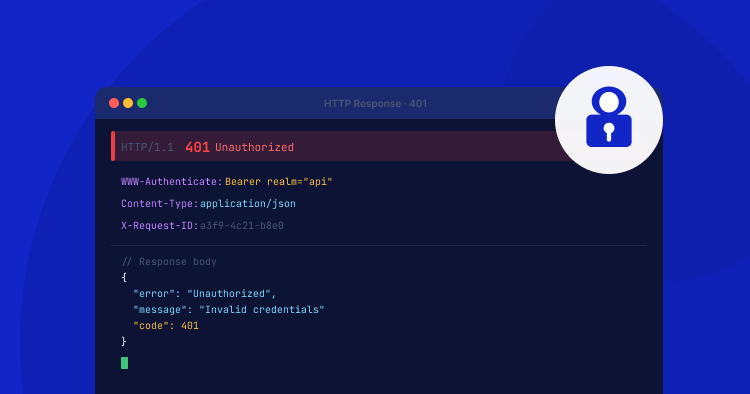
This code simply means that access is denied because the user is not authenticated. Along with this error which most of us see, the server also sends a WWW-Authenticate header, which tells the browser the exact type of login method that is required to allow access.
Depending on which browser or web server you’re using, the wordings of the error can look different. You may see any of these variations of the 401 error:
- 401 Authorization Required
- HTTP 401 Error – Unauthorized
- HTTP Error 401
- 401 Unauthorized
- Access Denied
401 Unauthorized vs. 403 Forbidden
401 and 403 errors both look similar since they both block visitors from accessing a webpage. However, they’re not the same and there is a clear difference between the two:
- 401 Unauthorized Error: means the visitor requesting the page is not authenticated. The visitor either has not logged in yet, or their login attempt failed.
- 403 Forbidden Error: means you’ve logged in successfully, but you don’t have the permission to view that specific page. For example, if a regular website visitor tries to access an admin-only page, this will trigger a 403 error.
How to Fix a 401 Error (For Everyday Web Visitors)
If you are trying to access a regular website, maybe a streaming service, and run into a 401 error, the issue might be temporary and easy to get rid of. Here are some easy fixes for everyday users.
1. Double-Check the URL and Your Credentials
A typo is often the most common cause of a 401 error. If you type a URL with a typo in it, you might request access to a restricted backend folder accidentally instead of the public page.
So, double-checking and fixing the web address for any spelling mistakes or missing slashes can easily fix the error.

If you are on a login page, make sure the username and password you’re typing are correct. In case you recently updated your password on a different device, your browser might still be holding on to the old auto-fill login details on the device that’s giving you the 401 error.
Try manually typing in your credentials and this should clear the error.
2. Clear Your Browser Cache and Cookies
Another reason why you’d see the error could be due to cookies. Websites use cookies to keep users logged in and remember their session data.
If the cookies expire or become corrupted, browsers end up sending outdated authentication data to the server, which it instantly rejects and throws a 401 error.
To figure out if this is the issue in your case, open the page in Incognito mode. Private mode ignores saved cookies, so if the page loads now, it confirms that the data stored in the browser is the root of the problem.
Once confirmed, go to your browser settings, clear your cache and cookies, and load the page again. This time, you should not see the 401 error.
3. Temporarily Disable Your VPN
If you use a Virtual Private Network (VPN), this may be the reason why your access is being denied. Web servers, firewalls, and security plugins treat shared VPN IP addresses as suspicious traffic. This is also why you see more captcha requests when using a VPN compared to when you’re not.
The reason why a server does this is to prevent potential security risks like automated brute-force attacks. So…when you try to log in to a website using a VPN, the server will block the authentication attempt and simply show a 401 error.
To test if this is the reason why you’re seeing the error, temporarily pause your VPN connection and refresh the webpage. If the page loads and lets you log in normally, you know what was causing the issue.
Alternatively, a local proxy connection can also mess up session data and cause the same problem. So if the VPN is not the culprit in your case, check if an active proxy is getting in the way. On Windows:
- Go to the Windows Settings. Or just hit Windows Key + I.
- Then Network & Internet > Proxy.
- And make sure the option for Use a proxy server is set to Off.
Then reload the website to see if this fixes the issue.
Tired of Dealing With Server Errors?
Cloudways handles server configuration, security, and caching for you, so you can focus on growing your site, not firefighting errors.
How to Fix the HTTP Error 401 (For Website Owners)
If you’re a website owner and see a 401 error, this means either the server or a security layer is blocking a request due to failed authentication. This does not just affect your visitors, blocking them from accessing your site, but it can lock you out of your own admin dashboard.
The cause of this error is usually due to aggressive security settings, bad server configuration files, or stuck caching layers.
Now I’ll show you a few tested ways to identify and resolve the issue on your server.
1. Check WAF and CDN Rules (Cloudflare/Sucuri)
Web Application Firewalls (WAF) or Content Delivery Networks (CDN) like Cloudflare or Sucuri work as security checks between your origin server and the web. They monitor incoming traffic and block suspicious activities like bots trying to brute-force a login page.
While useful, if the defined security rules are configured too strictly, they can block legitimate users, webhooks, and API requests, considering them threats, before the traffic ever reaches your actual server.
To fix this, try temporarily enabling Development Mode or pause the web application firewall in Cloudflare or Sucuri.
After that, test your site. If it loads normally, check your firewall event logs for blocked requests, and whitelist your IP address.
To avoid the same issue from happening repeatedly, create a custom page rule that lowers the security level only for authentication pages like the WordPress admin login URL.
2. Deactivate WordPress Security Plugins via FTP/SSH
Like WAFs and CDNs, WordPress security plugins like Wordfence sometimes end up being over aggressive. Minor glitches or false positives can trigger a complete site lockdown. You get a 401 error and end up unable to access your own wp-admin dashboard.
And since you can’t log in to turn off these security plugins normally, you’ll need to bypass the dashboard entirely and disable plugins at the server level.
To do this, connect to your server using an FTP client like FileZilla. You can also connect via SSH. Then go to your site’s wp-content/plugins/ directory and locate the folder belonging to your security plugin, for example, wordfence.
Once you find the folder, rename it to something like wordfence-disabled. Doing this deactivates the plugin.
Now refresh your website, and if the security plugin was the reason behind the 401 error, you should now be able to access your wp-admin dashboard without issues.
3. Reset the .htaccess File
The .htaccess file is a core server configuration file. Sometimes, if faulty manual edits are made or code from a deleted security plugin is left behind, this can corrupt your .htaccess file, causing it to block genuine traffic and throw a 401 error.
To fix a corrupted file, connect to your server using an FTP client and access your website’s root directory. You can do the same using your host’s file manager.
Now find the .htaccess file and rename it to something like .htaccess_old. This will force WordPress to create a fresh version of the file.
Now, try loading your website again. If you don’t see the 401 error, this means your .htaccess file was corrupted.
So now, go to Settings > Permalinks in your WordPress dashboard and click “Save Changes“. You don’t need to make any changes to any settings. This will automatically generate a clean .htaccess file for your server, fixing the 401 error for good.
4. Check Server-Level Password Protection
Some websites use server level password protection called Basic Authentication. What this does is add an extra login screen before the site even loads. This kind of protection is commonly used on staging sites or private directories. If wrong credentials are entered, or login details saved in the browser are outdated, the server throws a 401 error.
To fix this issue, you need to check if the Basic Authentication feature is running on your site. On Cloudways, you can find an option to enable or disable the “Password Protection” feature. So, simply toggle it off and test your site.
If you manually manage your server through SSH, go to your server’s root directory and look for the .htpasswd file. Go ahead and rename it, delete it, or comment out the basic authentication rules within your Nginx or Apache configuration files. This will remove restrictions and restore normal access to the site.
5. Purge Server-Level Caches (Varnish/Redis)
Server caching tools like Varnish or Redis can speed up a website, but they can sometimes cause issues. If an old temporary 401 error gets cached, your server might keep showing your visitors the error, even though you have already resolved the underlying issue.
To fix this, you need to clear your server caches entirely. The exact steps vary depending on the caching system your host provides, for example, Varnish, Redis, or LiteSpeed Cache.
On Cloudways, you can do this very easily by going to your server > clicking Manage Services and then clicking on “Purge” next to Varnish.
Alternatively, if you are using caching plugins like Breeze, LiteSpeed Cache, etc, you can clear everything directly from your WordPress dashboard.
Once the cache is clear, reload your website to see if the error has been resolved. If not, we move to the next solution.
6. Check for Blocked WordPress REST API Endpoints
Modern WordPress themes that support the Gutenberg editor and even plugins like WooCommerce, rely heavily on the WordPress REST API to function. But sometimes, to ensure website security, site owners or security plugins will restrict access to REST APIs.
So…when legit plugins try to communicate with endpoints that are blocked, the server throws a 401 Unauthorized error. This stops you from saving posts, making changes to widgets, or processing checkout requests.
To fix this, first go ahead and check if the REST API has been deliberately disabled. Check the settings of your security plugins like Solid Security. What you’re looking for is any options labeled “Disable REST API” or “Restrict Access“. Make sure they are turned off.
Additionally, if you added a custom security code block to your .htaccess or Nginx configuration files, check for any rules that may be blocking the /wp-json/ path.
If you see any rule like the screenshot below, remove them. This will restore the REST API access, fixing the 401 error.
Test Your Website & Prevent Future 401 Errors
Although you may have already checked whether the 401 error persists after each fix, the thing is, simply reloading the page is not enough. Thoroughly testing your webpages helps ensure everything is working properly and prevents the error from popping up again.
Here is a quick checklist to test your site thoroughly and keep 401 errors from coming back:
- Click through different pages and sections of your website to ensure they are all loading correctly & there are no other unexpected errors.
- If your website has interactive elements such as contact forms, search bars, login fields, etc., make sure to test them to confirm they are still working correctly.
- Test your website on different web browsers (like Chrome, Firefox, Safari, and Edge) to ensure compatibility.
- Access your website from different devices, including desktop, laptop, tablet, and mobile, to confirm it works across all platforms.
- If your server keeps error logs, check these to ensure no new errors are being logged.
- Use strong and secure authentication mechanisms.
- Regularly update your systems.
- Ensure that permissions and roles are correctly set up to prevent unauthorized access to protected resources.
- Use website monitoring tools to receive notifications about errors such as 401 Unauthorized Errors.
- If you use APIs, ensure they’re secure and require appropriate authentication.
Prevent 401 Errors With Reliable WordPress Hosting
Get advanced security features, built-in caching, and 24/7 expert support with Cloudways — the managed cloud platform built for WordPress.
Other WordPress Errors
The 401 error is, unfortunately, not the only error you’d encounter during your browsing journey. There are a lot more common WordPress errors, and the table below briefly defines some of them.
| Error Codes | Description |
| 500 Internal Server Error | Indicates a general server failure without specifying the exact problem. |
| 502 Bad Gateway | Typically occurs when a server acting as a gateway or proxy receives an invalid response from the upstream server. |
| 503 Service Unavailable | Arises when the web server fails to obtain a proper response from a PHP script. |
| 504 Gateway Timeout | Occurs when a server acting as a gateway or proxy doesn’t receive a timely response from the upstream server. |
| 401 Unauthorized Error | Happens when authentication is required for the requested resource, but either no credentials were provided or the provided credentials were incorrect. |
| 403 Forbidden Error | Displayed when the server understands the request but refuses to authorize it. |
| 404 Not Found Error | Shown when the server cannot locate the requested page or post. |
Wrapping Up
Coming across an HTTP 401 Unauthorized error can be frustrating, but it is not a sign of permanent site damage. For everyday website visitors, the issue is usually nothing more than a typo, outdated cookie, or VPN conflicts. These all can be cleared up in a couple of clicks.
For website owners, a 401 error is mostly triggered by your server’s security mechanisms doing their job too strictly. But by working through your firewall settings, caching layers, and security plugin configurations, you can easily track down the culprit and get rid of the error.
If you have tried all the fixes we covered and are still facing the 401 error and are locked out of your own site, it is time to reach out to your hosting provider. They can inspect your server logs to pinpoint the exact issues causing the block.
Q1: How does 401 Error affect speed and performance?
The 401 Error, indicating unauthorized access, can impact server speed and performance. When a large number of unauthorized access attempts occur, it consumes server resources, potentially leading to slower response times for legitimate requests.
Q2: What does server 401 Unauthorized access is denied due to invalid credentials mean?
The server’s response of “401 Unauthorized access is denied due to invalid credentials” signifies that the requested resource requires authentication. However, the credentials provided by the client, such as username, password, API key, or token, are either missing or incorrect.
Q3: Can a 401 error be caused by VPN or firewall settings?
Yes. Some VPN configurations or strict firewall rules can block authentication requests, which may trigger a 401 error.
Q4: What’s the difference between a 401 and a 407 error?
A 401 error occurs when a request lacks valid authentication credentials. A 407 error means authentication is required by a proxy server before the request can be processed.
Q5: How do I fix a 401 error for an API request?
Verify that your API key, token, or OAuth credentials are correct and active. Ensure they have the necessary permissions, and check for IP or domain restrictions that could be blocking access.
[email protected]
Abdul is a tech-savvy, coffee-fuelled, and creatively driven marketer who loves keeping up with the latest software updates and tech gadgets. He's also a skilled technical writer who can explain complex concepts simply for a broad audience. Abdul enjoys sharing his knowledge of the Cloud industry through user manuals, documentation, and blog posts.