Key Takeaways
- MCP (Model Context Protocol) Cloud Server connects AI assistants like Claude, ChatGPT, and Gemini directly to your infrastructure, so you can manage servers and apps in plain English.
- Agencies can spin up client sites, handle day-to-day maintenance, respond to incidents, scan for vulnerabilities, and scale for traffic spikes through conversational prompts instead of the dashboard.
- Cloudways MCP supports popular AI clients including Claude, Cursor, VS Code Copilot, ChatGPT, Gemini CLI, Windsurf, and Codex.
- Getting started takes three steps: get your API key, connect your AI client, and test with a simple query.
- No technical knowledge is required to implement these use cases.
Managing client websites and servers usually means logging into dashboards, clicking through menus, and manually executing repetitive tasks. Cloudways MCP (Model Context Protocol) Server changes that.
It connects AI assistants like Claude, ChatGPT, or Gemini directly to your Cloudways infrastructure, so you can manage servers and applications using plain English (or your preferred language), right from your AI tool of choice.
This article walks through the most exciting Cloudways MCP use cases for digital agencies and marketing teams. The best part is that you do not require any technical knowledge to use them.
Let’s start with a short introduction.
- What is MCP Cloud?
- Exciting Agency-focused Use Cases
- Spin Up Client Sites in Seconds
- Handle Day-to-Day Site Maintenance Without Logging Into the Dashboard
- Respond to Site Incidents Faster
- Stay on Top of WordPress Security
- Run a Pre-Launch Checklist With One Prompt
- Proactively Scale for Traffic Spikes
- Get a Bird’s-Eye View of Your Entire Client Fleet
- Manage DNS and Domains Without Leaving Your Workflow
- Deploy Code Changes with Natural Language
- Build Repeatable Maintenance Workflows
- Getting Started in Three Simple Steps
- Tips for Best Results
What is MCP Cloud?

MCP stands for Model Context Protocol, an open standard that lets AI tools interact with external platforms. When you connect an MCP cloud server to an AI client, you can type a request like “Restart PHP on my staging server” and the AI will handle it automatically, calling the right Cloudways API endpoints in the background and returning a structured result.
Cloudways MCP supports popular AI clients, including Claude (Desktop and Code), Cursor, VS Code Copilot, ChatGPT, Gemini CLI, Windsurf, and Codex. All you need to get started is your registered Cloudways account email and the API key.
With the introductions out of the way, let’s jump right into the use cases.
Exciting Agency-focused Use Cases
Spin Up Client Sites in Seconds
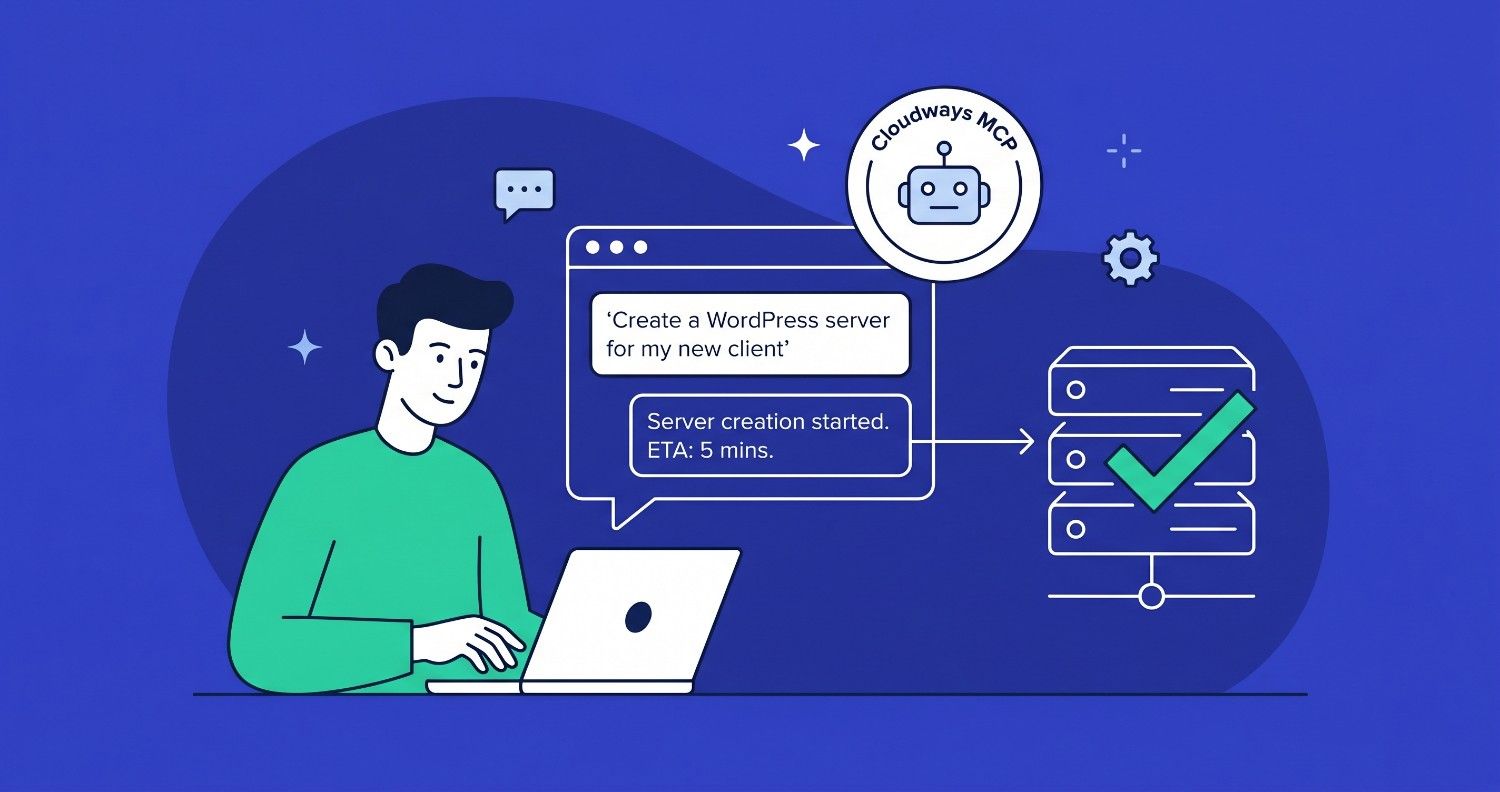
Instead of manually navigating multiple screens to provision a server, select a region, install an application, and configure settings, you can do it all with a single prompt. This dramatically simplifies onboarding and gives your team a faster, more consistent way to get new client environments up and running.
| “Create Create a 2GB DigitalOcean server in New York with WordPress for my new client, label Server name as Client XYZ Server and App name Client XYZ Site” |
Expect responses like:
‘Server creation is underway’.
‘The server is provisioning. Want me to check the operation status in a few minutes?’
Here’s a summary:
| Field | Value |
| Server | Client XYZ Server |
| Server ID | 1636009 |
| App | Client XYZ Site (WordPress 6.2.2) |
| Cloud | DigitalOcean — New York (nyc3) |
| Size | 2GB |
| Platform | Debian 12 |
| Est. time | ~7 minutes |
| Operation ID | 127868995 |
You can cross-check the progress of provisioning on the Cloudways platform as well:
You can then follow up with:
- “Add a wordpress staging app of site Client XYZ on the same server.”
- “Rename the server to ClientName-Production.”
This cuts new client setup time from about 15+ minutes to under 10 minutes.
Handle Day-to-Day Site Maintenance Without Logging Into the Dashboard
Routine tasks like clearing caches, checking backups, and restoring applications are now conversational. Instead of navigating multiple screens, you describe what you need.
| “Purge all caches for the Client XYZ WordPress site.” “Back up the Client XYZ.” |
You can also handle more targeted operations across your entire fleet:
- “Purge cache of all the WordPress sites on Server X.”
- “Backup the application X.”
- “Restore the application to yesterday’s restore point.”
- “Check if a backup of application X exists.”
Respond to Site Incidents Faster
When a client calls saying their site is slow or down, every minute counts. MCP cloud lets you diagnose and act without opening the browser.
| Incident Investigation Workflow 1. “Are all services healthy on the ClientX production server?” Returns NGINX, MySQL, and PHP-FPM status. 2. “Show CPU and memory usage for that server over the last 24 hours.” 3. “Which wordpress applications are slowest on the ClientX server?” 4. “Show the top traffic sources hitting the site in the last hour.” |
Once you’ve identified the problem, you can act immediately fix the issue:
- “Restart Redis on the ClientX server.”
- “Scale the server up to 4GB RAM.”
This compresses what used to be a 20-minute troubleshooting session into a 5-minute conversation.
Stay on Top of WordPress Security
Agencies managing dozens of WordPress sites face constant vulnerability exposure. MCP cloud surfaces security issues without requiring you to check each site manually.
| “Scan all my WordPress apps for vulnerabilities on ClientX Server” “List any high-severity issues on the ClientX site.” |
The vulnerability scanner returns findings with severity scores, so you can prioritize fixes. You can then immediately act:
- “Disable XML-RPC on the ClientX site.” (A common attack vector)
- “Enable HTTPS redirection for the ClientX app.”
- “Disable direct PHP execution from uploads on ClientX.”
At Cloudways, we take security very seriously. We suggest hardening your website security with our Malware Protection Add-on
Run a Pre-Launch Checklist With One Prompt
Before launching a client site, agencies typically run through a checklist: backup, cache purge, HTTPS enforcement, cron jobs, and more. MCP cloud can chain multiple operations in a single session.
| “Backup all the applications on server Client XYZ, enable HTTPS redirection, purge all caches, and confirm the site is publicly accessible.” |
Note that Cloudways MCP sequentially executes one step at a time. You get a structured summary of what completed and what (if anything) needs attention, without opening the Cloudways dashboard once.
Proactively Scale for Traffic Spikes
Running a product launch or promotional campaign for a client?
You can monitor and scale your Cloudways infrastructure in real time, directly from the AI chat, by running the following suggested prompts before campaign launch:
| “Show traffic patterns on the application X over the last 6 hours.” “What’s the current disk usage on the production server?” “Scale the server up to 8GB RAM for the weekend launch.” |
Then after the campaign:
- “Monitor the application traffic.”
- “Scale the server back down to 4GB.”
- “Run disk cleanup on the server.”
- “Show slow MySQL queries from the last 24 hours.”
For more strategies on handling cloud hosting traffic spikes, check out our detailed guide.
Get a Bird’s-Eye View of Your Entire Client Fleet
Agencies running servers for multiple clients need a fast way to check fleet health without logging into each account separately. Consider the following fleet health check prompt sequence:
| “List all my running servers with their status and app counts.” “Which servers have the most disk usage right now?” |
The Copilot Insights tool is especially useful here. It surfaces AI-driven recommendations about infrastructure health, risks, and optimization opportunities across your entire Cloudways account.
Managing client portfolios is a critical bottleneck for agencies. Our Site Manager add-on simplifies this challenge by helping you apply updates across multiple sites from a centralized location.
Manage DNS and Domains Without Leaving Your Workflow
Pointing a new domain to a client site, adding DNS records, or setting up Cloudflare CDN are all tasks that previously required jumping between tools. With Cloudways MCP, you can carry out all these related tasks by running the following sample prompts:
- “Add the domain clientsite.com to Cloudflare CDN for the ClientX app.”
- “Get the DNS TXT records I need to verify the domain.”
- “Add an A record for blog.clientsite.com pointing to the server IP.”
- “Check the status of the domain verification for clientsite.com.”
Deploy Code Changes with Natural Language
For agencies with developer team members or Git-based workflows, Cloudways MCP streamlines code deployments without requiring command-line access. Consider the following prompts that help you deploy and manage code hosted on Git-compatible platforms, such as GitHub.
| “Pull the latest code from the main branch and deploy to the ClientX staging app.” “Show me the last 5 deployments for that app.” “Generate a deploy key for the ClientX app so I can link it to the GitHub repo.” |
This works for WordPress, Laravel, Magento, and all supported application types on Cloudways.
For developers who need direct server access, learn how to enable SSH access for application users.
Build Repeatable Maintenance Workflows
Many MCP clients let you save prompt sequences as templates. This means you can codify your agency’s standard operating procedures once and reuse them.
A weekly client site maintenance routine might look like:
- “Check service health on all production servers.”
- “Run backup for all production apps.”
- “Scan all WordPress apps for new vulnerabilities.”
- “Show disk usage for all servers and flag anything above 80%.”
Instead of manually clicking through each client’s server, you run the sequence in your AI client and get a consolidated report in minutes.
Getting Started in Three Simple Steps
Step #1: Get Your API Key
Log in to cloudways.com, open API Integration in the bottom-left menu, and copy your email address and API key.
Step #2: Connect Your AI Client
Choose your preferred AI tool (Claude Desktop, Cursor, VS Code, ChatGPT, Gemini CLI, etc.) and add the Cloudways MCP server using this endpoint:
https://mcp.cloudways.com/mcp/
Pass your email as X-CW-Email and your API key as X-CW-Api-Key in the connection headers. Full configuration examples for every client are in the Cloudways support documentation.
Step #3: Test With a Simple Query
Once connected, type:
| Test prompt: “Show me all my servers.” |
You should see a list of your Cloudways servers with their status, cloud provider, region, and IP. From there, the full range of use cases above is available.
Tips for Best Results
- Be specific: Instead of “Check my server,” try “Show CPU and memory for server 12345 over the last 7 days.” The more context you provide, the more accurate the response.
- Include identifiers: Server IDs, app names, and time ranges reduce the chance of the AI inferring the wrong target.
- Start with read operations: Before making changes, list your servers or check service status to get oriented.
- Destructive actions are permanent: Server and application deletions cannot be undone. Restoring an application is a destructive operation. Always confirm the target before executing delete commands.
- Chain operations: MCP can execute multiple actions from a single prompt if your intent is clear (for example, “Back up the app and restart the server”).
To learn more about how AI is transforming WordPress, watch our event replay. Agencies looking to leverage AI can also explore our practical AI roadmap for agencies.
Stay updated on upcoming features and improvements by following Cloudways on X, Facebook, and Reddit.
Q1: What is MCP Cloud and what can you do with it?
MCP Cloud allows agencies to manage their hosting infrastructure via natural-language chat instead of a traditional dashboard. Powered by the Model Context Protocol (MCP), it connects an AI assistant to your hosting environment, enabling actions like launching servers, deploying applications, and pulling performance data by simply typing requests. For example, an operator can say, “spin up a staging copy of the client’s WooCommerce store,” and the action is executed.
Q2: Can you really run a hosting account entirely by chat, and is it safe?
Yes. With MCP Cloud, you can initiate routine hosting operations (like launching, scaling, backups, and deployments) through chat. The platform ensures strict permissions, authentication, and audit logging, so the AI agent can only perform authorized actions. This allows for faster execution for agencies while maintaining governance over client environments.
Q3: Which hosting tasks should agencies automate with MCP Cloud first?
Start with the repetitive tasks that consume the most agency time, such as setting up staging environments, cloning sites for new builds, running migrations, scheduling backups, and checking server performance. These predictable tasks are ideal for chat-driven execution, reducing manual effort. Reserve sensitive actions like production deployments and billing changes for later, after your team has built trust in the workflow.
Q4: Do you need technical or coding skills to use MCP Cloud?
MCP Cloud allows everyday hosting management without any coding. You can describe your needs in plain language, and the AI agent takes care of it. While technical users can use scripts for deeper tasks, non-technical staff can easily perform common operations like creating environments and generating reports through chat. This makes it possible for the entire agency team to manage client hosting effectively.
Moyed Ansari
Muhammad Ansari is an Engineering Manager , AI at Cloudways, bringing 15+ years of experience in software engineering and technical leadership. He has played a key role in building and scaling AI products at Cloudways, spanning architecture design, and high-performance team building. Muhammad is passionate about developer advocacy and driving meaningful AI adoption across engineering organizations. His work sits at the intersection of product thinking, cloud infrastructure, and scalable engineering strategy, making him a trusted voice on modern AI-driven development practices.