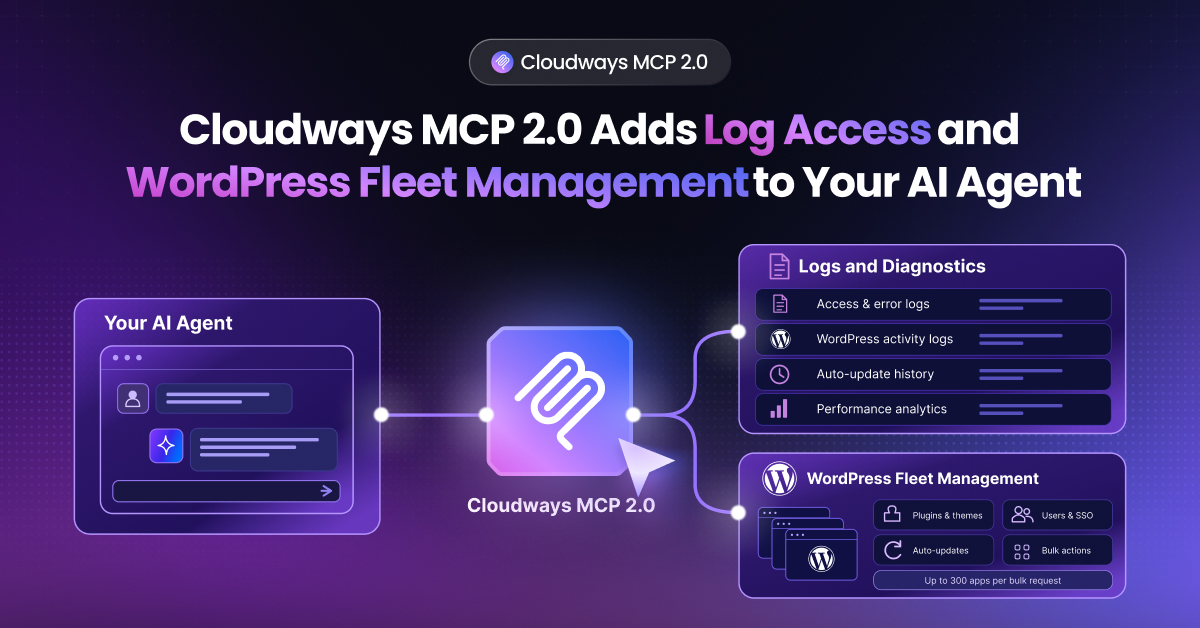
If you’ve been using Cloudways MCP to manage servers and apps through Claude, Cursor, Windsurf, or Cline, you already know the basics: ask your AI agent to restart a service, pull a Git deployment, or check server usage, and it just happens without changing dashboards or clicking through menus.
Version 1.2 extends that same conversational control into security, malware scanning, staging workflows, billing, and background job management. Combined with the categories we’d already covered in previous versions, Cloudways MCP now maps to essentially everything available on the Cloudways API (and essentially all critical Cloudways features and capabilities).
What’s New at a Glance
- 112 new tools, bringing the total to around 244
- 8 brand-new capability areas, including security, malware protection,CloudwaysBot, staging management, team members and agency os.
- A new authentication method (Access Tokens) replacing the old API key-based MCP access
That last point matters more than it sounds. Let’s get into it.
A New Way to Authenticate: RBAC Access Tokens
Up to now, connecting Cloudways MCP to your AI client meant generating an API key and handing it over in full. That key could do anything your account could do. This freedom includes potentially destructive actions such as creating and deleting servers and changing passwords.
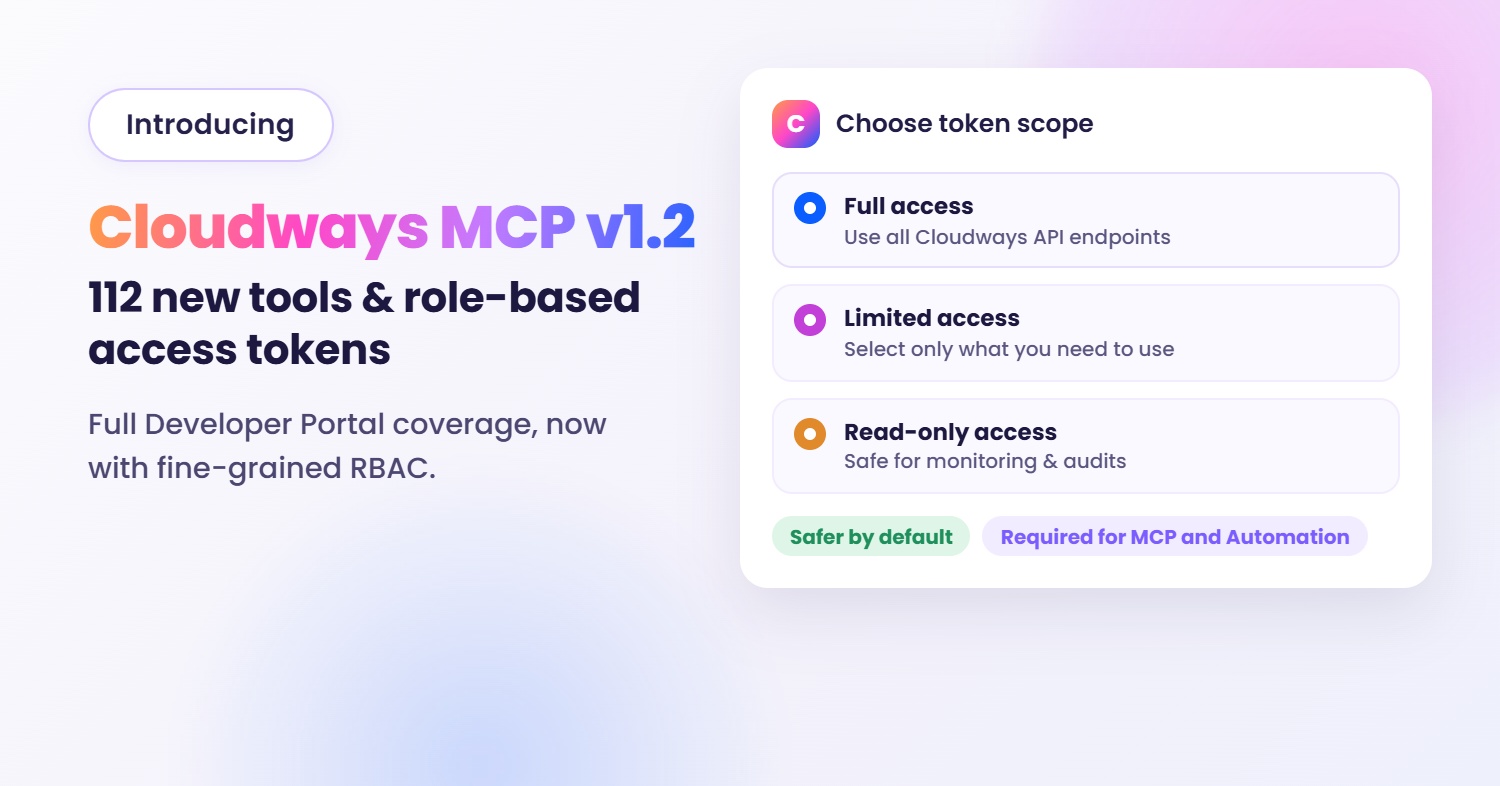
With v1.2, API keys are being replaced by Access Tokens (Role-Based Access Control). Instead of one key with blanket access, you generate a token scoped to exactly what you want your AI agent to be able to do.
Read vs. Full Access vs. Limited Scope
Tokens come in two flavors:
- READ: The agent can look things up and report back (server status, application configurations, and monitoring data) but can’t make any changes.
- FULL ACCESS: The agent has full control, including the ability to modify or delete resources.
- LIMITED SCOPE: The agent can only use the specific endpoints or endpoint groups you choose.
If you’re mainly using your AI agent to answer questions like “which apps are on this server” or “what’s my current PHP version,” a READ token does the job and removes any risk of an unintended change. Use FULL ACCESS token for workflows where you actually want the agent making changes, like deploying code or updating server settings.
A practical habit worth adopting is starting every new integration with a READ-Only Scope token. Move to Limited Scope if you only need specific actions, and reserve Full Access Scope for cases where you genuinely need complete control.
Getting Your Token
You can generate an access token from your Cloudways account, the same place the old API key lived. If you’re upgrading from a previous MCP version, plan to regenerate a new token as part of the update. The old API key will stop working after October 14, 2026, so we strongly recommend you make the switch as soon as possible.

Brand-New Capability Areas
Cloudways MCP v1.2 is a comprehensive upgrade with nine categories that didn’t exist before.
Security: SSL & IP Access (13 tools)
Everything around certificates and access control now lives in MCP. Now, you can:
- Issue, renew, revoke, and auto-renew Let’s Encrypt SSL certificates
- Remove custom SSL certificates
- Verify wildcard DNS records
- Whitelist or blacklist IPs for SSH, SFTP, MySQL, Web-SSH, and Adminer access
If you’ve ever had to log into the platform just to add your office IP to an allowlist, that workflow can now happen entirely through your AI agent.
Security Suite: Anti-Malware/WAF (26 tools)
This is the largest addition in the release, and arguably the most useful for anyone managing production sites. You can now ask your agent to:
- Run an on-demand malware scan on an application
- Review quarantined files and restore the ones that were flagged incorrectly
- Check for infected domains across a server
- View and manage server-level firewall rules, including IP and country-level blocking
For teams running WordPress sites at scale, this turns “did anything get infected this week” into a question you can just ask, instead of a dashboard you have to check.
CloudwaysBot (7 tools)
CloudwaysBot sends you alerts about your Cloudways fleet. Now your AI agent can manage that alerting layer directly, and execute actions such as:
- Read and acknowledge alerts
- Mark alerts as read individually or all at once
- Set up and manage alert-channel integrations (Slack, email, webhooks)
Staging Management (5 tools)
Moving changes from staging to production is no longer an all-or-nothing copy. Your agent can now move just what changed. In addition, now you can use Cloudways MCP tools to:
- Sync specific database tables or code between staging and production
- Manage htaccess authentication for staging environments
- Pull staging deployment logs
- Roll back a staging backup if something went wrong
Client Billing & Reporting / AgencyOS (23 tools)
This one is aimed at agencies and resellers rather than individual developers. This set of tools covers:
- Managing clients, billing plans, and services
- Creating and reviewing invoices, including sending reminders
- Configuring tax rules by country
- Pulling billing and client reports
If you’re not running client accounts through Cloudways, you can safely ignore this category. If you are, it means your agent can now handle a chunk of the admin work that used to require logging into the billing dashboard directly.
Copilot (9 tools)
Copilot subscription management is now fully covered in Cloudways MCP v1.2. Now you can:
- Subscribe, unsubscribe, or change plans
- View real-time billing for your Copilot subscription
- Configure per-server Copilot settings
- Pull usage data and insights
Supervisord (5 tools)
For applications running background workers or queues, you can now use MCP tools to:
- Create, list, and delete Supervisord worker queues
- Restart a queue or check its current status
These tools are very handy if you’re running a Laravel queue worker or similar background process and want to check on it without SSHing in.
Team Members (4 tools)
Inviting, adjusting, or removing sub-users no longer requires leaving your AI client . With Cloudways MCP v1.2 tools, you can manage team members on your account directly. For instance, you can:
- Invite new team members
- Update their permissions
- Remove access when it’s no longer needed
Server Transfer (3 tools)
Handing a server off to a client, or consolidating servers under a different account all involve the same annoying step: transferring ownership. That process now runs through your agent too, using natural language commands for any of the following:
- Request a transfer
- Check its status
- Cancel it if needed
Completed Coverage in Existing Categories
A few categories that already existed in MCP got filled out rather than replaced.
Add-on Management picked up three additions: managing Elastic Email sender domains (list, verify, delete) and upgrading existing addon packages. If you’re using Elastic Email for transactional mail, you no longer need to leave your AI client to manage sender domains.
Cloudflare expanded significantly, with 14 new tools covering domain lifecycle (delete, transfer, purge), DNS verification, Smart Cache Purge, per-domain settings, and both cache and security analytics. If you’re running Cloudflare in front of your Cloudways apps, this is close to full parity with what you’d get in the Cloudflare dashboard itself.
Built for Scale: Why You Still Only See 65 Tools
Here’s something that trips people up.
With 240+ tools now available, you might expect your MCP client to show all of them. It won’t, and that’s intentional.
Loading this many tool definitions into your AI client’s context window every time you start a conversation would burn through tokens fast, before you’ve even asked a question. So Cloudways MCP uses a different approach.
When you connect, your client loads:
- 62 direct tools: These are high-frequency essentials you’ll use constantly (The list includes server and app management, monitoring, core add-ons)
- 3 meta-tools: list_available_toolsets, get_toolset_tools, and execute_tool
The meta-tools act as a gateway. If you ask your agent to do something outside the 62 direct tools, say, run a malware scan or manage a Supervisord queue, the agent uses the meta-tools to look up the right tool, load its definition, and run it. You don’t have to do anything differently or ask for a specific tool by name. The agent handles the discovery step on its own.
The practical upshot of using the meta-tools instead of downloading the full tool definition is that you get the full 240+ tool surface without paying the token cost of loading it all upfront. If a request feels like it should be possible but the agent seems unsure, it’s worth rephrasing more specifically (naming the feature or action you want) so it can find the right tool through the meta-tool lookup.
How to Upgrade to Cloudways MCP 1.2
To pick up the new tools:
- Toggle the Cloudways MCP server off and back on in your MCP client’s settings. If your client doesn’t support toggling, fully quit and restart it instead.
- Generate a new access token from your Cloudways account and update your MCP client’s configuration with it. Your old API key will stop working once you switch over.
Explore the Full Tool List
244 tools is a lot to take in in one post, and we’ve only walked through the headline additions here. If you want the complete picture, the Cloudways MCP Server Tools documentation has every tool and endpoint listed out, organized by category, so you can see exactly what’s available before you ask your agent to use it.
If you’re setting up Cloudways MCP for the first time, or need a refresher on getting connected, the MCP setup guide walks through the whole process end to end.
This release is the closest Cloudways MCP has ever come to covering the full Cloudways API from inside a chat window. Malware scans, staging syncs, SSL renewals, team invites, even client billing, all of it is now one prompt away, no dashboard required. The best way to see what that actually feels like is to open your AI client and start asking. Try something you’d normally do manually: check for infected files on a site, invite a teammate with limited access, or pull a billing report. Chances are, there’s a tool for it now.
Have feedback on what you’d like to see in the next release? Reach out through Cloudways Support.
[email protected]
Zafar Iqbal is a Senior Technical Writer who's spent the last decade making server products, WordPress, and SaaS platforms actually make sense to people. As someone who lives at the intersection of tech and marketing, he loves turning complicated technical concepts into insights that help people make the right business decisions. When he's not demystifying managed hosting infrastructure, he's tinkering with his hobby projects.