Key Takeaways
- Website cloning creates a replica of your site for testing, migration, backup, or starting a new similar project.
- The five main methods are hosting provider tools, manual FTP and database transfer, WordPress plugins, HTML copy, and Chrome extensions.
- Always back up files and database before cloning to avoid permanent data loss.
- Copying someone else’s website without permission can violate copyright and intellectual property laws.
- After cloning, check for broken links, plugin conflicts, and URL mismatches before pushing changes live.
Need to revamp your site or tweak functionalities without disrupting your live website?
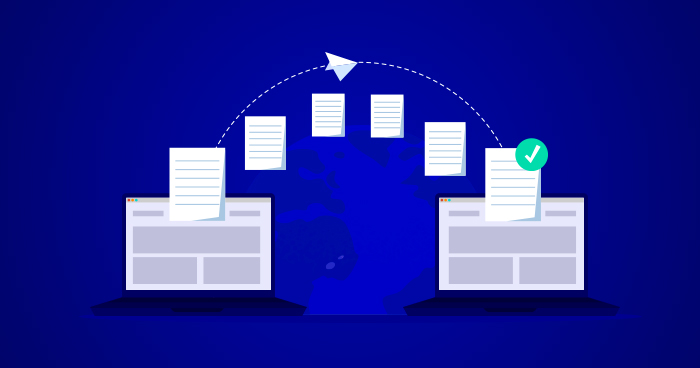
Website cloning lets you create a replica to test changes and updates safely, avoiding risks like downtime and lost rankings. It also provides a starting point for new designs or templates, which you can customize to make your own. Many users rely on website cloning for practical reasons such as migration to a new server, creating reliable backups, or testing major redesigns before going live.
For instance, maybe you like a particular hero image, navigation bar, or contact form design from another site, cloning can help you replicate and adapt those elements to fit your own design.
However, be cautious: cloning someone else’s site without permission can violate intellectual property rights and copyright laws.
In this article, we’ll cover methods for effectively cloning a WordPress site and also explain how to clone a website in general.
Let’s get started…
When and Why Do You Need to Copy a Website?
You’ll need to copy a website in different situations to ensure any changes are made and tested on the staging environment before they are pushed live.
This is particularly helpful for web agencies that run several websites across multiple WordPress hosting providers. Whenever an issue arises, they can create a copy of the client’s website, fix it, and push it live again.
Here are a few scenarios where you might need to clone a website.
1. Compatibility Testing
Compatibility testing involves checking whether the website components are working as expected and whether the entire code base can run on various hardware and/or software infrastructures.
Testing changes on a staging/cloned website instead of a live website is always recommended, mainly because untested themes and plugins could conflict with the existing installation and bring down the entire website.
Similarly, any custom changes in the code need to be tested at a staging/cloned site before they can be pushed to the live site.
2. Moving to a New Server
Migrating a live website to a new server is always risky. Doing so without cloning the site can result in the loss of everything.
If you want to transfer a website to PHP hosting or to a different hosting provider, you should create a clone by backing up website files and databases and importing the whole package to the new web host. If things go wrong, you always have an operational clone ready to take live. See why Cloudways is listed as one of the top Locaweb alternatives.
3. Back up Your Website
Cloning is also used to back up a website (including web files and database) and keep it at an offsite location for disaster recovery. In the case of WordPress, many people use different WordPress backup plugins.
I will also cover the process of copying a website that can be used to create a backup of your website.
4. Clone for a Similar Project
If you are a web agency that builds websites for clients, you may want to create a blueprint and copy it to another location to speed up the development process. Most of the time, these setups include theme and plugin configurations, code-level customizations, etc.
5. Take a Website Live
It’s common for developers to build websites on their preferred local environment and then clone the website to a web hosting server to ensure things do not break during the transition. This setup also requires a complete backup of website files and databases.
Before moving on to clone the website, you need to align several things. This ensures that your cloning process isn’t interrupted by negligence.
Already Thinking About Cloning? Make Cloudways Your Destination.
The Cloudways WordPress Migrator plugin lets you move unlimited WordPress sites for free. Install it, connect your server, and migrate without touching a single database or config file manually.
What Are the Prerequisites for Cloning a Website?
Before you begin cloning, it’s important to prepare the right setup so the process runs smoothly and safely. Missing even one step can cause errors, broken links, or data loss. Here’s what you’ll need in place:
- Access to Hosting or cPanel
Ensure you can log into your hosting account or cPanel. This gives you access to critical tools like file managers, databases, and server settings needed for cloning. - Staging and Production Environments
Use a staging environment (a private copy of your site) to test updates, new features, or redesigns without risking downtime. The production environment is your live site where changes eventually go public. - Website Backup (Files + Database)
Always create a full backup of your files and database before cloning. This ensures you can restore the site if something goes wrong. Tools like All-in-One WP Migration, UpdraftPlus, BackWPup, Duplicator, make backups easy. - Content Management System (CMS) Access
Depending on the platform (e.g., WordPress, Webflow), you’ll need admin access to clone and configure the site. Each CMS offers different tools and plugins for cloning. - URL Structure & Domain Mapping
If you’re moving to a new domain or subdomain, plan your URL structure carefully. Proper domain mapping avoids broken links and SEO issues after migration. - Sufficient Server Resources
Cloning can require extra storage and memory, especially for large websites. Make sure your hosting server has enough capacity to handle duplicate files and databases.
Once these prerequisites are in place, you can safely begin cloning your site using the method that best fits your needs.
How to Clone a Website: 5 Easiest Methods
As discussed above, I will use a WordPress website as an example throughout this guide. There are multiple methods to clone a WordPress website, and the same principles apply when learning how to clone a website of any type. In this guide, I’ll cover the 5 easiest methods to help you duplicate, migrate, or back up your site efficiently.
- Method 1: Clone a Website Using Your web Hosting Provider
- Method 2: Clone a Website Manually
- Method 3: Clone a Website Using a WordPress Plugin
- Method 4: Clone a Website Using HTML
- Method 5: Clone a Website Using Google Chrome Extension
Method 1: Clone a Website Using Your Hosting Provider (Easiest Option for Beginners)
If you want the simplest and safest way to clone a WordPress site with hosting, most modern hosting providers offer built-in cloning or staging features. This removes much of the manual work and minimizes risks.
👉 For example, Cloudways Staging makes it easy to duplicate your WordPress site with just a few clicks, whether you’re moving to another server or setting up a testing environment.
1. Simply select the application you wish to clone. To do that, click on View all Applications button.

2. Next to the application you want to clone, click on the three-dot menu. From the options that appear, select “Clone App/Create Staging.”
3. A popup will appear asking to select a server to clone the application. Click the dropdown, select the server on which you want to create a copy of the website, and click Continue.
The Cloudways Platform takes a few minutes to copy a website.
Note that “Clone App” and “Create as Staging” are different in nature.
Clone App only clones a website while in the process of creating a staging site, both the live and staged applications are synced so that you can perform Push/Pull actions on both the replica and live versions.
5. Once done, you’ll see a cloned version of your application. And the credentials shown under the Admin Panel heading will be your access to the back panel of your cloned site.
Why Use This Method? (Benefits)
- Beginner-friendly: No need to handle files or databases manually.
- Built-in backups: Cloudways lets you configure server-level or app-level backup before cloning, ensuring extra safety.
- Fewer risks: Hosting-level cloning reduces the chance of errors compared to manual transfers.
- Staging support: Test changes in Cloudways Staging before pushing them live.
The other way to clone a website is via WordPress plugins. Let’s see how that’s done.
Method 2: Clone a Website Manually (Free but Technical)
If you want to save costs, you can learn how to clone a WordPress site manually. This method gives you full control over every step but it requires working with FTP, databases (MySQL), and phpMyAdmin, so it’s best for users who are comfortable with server-level tasks.
Here are the steps to copy a website to a new location or the hosting provider.
1. Compress WordPress Files
First of all, navigate to the public_html directory of your WordPress installation, select all files, and compress them into a single archive.
You now have a zip file in the public_html folder, and the URL will be example.com/FILE_NAME.zip.
Now, you have two options – either download the zip file and upload it to the new location via an FTP client like FileZilla or upload the zip file to the new location directly via SSH [faster than the FTP upload].
2. Upload The Compressed File
In my example, I will use SSH because of the speed advantage. I logged into the new hosting location via SSH and browsed to the location/folder where I wanted a copy of my WordPress website. Ensure the folder is empty (if not, use the following command to remove everything).
rm -rf *
Important: The deletion process is irreversible. So before executing a command, move all important files and folders to a safe location.
Now, use the following command to download the generated zip file.
wget URL_OF_ZIP_FILE
Don’t forget to replace the URL_OF_ZIP_FILE with the actual URL of the zip file. Next, use the following command to unzip it.
unzip FILE_NAME.zip
All folders and files will be extracted in the target folder.
3. Database Migration
After copying web files, the next step involves exporting the database from the current location and importing it to the new location.
Login to your database manager (phpMyAdmin is a popular choice). Select your database and navigate to Export. Download the exported .sql file.
Log in to the new database manager, create a database, and navigate to Import. If you already have a database, simply import the downloaded .sql file.
Click Choose File and upload the previously downloaded .sql file.
4. Update the wp-config.php
Since the website is already up and running, the wp-config.php file needs to be updated to connect the WordPress installation on the new location with the new database.
Get to the public_html folder, open the wp-config.php file, and enter the new database credentials.
If you still see old URLs anywhere on the website, replace them using the Better Search Replace plugin.
Method 3: Clone a Website Using a WordPress Plugin
If you prefer a free website cloning method without touching files or databases, using a WordPress migration plugin is your best bet. Plugins simplify the entire process, you just export your site from the old location and import it into the new one.
One of the easiest tools is All-in-One WP Migration:
1. In your current WordPress installation, go to Plugins → Add New, search for All-in-One WP Migration, and Install and Activate the plugin.
2. From the left pane, navigate to All-in-One WP Migration → Export Click the Export to and select File.
3. Wait a few seconds, and a popup will appear asking you to download the backup.
4. Download the file to your computer; the format will be .wpress. Keep it safe, as you will need it in the next steps.
5. Install a fresh WordPress on the new location, log in, and install the All-in-One WP Migration plugin. From the left pane, navigate to All-in-One WP Migration → Import, click the Import from, and select File.
6. Browse the previously downloaded .wpress file.
Note: There is a chance that you might see the warning “Your file exceeds the maximum upload size for this site”. To deal with the issue, please refer to How to Increase Media File Maximum Upload Size in WordPress.
7. The process takes a while as it involves uploading and extracting the .wpress file. Once done, you will get a popup with a warning. Click Proceed.
8. On the next popup, click Save permalinks structure.
9. You will be taken to the WordPress login page. Log in with the admin credentials of your old WordPress installation (because the original database has been replaced with the old WordPress website’s database). Click Save Changes on the Permalinks tab, and you are done!
Popular WordPress Migration Plugins Compared
| Plugin | Best For | Key Features | Free Plan |
| All-in-One WP Migration | Beginners, quick cloning | One-click export/import, .wpress file format | Yes (512 MB limit) |
| Duplicator | Developers, complex migrations | Package installer, handles large sites, scheduled backups | Yes |
| WP Staging | Safe staging inside WordPress | Instant staging copies, push/pull to live, no FTP needed | Yes |
These WordPress plugins make cloning far easier than manual methods — no need for FTP or database management.
Method 4: Clone a Website Using HTML
Another way to duplicate a site is by copying its HTML code directly. This method is best suited for a static site (where content doesn’t rely on a database or CMS).
Step 1. Choose what you want to clone
Before you start the cloning process, it’s important to decide what you want to duplicate. For this example, I’ll be cloning the Cloudways About Us page for educational purposes.
Step 2. View the page source
The first step to cloning a page is finding the code that makes up its structure. Using Chrome, right-click on the page and select “Inspect.”
When you click “Inspect,” a panel will appear showing the code that comprises the page. Hovering over an element highlights its corresponding code, which is useful for understanding specific functions.
To view the entire page’s code, right-click again and select “View Page Source,” or use Ctrl + U on Windows or Command + Option + U on Mac.
Step 3. Save the content
With access to the source code, you can now save the HTML. Right-click and save the file, ensuring it is saved as a .html file type.
Step 4. Save essential assets and update paths
Often, CSS and other assets are linked externally. This can include logos, photos, and other elements. If you’re cloning a page you do not own, avoid copying image assets as they are likely copyrighted.
To find style sheets or other linked assets, look for <link> or <style> tags for CSS and <script> tags for JavaScript files. Save these files in the same directory as your HTML file.
Step 5. Save and view
Save your HTML file and open it in a web browser. You should now see a cloned version of the Cloudways About Us page.
Method 5: Clone a Website Using a Google Chrome Extension (For Design/UI)
If your goal is only to copy website design & not the backend or database, a Chrome Extension is a quick way to grab the frontend UI of a page. Tools like Save All Resources allow you to duplicate the layout and assets directly from your browser.
To download the source code of a website, you can use a Chrome extension called Save All Resources. Here’s how to get started:
1. Install the Extension: Add the Save All Resources extension from the Chrome Web Store.
2. Open the Website: Navigate to the website you want to duplicate. In this example, I’d again want to clone Cloudways About Us page.
3. Inspect the Page: Right-click on the page and select “Inspect” to open the developer tools.
4. Access Resource Saver: Click on the “More options” (>>), then find and select “Resource Saver.”
5. Save the Resources: In the Resource Saver panel, tick the necessary boxes and select “Save All Resources.”
6. Download and Extract: The resources will be downloaded to your computer. Locate the downloaded file, extract it, and open the folder.
7. Verify the HTML: Inside the folder, find the HTML file and open it in your browser to ensure it works correctly.
Now that you’ve completed the cloning process, regardless of the method used, you might encounter some issues that need addressing. Let’s discuss a few common problems and their solutions.
Ready to Clone Your WordPress Website in 5 Steps?
Cloning a WordPress website on Cloudways is a simple process, and it can be done quickly and easily in just 5 steps.
What are the Common Mistakes to Avoid
When cloning a site, these errors can cause major headaches:
- Skipping backups → Always create a full backup (files + database) before cloning.
- Using incorrect URLs → Misconfigured URL structure or domain mapping can break links and harm SEO.
- Ignoring server resources → Not checking storage or memory can crash your staging or clone.
- Copying only the UI → Saving just the frontend without the backend results in a non-functional site.
- Legal/ethical issues → Cloning a site you don’t own without permission can violate legal and ethical guidelines.
Troubleshooting Common Site Issues After Cloning
Cloning a website is usually done to resolve an issue on an existing website. But, doing it directly in the production environment risks rupturing the site. It’s always best to test in the staging environment.
Here are some common issues to address after cloning:
1. Broken Links
Broken links are a bad omen for any website. These are links that display errors when clicked. Google treats broken links as a negative sign and can take down your rankings.
This is a common issue with big websites with many pages. When satisfied with the results, you can check and fix the broken links on the staging environment and push the site live.
Some plugins you can use to fix broken links are Broken Link Checker, Link Checker Professional, and Link Whisper.
2. Checking Plugins
WordPress runs on plugins. That’s truly a blessing because there’s a plugin ready as a solution for any functionality you can think of. But, testing some sensitive plugins or installing new ones directly in the production environment can be a risk.
Especially if you have a high-functioning site with thousands of visitors and customers visiting regularly, not all plugins are always compatible with WordPress themes or customizations. So checking your plugins in the safe zone is always better before taking them live.
3. Performance Optimization
Improving the website’s performance is essential to offer a seamless experience to visitors. It can include anything from design modifications to trimming content for a better experience.
Performance optimization can also mean overhauling your website and changing the theme. This part can require many changes, and it’s always best to execute it in a staging environment first and then push the changes live.
Once the changes are made and functionality is thoroughly checked, you can take things live. There are very slim chances that what runs well in the staging environment will create mishaps in the production environment. Rarely happens.
Yet, it’s also best to thoroughly check the site after it goes live. And if you are a Cloudways user, you should have it backed up from the first moment.
Summary
Cloning a website offers several uses and benefits. We’ve covered common methods, which are generally straightforward. However, if you lack at least moderate technical knowledge, it’s best to avoid the manual method.
Cloudways’ intuitive dashboard makes creating a clone of your website super simple, as we demonstrated earlier, with just a few clicks. This is the safest approach since everything is backed up. Alternatively, you can use the plugin method, which is also very easy.
That’s it from my side. I hope your cloning process goes smoothly!
Q1: Can I Clone a Website for Free?
Yes. Free tools like WP Staging and All-in-One WP Migration work well for WordPress sites. Manual cloning with FTP and phpMyAdmin is also free but requires technical knowledge. The HTML source code method works for static pages at no cost.
Q2: What Is the Easiest Way to Clone a WordPress Site?
The easiest method is using your hosting provider’s built-in staging or clone feature, which creates a duplicate in a few clicks with no file management required. Alternatively, the All-in-One WP Migration plugin handles the full process through the WordPress dashboard.
Q3: Is Cloning a Website Legal?
Cloning your own site for migration, redesign, or backup purposes is completely legal. Copying another person’s website design, content, or code without permission raises copyright and intellectual property concerns and may violate applicable law.
Q4: What Are the Best WordPress Cloning Plugins?
All-in-One WP Migration is the most beginner-friendly option. Duplicator handles larger sites and more complex migrations well. WP Staging is purpose-built for creating staging copies directly inside WordPress without affecting the live site.
Q5: How Do I Migrate a WordPress Clone Safely?
Test the cloned site in a staging environment first. Verify all internal links work correctly, confirm URL mapping is accurate, and back up both the live and cloned versions before completing the migration.
Q6: Is It Safe to Clone a Website?
Yes, when you follow best practices. Always back up files and the database before starting, use a staging environment to avoid disrupting your live site, check for plugin conflicts after cloning, and ensure URL mapping is correct. Most hosting providers and WordPress plugins make the process low-risk.
Q7: What Is the Difference Between Clone App and Create as Staging?
Clone App creates a standalone duplicate of your site with no connection to the original. Create as Staging links the copy to your live site so you can push and pull changes between the two versions, making it easier to test and deploy updates safely.
[email protected]
Sarim Javaid is a Sr. Content Marketing Manager at Cloudways, where his role involves shaping compelling narratives and strategic content. Skilled at crafting cohesive stories from a flurry of ideas, Sarim's writing is driven by curiosity and a deep fascination with Google's evolving algorithms. Beyond the professional sphere, he's a music and art admirer and an overly-excited person.