Key Takeaways
- A headless CMS keeps content separate, and Next.js turns it into fast static pages that load quickly and help SEO.
- Since the CMS is separate from the frontend, there’s less exposure and you get full freedom over how the UI is built.
- You don’t need a Node.js server for this setup, Next.js can output static files that run on any normal web server.
In a headless CMS, content is stored and managed separately from the frontend. A lot of modern blogs and eCommerce sites work this way. Content lives inside the CMS and gets sent to the frontend through an API.
Next.js works really well with headless setup because it can fetch content directly from the CMS and turn it into static pages. What this does is that it keeps the frontend fast and easier to manage compared to typical theme-based systems.
In this blog, I’ll cover why using Next.js with a headless CMS makes sense, and some of its benefits. Then I’ll build a small blog project that connects to Contentful to fetch the data and display articles locally.
Finally, I will show you how to push that project to GitHub and deploy it live on Cloudways Managed Node.js Hosting (Velocity). (Also, learn how to easily deploy a Node JS application on Cloudways)
Why Use Next.js with a Headless CMS?
One of the main reasons I believe any developer pairs Next.js with a headless CMS is due to performance. Next.js can generate pages ahead of time during the build process.
So…the site doesn’t have to request content over and over again from the CMS whenever someone visits a page.
This approach is called SSG (Static Site Generation).
Because pages are already built before the user opens the site, page loading time stays fast. And, the server has less work to handle. It also has SEO benefits since search engines like Google can read the content of the page directly from the HTML instead of waiting for JavaScript to load everything.
And lastly, we can’t forget about flexibility. CMS handles content management, while Next.js handles frontend separately. This makes both sides easier to work with.
Optimized Hosting for Headless CMS Setups
Build a powerful Headless CMS backend for your Next.js frontend. Cloudways delivers fast API response times, built-in caching, and reliable server performance.
How to Build a Headless Blog Using Next.js and Contentful
To show you how a Next.js headless CMS works in practice, I’ll create a mini project. It’ll basically be a modern, clean blog frontend that automatically fetches and displays articles written inside Contentful.
What I’ll Be Using
- Node.js
- VS Code
- Contentful (Free tier)
- Next.js and Tailwind CSS
Step 1: Setting Up the Headless CMS (Contentful)
First things first, I need a backend to store my blog posts. For this tutorial, I’ll be using the free tier of Contentful.
After I sign up, Contentful asks if I want to use a template. To save time, I chose the Blog template so I don’t have to build a database structure from scratch.
To check I have everything I need in Contentful, I’ll go to the Content model tab. I can see a few models already created.

But I just need the page – Blog post one, which has 10 predefined fields like title, SEO properties, and content.
Okay cool. Now I’ll go to the Content tab and again, since I used a template, Contentful should’ve already generated sample blog posts. I just need to check that the status is set to Published so the data can be fetched by my app.
I can see the status as published so everything is good to go!
And one last thing I’ll do before I leave Contentful is copy my API keys so my Next.js app can talk to it.
To do this, I’ll go to Settings > API keys, click Add API key.
Then I’ll add a name and description so I remember what this key is for later. And click the Add API Key button to generate the keys.
I’ll leave this tab open so I can copy Space ID and the Content Delivery API – access token later.
Step 2: Setting Up the Next.js Project
Now I’ll set up my Next.js frontend. But…before I create that, I need Node.js on my machine.
In my case, I’m using my office laptop which has IT restrictions so I’ll download the standalone binary version of Node.js from nodejs.org.
Once the download is complete, I’ll unzip the file in my downloads folder.
Opening the project folder in Command Prompt
Now I’ll create a folder for my project. I’ll call it something simple like headless-blog.
Next, I’ll open up command prompt where I’ll be running all my commands.
So the first command I’ll run would be to get to my project folder:
cd C:\Users\abdulrehman\Desktop\headless-blog
Pointing Command Prompt to the Node binary
Now…since the command prompt has no idea where Node is on my machine, I’ll run this command with the path where I unzipped my Node folder:
set PATH=%PATH%;C:\Users\abdulrehman\Downloads\node-v24.15.0-win-x64\node-v24.15.0-win-x64
To confirm everything is working correctly, I’ll run these two commands:
node -v
npm -v
I can see the version numbers for Node and npm, which means everything is in order.
Creating the Next.js project
I’ll now create my Next.js project by running:
npx create-next-app@latest .
The reason why I added the dot at the end of the command is to ensure Next.js sets up the project inside my current headless-blog folder and not in a new one.
I’ll accept the default prompt that pops up right after running the npx create-next-app@latest . command by hitting enter, making sure Tailwind CSS is selected. I’ll use it to create a clean UI for my project.
Once Next.js finishes installing all the dependencies, it shows a Success! message.
Next I need the official packages to connect to Contentful and render its rich text. And to get them, I’ll run this installation command:
npm install contentful @contentful/rich-text-react-renderer
Step 3: Fetching Data and Building a Clean UI
Next I’ll open up my project folder in VS Code. To do this, I’ll go to File > Open Folder and then select my project folder.
Securing the API Keys
Alright, I have my project opened in VS code, and now I need to store the Contentful keys I generated earlier in my actual project. To do this, in the root of my project folder, I’ll create a new file called .env.local and paste the keys inside the file:
CONTENTFUL_SPACE_ID=your_space_id_here
CONTENTFUL_ACCESS_TOKEN=your_access_token_here
Setting up the Contentful Client
Next, I’ll set up the connection between my Next.js app and Contentful. To do this, in VS code, inside the app folder, I’ll create another folder and call it lib. And inside this new folder, a file called contentful.ts.
In the contentful.ts file, I’ll paste this code to initialize the client:
import { createClient } from 'contentful';

export const client = createClient({
  space: process.env.CONTENTFUL_SPACE_ID as string,
  accessToken: process.env.CONTENTFUL_ACCESS_TOKEN as string,
});
Building the Blog UI
Now I’ll open the app/page.tsx file and delete the default Next.js code. I’ll replace it with my own code for which I’ll use some Tailwind CSS classes to give my blog UI a clean layout.
In the code I added my content type ID (pageBlogPost) which I found by going in the Content model tab, then opening the page – Blog post model, and clicking the Copy ID button.
By adding the ID to the code, I’m telling Next.js which database table to pull data from, making sure it fetches my blog posts instead of author bios or landing pages.
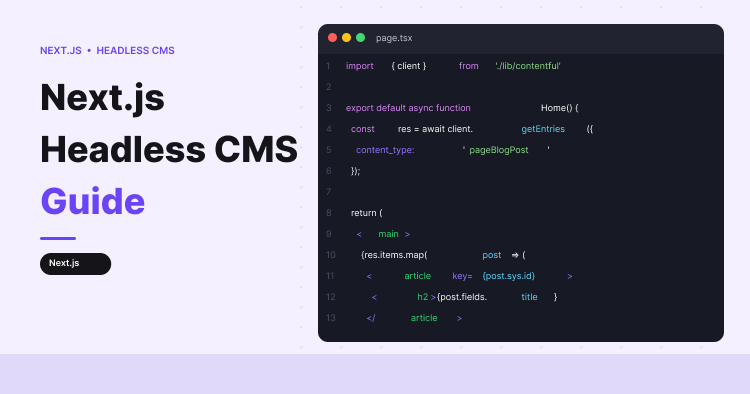
import { client } from './lib/contentful';
import { documentToReactComponents } from '@contentful/rich-text-react-renderer';

export default async function Home() {
  // Fetch entries matching the template's exact ID
  const response = await client.getEntries({ content_type: 'pageBlogPost' });
  const posts = response.items;

  return (
    <main className="min-h-screen bg-gray-50 py-12 px-4 sm:px-6 lg:px-8">
      <div className="max-w-3xl mx-auto">
        <h1 className="text-4xl font-extrabold text-gray-900 mb-8 text-center">
          My Headless CMS Blog
        </h1>

        <div className="space-y-6">
          {posts.map((post: any) => (
            <article
              key={post.sys.id}
              className="bg-white p-6 rounded-lg shadow-sm border border-gray-100 hover:shadow-md transition-shadow"
            >
              <h2 className="text-2xl font-bold text-gray-800 mb-3">
                {post.fields.title}
              </h2>
              {/* Checking if there is content before rendering to prevent errors */}
              {post.fields.content && (
                <div className="text-gray-600 prose">
                  {documentToReactComponents(post.fields.content)}
                </div>
              )}
            </article>
          ))}
        </div>
      </div>
    </main>
  );
}
Testing What We Built
Alright, time to test. I’m going to minimize VS code and hop back into command prompt and start the development server:
npm run dev
I’ll verify it started by opening my browser and going to http://localhost:3000.
Since I can see the exact sample posts that came with the Contentful template getting pulled and displayed in the UI I built, it means the headless connection is working perfectly.
The data is flowing from the backend (Contentful) directly into my frontend UI (Next.js).
Step 4: Setting Up the Project for a Live Server
Since my project is working properly on local setup, I can deploy it on a live server. For this tutorial, I’ll use Cloudways.
If you also want to deploy on Cloudways, you can use the 3-day free trial we offer. Since I already have my server ready, I’ll just create a new PHP application.
Once I have my PHP application ready on Cloudways, to make the Next.js project run properly on it, I’m not going to run a full Node.js backend on the server. Instead, I’m going to run a static export.
This way, Next.js generates regular static HTML files that can run on pretty much any web server.
To do this, I’ll open the next.config.ts in VS Code and add just one line inside the configuration block: output: ‘export’.
Like this:
import type { NextConfig } from "next";

const nextConfig: NextConfig = {
  output: 'export',
};

export default nextConfig;'
After saving the file, I’ll go back to the command prompt and stop the dev server. I’ll hit CTRL+C to stop it.
And then I’ll run the build command:
npm run build
While the command runs, Next.js will start to pull all the sample blog posts from Contentful and convert them into static HTML files. And once that is done, there’ll be a new out folder in my project.
And if I check VS code now, I can see the out folder created.
This is the folder with the final site ready that I’ll upload onto my Cloudways Node JS hosting server.
Step 5: Pushing the Project to GitHub
Before I can push my code to Git, I’ll go to GitHub and create a repository.
Once the repo ready, I’ll go back to command prompt and run these commands one at a time to upload my project to Git:
git init
git add .
git commit -m "First commit with static export"
git branch -M main
git remote add origin https://github.com/abdulrehman293/nextjs-headless-cms
git push -u origin main
Now I’ll go back to my GitHub repo and refresh. And as expected, all my files and folders are uploaded to my repo.
Step 6: Deploying to Cloudways Managed Node.js Hosting
Now that everything is working perfectly on my local setup and the code is safely on GitHub, I’m going to take this headless blog live. I’ll deploy it on Cloudways Managed Node.js Hosting (Velocity).
Launching the app on Cloudways
I’ll head over to my Cloudways dashboard to create a new Node.js application. I’ll click on Velocity from the left-side menu and hit Get Started.
Then I’ll just pick the Starter plan and click Proceed.
Connecting my GitHub repository
Next, I need to link up my code. Cloudways gives options to connect to GitHub, GitLab, or Bitbucket.
Since my project is on GitHub, I’ll connect to that.
Once my account is connected, I’ll pick my nextjs-headless-cms repo from the dropdown and click Continue.
After that, Cloudways will automatically figure out the settings for my app. In my case, it picked the framework as Next.js CSR, the branch as main, and the node version as Node 24 (LTS).
I didn’t have to configure these settings manually.
Adding the Contentful API keys
Before I actually deploy, there’s one important step. My app needs the Contentful API keys to fetch the blog posts. Locally, I stored them in my .env.local file, and didn’t push it to GitHub for security reasons. So now I’ll add them to Cloudways.
I’ll go to the Environment Variables section, click Add, and paste my keys exactly as I did in the env file:
- CONTENTFUL_SPACE_ID : your_space_id_here
- CONTENTFUL_ACCESS_TOKEN : your_access_token_here
What this’ll do is ensure that my live app can securely talk to my Contentful space to get the data.
Deploying the app
With the environment variables added, I will hit Save, and then click Deploy Now.
Cloudways will start pulling the code from my GitHub, install all the npm dependencies, run the build command, and start the server.
Checking the live blog
Once the deployment finishes up, I can access the temporary Cloudways URL from my app’s Overview page in the dashboard.
And that’s it! Now if I click my Application URL, the site is live on Cloudways, displaying the exact same sample posts we fetched from Contentful earlier on the local setup.
Wrapping Up
That wraps up our guide on Next.js headless CMS. In this blog, I tried to cover exactly why this stack makes sense and the performance/security benefits you can get by separating your backend from the frontend.
I showed you how to build a Next.js frontend that automatically pulls data from Contentful on a local setup. After that, I pushed the working project to my GitHub and deployed it live using Cloudways Managed Node.js Hosting (Velocity).
The full project is available on my GitHub. Feel free to clone it and use the code as a starting point for your own headless blog. If you have any questions about the setup or the deployment process, just let me know in the comments.
Q. Is Next.js headless?
No, Next.js is a frontend framework. It is not a CMS. It is however used commonly with headless CMS platforms like Contentful or Sanity to display content on the frontend.
Q. What is the best headless CMS for Next.js?
This depends on your project. Contentful is easy to start with. Sanity gives you a bit more flexibility. Strapi is best if you want to host the CMS yourself.
Q. Does a headless CMS help with SEO?
Yes it does. A headless CMS stores the content, while Next.js renders the content into fast-loading pages that search engines can crawl more easily. So the easier the page to crawl, this can indirectly benefit your site’s SEO.
Q. Do I need a Node.js server to host Next.js?
Not always. If the project uses SSR or API routes, you’ll require Node.js. But for static exports, generated files can be hosted on a regular web server without running Node.js.
Abdul Rehman
Abdul is a tech-savvy, coffee-fuelled, and creatively driven marketer who loves keeping up with the latest software updates and tech gadgets. He's also a skilled technical writer who can explain complex concepts simply for a broad audience. Abdul enjoys sharing his knowledge of the Cloud industry through user manuals, documentation, and blog posts.