Key Takeaways
- Auth.js handles the complex backend security out of the box, saving you from writing password hashing and session logic from scratch.
- Using JWTs for Next.js authentication keeps your app fast because the server doesn’t have to query a database for every single page load.
- Next.js splits code into server and client components, so using middleware is the most efficient way to secure routes before pages even render.
Authentication is how an application knows who to let in and who to block. Every modern SaaS and web app uses authentication. Users type in their creds, the server verifies and remembers them as they move through the app.
Next.js handles authentication really well when you use it with tools like Auth.js. It can verify user credentials, generate secure tokens, and protect private pages. This keeps frontends secure without having to deal with complex cryptography.
In this blog, I’ll talk about why using JSON Web Tokens (JWT) with Auth.js makes sense for Next.js. Also how route protection actually works.
Then I’ll build a small app with a custom login form that generates a JWT to protect a private dashboard. And once it’s working, I’ll deploy the whole thing live on Cloudways Managed Node.js Hosting (Velocity).
Let’s get started…
- What is Auth.js (formerly NextAuth)
- Why Use JWT for Next.js Authentication?
- Server-Side vs. Client-Side Auth in Next.js
- Protecting Routes with Next.js Middleware
- How to Build a Next.js App with JWT Authentication
- What I’ll Be Using
- Step 1: Setting up the Next.js Project
- Step 2: Installing and Configuring Auth.js
- Step 3: Building the Login Form
- Step 4: Adding Middleware for Route Protection
- Step 5: Creating the Protected Dashboard & Logout
- Step 6: Testing the App Locally
- Step 7: Pushing to GitHub
- Step 8: Deploying to Cloudways Managed Node.js Hosting
- Wrapping Up
What is Auth.js (formerly NextAuth)
Auth.js, previously called NextAuth, is a tool used in Next.js applications to handle authentication. It’s one of the most widely used solutions for adding login functionality to modern web applications.
Instead of building authentication from scratch, which requires handling things like password hashing, token expiration, session management, and secure cookies, Auth.js takes care of all this.
So when all this gets handled automatically, I can just simply connect it to my project, define how users should sign in, and Auth.js manages the rest behind the scenes in a secure and reliable manner.
Why Use JWT for Next.js Authentication?
The reason why someone would use JWTs instead of traditional database sessions like storing a session ID in a PostgreSQL or MongoDB is simple: JWT works like a secure digital ID card.
When a user logs in successfully, the server hands them an ID card and securely stores it in their browser as well.
So whenever a user tries to load a protected URL, the server checks the ID card to see if the user has access to the specific URL and that it is also valid and hasn’t expired. What it doesn’t have to do constantly is query the database every time the user clicks a link.
What this does is that it keeps the application fast and takes massive load off the database.
Secure Managed PHP Hosting for Your Authentication Backend
Deploy a dedicated PHP or Laravel environment to securely manage users, issue tokens, and power your Next.js frontend with a reliable API.
Server-Side vs. Client-Side Auth in Next.js
Because Next.js App Router splits code into Server and Client components, developers have to handle authentication differently depending on where they are.
For server-side auth, this means checking the session securely on the backend before the page is rendered. This is where the security aspect is taken care of. If a user doesn’t have a valid JWT, the server refuses to show the requested URL.
Client-side auth is more about the UI and less about security. It’s when the front-end React components check the session to decide, for example, whether to show a “Sign In” button or a user profile picture. To put it simply, it’s for visual updates, not hard security.
Protecting Routes with Next.js Middleware
Without proper authentication, anyone could just type a restricted URL in the browser and bypass the login screen entirely. This is what can be prevented with Next.js Middleware. I’ll show you this too when I cover the mini project later in this blog.
Instead of manually checking if a user is logged in for every single page, the middleware checks this globally. It does this by sitting between a user’s web request and the server processing the request.
Before Next.js renders the protected page requested by the user, the middleware catches it and checks for a valid JWT, the ID card I told you about. If the token is good, the page loads. If it’s missing or expired, the user gets redirected back to the login screen.
The best thing about this is that it keeps the code clean and only takes a few lines to set up.
How to Build a Next.js App with JWT Authentication
Now that I’ve covered what JWT authentication is, to help you understand how it actually works, I’ll build a simple Next.js app with a login page, a protected dashboard, and a logout button.
What I’ll Be Using
- Node.js
- VS Code
- Next.js and Tailwind CSS
- Auth.js (NextAuth)
Step 1: Setting up the Next.js Project
First, I’ll open up the command prompt. I’ll create a folder for my project and move into it:
mkdir nextjs-auth-blog
cd nextjs-auth-blog
Once my project is created, the first thing I need is Node.js on my machine.
In my case, I’m using my work laptop which has IT restrictions. I can’t download the standard version so I’ll just get the standalone binary version of Node.js from nodejs.org.

This is a zip folder so I’ll unzip it to the downloads folder for my ease.
Before I can run Node.js commands, I need to tell Command Prompt where my Node.js folder is. To do this, I’ll run this command:
set PATH=%PATH%;C:\Users\abdulrehman\Downloads\node-v24.15.0-win-x64\node-v24.15.0-win-x64
Now I can create my Next.js project by running this command:
npx create-next-app@latest .
I added a dot at the end to tell Next.js to create the project inside the current folder and not create a completely new one.
Once the command runs, I’ll hit enter to accept the default prompt. This will install Tailwind CSS along with some other default Next.js packages.
Once I see the success message, I’ll can open my project folder in VS Code.
Step 2: Installing and Configuring Auth.js
To open my project in VS code, I’ll go to File > Open Folder and then select the project folder.
Now, I’ll leave VS code open and install the Auth.js package first. To do this, I’ll head back to command prompt and run:
npm install next-auth
To let Auth.js securely sign authentication tokens, I’ll provide it with a secret key. To do this, in the root of my project folder, I’ll create a file called .env.local and in it, I’ll add a random string:
NEXTAUTH_SECRET="my_super_duper_secret_jwt_key_123"
To handle the login logic for my project, I’ll set up the Auth.js routes. This will take care of user sign-ins, sign-outs, and session handling.
Inside the app folder, I’ll create a folder called api. Then inside it, a folder called auth. And in that, a folder named […nextauth] file to manage authentication.
Inside the last folder, I’ll create a file called route.ts.
Final path looks like this: app > api > auth > […nextauth] > route.ts
Now, in the route.ts file, I’ll set up the Credentials provider and also a dummy user. To do this, I’ll paste this code in the file:
import NextAuth from "next-auth";
import CredentialsProvider from "next-auth/providers/credentials";

const handler = NextAuth({
  providers: [
    CredentialsProvider({
      name: "Credentials",
      credentials: {
        email: { label: "Email", type: "email" },
        password: { label: "Password", type: "password" }
      },
      async authorize(credentials) {
        // Hardcoded dummy user for testing
        const user = { id: "1", name: "Admin", email: "[email protected]" };

        if (credentials?.email === "[email protected]" && credentials?.password === "password123") {
          return user;
        }
        return null;
      }
    })
  ],
  session: {
    strategy: "jwt",
  },
  pages: {
    signIn: "/", // Redirects to our custom home page for login
  }
});

export { handler as GET, handler as POST };
Step 3: Building the Login Form
Now It’s time to create the page where the user will type their credentials. To do this, I’ll open app/page.tsx and delete the code inside it.
Since this form I am making will handle user input and also submit data, I’ll turn it into a Client Component by adding “use client” at the very top.
Like so:
"use client";

import { signIn } from "next-auth/react";
import { useState } from "react";
import { useRouter } from "next/navigation";

export default function Home() {
  const [email, setEmail] = useState("");
  const [password, setPassword] = useState("");
  const router = useRouter();

  const handleSubmit = async (e: React.FormEvent) => {
    e.preventDefault();

    const result = await signIn("credentials", {
      email,
      password,
      redirect: false,
    });

    if (result?.ok) {
      router.push("/dashboard");
    } else {
      alert("Invalid credentials");
    }
  };

  return (
    <main className="flex min-h-screen items-center justify-center bg-gray-50">
      <div className="w-full max-w-md bg-white p-8 rounded-lg shadow-md">
        <h1 className="text-2xl font-bold text-center mb-6">Login</h1>
        <form onSubmit={handleSubmit} className="space-y-4">
          <div>
            <label className="block text-sm font-medium text-gray-700">Email</label>
            <input
              type="email"
              className="mt-1 block w-full border border-gray-300 rounded-md p-2"
              value={email}
              onChange={(e) => setEmail(e.target.value)}
              required
            />
          </div>
          <div>
            <label className="block text-sm font-medium text-gray-700">Password</label>
            <input
              type="password"
              className="mt-1 block w-full border border-gray-300 rounded-md p-2"
              value={password}
              onChange={(e) => setPassword(e.target.value)}
              required
            />
          </div>
          <button type="submit" className="w-full bg-blue-600 text-white p-2 rounded-md hover:bg-blue-700">
            Sign In
          </button>
        </form>
      </div>
    </main>
  );
}
Step 4: Adding Middleware for Route Protection
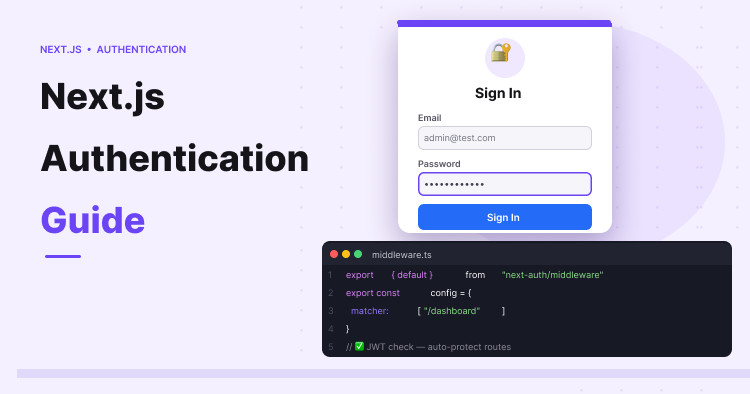
Okay so…right now, anyone can simply type /dashboard in the URL and bypass the login logic I created entirely. So, I’ll lock this down by creating a file called middleware.ts in the root of my project folder.
Auth.js makes route protection simple. I’ll use its default middleware and define which routes should be protected.
export { default } from "next-auth/middleware";

export const config = {
  matcher: ["/dashboard"],
};
Step 5: Creating the Protected Dashboard & Logout
If the user logs in successfully, passing my authentication logic, I want them to actually have a place where they can land. For this, I’ll create a folder inside app called dashboard and add a page.tsx file inside it.
For this page, I’ll keep things simple and display the logged-in user’s email by using Auth.js to check the current session. I’ll also add a simple client-side button to handle logging out.
import { getServerSession } from "next-auth";
import LogoutButton from "./LogoutButton";
import { redirect } from "next/navigation";

export default async function Dashboard() {
  const session = await getServerSession();

  // Extra safety check
  if (!session) {
    redirect("/");
  }

  return (
    <main className="min-h-screen bg-gray-100 p-10">
      <div className="max-w-4xl mx-auto bg-white p-8 rounded-lg shadow">
        <h1 className="text-3xl font-bold mb-4">Secure Dashboard</h1>
        <p className="text-gray-600 mb-8">
          Welcome back, <span className="font-semibold text-black">{session?.user?.email}</span>
        </p>
        <LogoutButton />
      </div>
    </main>
  );
}
Now to make the logout button work, I’ll create a another file in the dashboard folder called LogoutButton.tsx:
"use client";

import { signOut } from "next-auth/react";

export default function LogoutButton() {
  return (
    <button
      onClick={() => signOut({ callbackUrl: '/' })}
      className="bg-red-600 text-white px-4 py-2 rounded-md hover:bg-red-700"
    >
      Sign Out
    </button>
  );
}
Step 6: Testing the App Locally
Alright, now it’s time to test what I built. I’ll go back to command prompt and start the dev server:
npm run dev
Now I can visit http://localhost:3000 in my browser and I should see my login form.
I can login as well with my credentials to see if it is working:
Now if I try to visit /dashboard to do a cheeky bypass, the middleware instantly kicks me back to the login page.
If I put in my dummy credentials again, I can sign in, meaning the JWT has been verified. And when I click Sign Out, the session gets destroyed and I get redirected to the login screen.
Step 7: Pushing to GitHub
With the project working perfectly, I’ll stop my dev server by running CTRL+C in the command prompt and push the code to Git. So if you also want to reuse this project, you can get it from my GitHub repo.
To push code to Git, I’ll first create a new repo on GitHub.
Then I’ll run the commands below in CMD one by one.
git init
git add .
git commit -m "Working NextAuth JWT login"
git branch -M main
git remote add origin https://github.com/abdulrehman293/nextjs-auth-blog.git
git push -u origin main
Now if I go back to my GitHub repo and refresh, all my files and folder should be uploaded to my repo.
Step 8: Deploying to Cloudways Managed Node.js Hosting
With the working project pushed to GitHub, I can deploy it on our Cloudways Managed Node.js Hosting (Velocity).
I’ll quickly create a new Node app. For this demo, I’ll pick the Starter plan.
Next, I’ll have to connect my GitHub, GitLab, or Bitbucket to Cloudways. Since my project is on GitHub, I’ll connect to that.
Then I’ll pick my nextjs-auth-blog repo that I pushed to Git and hit Continue.
Now Cloudways will automatically pick the right framework, branch, and node version for my application. The Root Directory, I’ll leave it as default.
Next I’ll head to Environment Variables and click Add. Now I’ll add the same NEXTAUTH_SECRET and its value to Cloudways that I added in step 2 in my .env.local file to sign the JWTs.
I’m doing this because my .env.local file never got pushed to GitHub, so Auth.js won’t have its key on the server unless I add it here.
- NEXTAUTH_SECRET — the same secret string I used locally
While I’m on this screen, I’ll add one more environment variable: NEXTAUTH_URL.
Doing this because Auth.js needs to know the app’s actual URL to handle redirects properly. So when I hit sign-out, the app should be able to redirect back to the Login screen.
I’ll head back to Environment Variables, click Add, and set:
- NEXTAUTH_URL — the temporary Cloudways URL from the Overview page
Then I’ll hit Save and click Deploy Now.
Cloudways will now start pulling the code from GitHub, install the dependencies, run the Next.js build, and start my app. This’ll take 5-7 minutes so I’ll hang on till then.
Once the deployment finishes, I’ll copy and paste the temporary Cloudways URL from the app’s Overview page into my browser and hit enter.
On the login form, just like I did locally, I’ll type my credentials, [email protected] and password123, and it’ll log me into the dashboard.
I’ll also test the logout button and should drop me back on the login screen at the live URL, exactly how it should behave.
And that’s the whole JWT auth flow running on Cloudways managed Node.js hosting. The middleware is still protecting the dashboard, the login still issues a valid token, and logging out still ends the session properly.
Everything works the same way it did on my local setup, except now the app is live and accessible from anywhere on a live server.
Wrapping Up
This wraps up our guide on Next.js authentication. In this blog, I tried to cover why using Auth.js for authentication in Next.js makes sense. I also covered performance and security benefits you get by using tokens instead of traditional database sessions.
I also covered how to build a secure Next.js app that handles custom logins and protects a private dashboard, and then deployed it live on Cloudways Managed Node.js Hosting (Velocity) so it’s reachable from anywhere.
I also uploaded the project to my GitHub so you can easily reuse the project files.
If you have any questions, leave a comment below and I’ll get back to you.
Q1: Does Next.js have authentication?
No, Next.js doesn’t have built-in authentication by default. In order to implement authentication, you’d have to use third-party libraries like Auth.js, Clerk, or Firebase to handle logins securely.
Q2: What is Next.js middleware for authentication?
Middleware is basically a script that runs before a page loads to check if a user is logged in. If a user doesn’t have a valid session, Middleware redirects the user back to the login screen.
Q3: Is next auth JWT?
Yes. By default, Auth.js uses JSON Web Tokens (JWTs) for session management. However, it can also be tweaked to use traditional database sessions if your project requires them.
Q4: Is Next Auth deprecated?
No, it just got rebranded to Auth.js so it could support other frameworks aside from just Next.js. The Next.js package (next-auth), is still widely used and actively maintained.
Abdul Rehman
Abdul is a tech-savvy, coffee-fuelled, and creatively driven marketer who loves keeping up with the latest software updates and tech gadgets. He's also a skilled technical writer who can explain complex concepts simply for a broad audience. Abdul enjoys sharing his knowledge of the Cloud industry through user manuals, documentation, and blog posts.