WooCommerce Sold Out badge often presents a problem to the developers. The problem becomes a challenge when the store has several variations of a product.
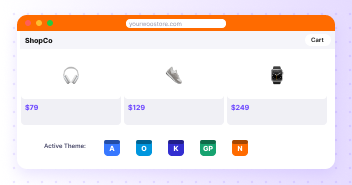
In many cases, the variations are sold at different rates. Here is an image from a sample WooCommerce that demonstrate the problem of variation of products on sale:

Add WooCommerce Sold Out Badge Storewide
The most common scenario is the placement of the WooCommerce Sold Out badge across the store for all the products that have been sold out. This can be accomplished by placing the following code snippet in the functions.php file of the theme.
add_action( 'woocommerce_before_shop_loop_item_title', function() {
   global $product;
   if ( !$product->is_in_stock() ) {
       echo '<span class="now_sold">Now Sold</span>';
   }
});
Here is how the code would look like in action:
Add WooCommerce Sold Out Badge for a Single Product
The next scenario is when you need to place the badge for a single product. For this, place the following code snippet in functions.php file of the theme. This will place the badge in front of the product summary:
add_action( 'woocommerce_before_single_product_summary', function() {
   global $product;
   if ( !$product->is_in_stock() ) {
       echo '<span class="now_sold">Now Sold</span>';
   }
});
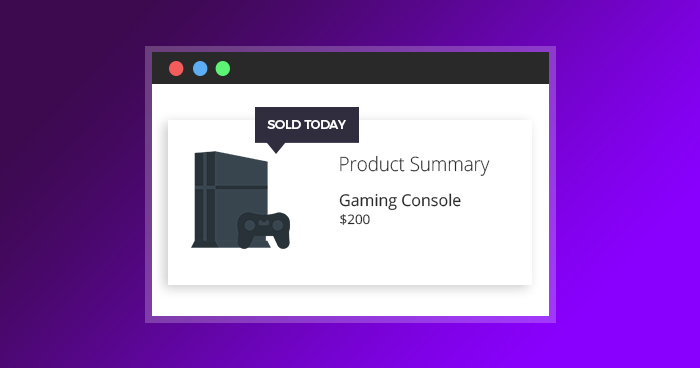
This is how the code snippet will place the badge on the product summary page:
Place the following CSS code in the style.css file (located in the theme folder):
.now_sold {
    background: #000080;
    color: #fff;
    font-size: 14px;
    font-weight: 700;
    padding: 6px 12px;
    position: absolute;
    right: 0;
    top: 0;
}
Want to Test Your Changes on Free Staging URLs?
Try Cloudways managed WooCommerce hosting for a hassle-free experience.
An Alternative Method
There is another method of adding the badge. Just add the following code to functions.php of the theme:
add_filter( 'woocommerce_get_availability', 'wcs_custom_get_availability', 1, 2);
function wcs_custom_get_availability( $availability, $_product ) {
   // Change In Stock Text
   if ( $_product->is_in_stock() ) {
       $availability['availability'] = __('Available!', 'woocommerce');
   }
   // Change Out of Stock Text
   if ( ! $_product->is_in_stock() ) {
       $availability['availability'] = __(' Now Sold ', 'woocommerce');
   }
  return $availability;
}
Conclusion
In this short tutorial, I demonstrated how you could easily add a WooCommerce store Sold Out badge to the products’ summary. If you need help, just ask the question in the comments below.
Owais Khan
Owais works as a Marketing Manager at Cloudways (managed hosting platform) where he focuses on growth, demand generation, and strategic partnerships. With more than a decade of experience in digital marketing and B2B, Owais prefers to build systems that help teams achieve their full potential.